

When to Use
Configure this tool when your agent needs to:- Look up a customer’s record in HubSpot, Salesforce, or your own CRM
- Retrieve a policy status, account balance, or order history in real time
- Update a contact’s information based on what the customer says
- Create a support ticket, booking, or record mid-conversation
- Trigger any external API action based on conversation context
Prerequisites
Before adding an integration tool to your agent, your integration must already be connected and authenticated.See How to add an Integration and How to Configure Authentication for setup steps.Once the integration is connected and shows Auth connected, you can add its tools to any agent.
Steps to Add via Agent Builder
Adding an integration tool is a 3-step wizard inside the Agent Builder.Step 1: Select the Tool
- Open the Agent Builder
- Click + Add Tool
- Select Add Integration Tool
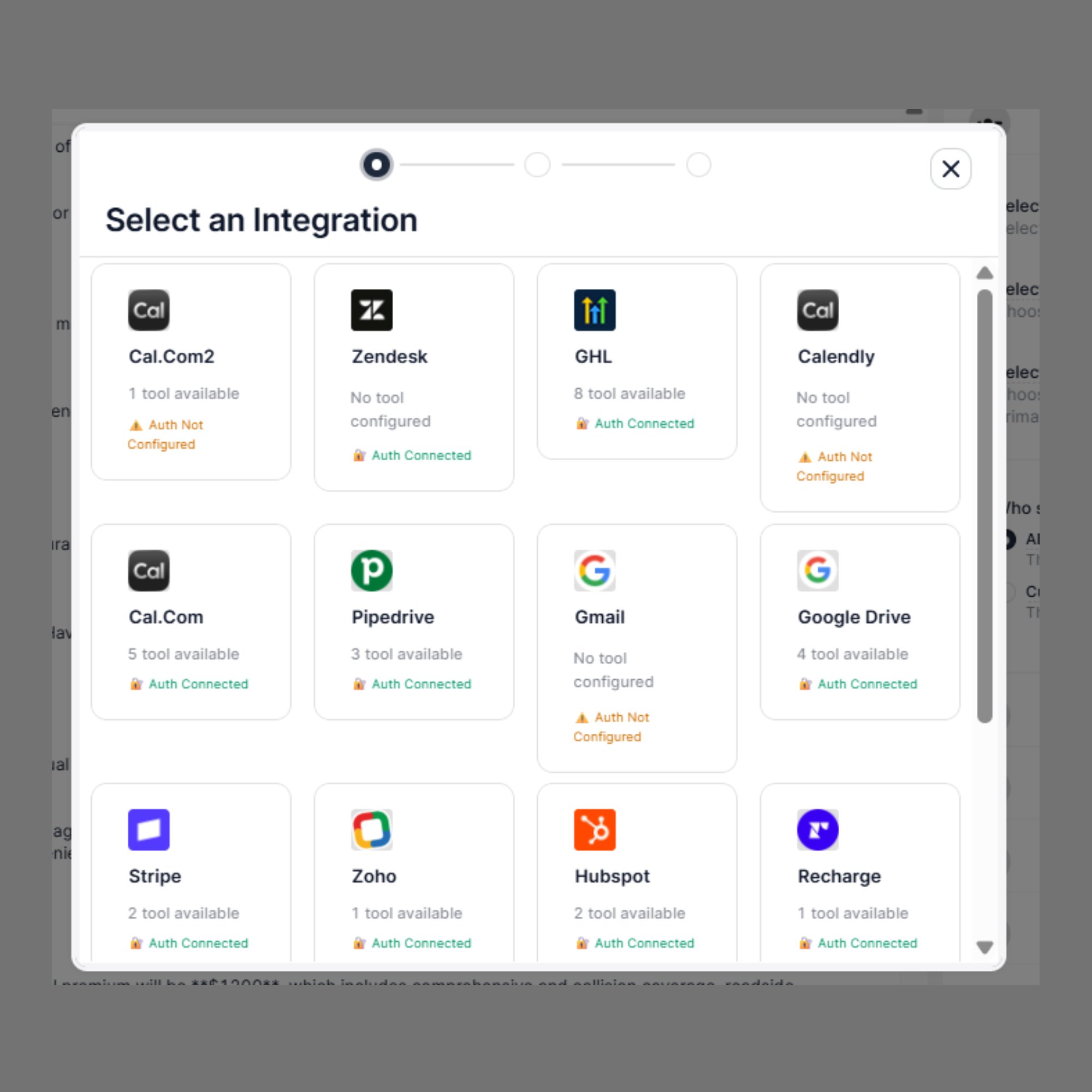
- Choose your connected integration from the list (e.g., HubSpot)
- The wizard shows all available tool actions for that integration
- The action name (e.g.,
get_customer_list,update_customer_info) - The HTTP method badge (e.g.,
GET,PATCH,POST) - The endpoint URL the action calls
Step 2: Configure the Instruction
After selecting the tool, the wizard moves to the configuration screen.Instruction (When this tool should be invoked)
Write a clear, specific instruction that tells the AI agent when to trigger this API call during the conversation.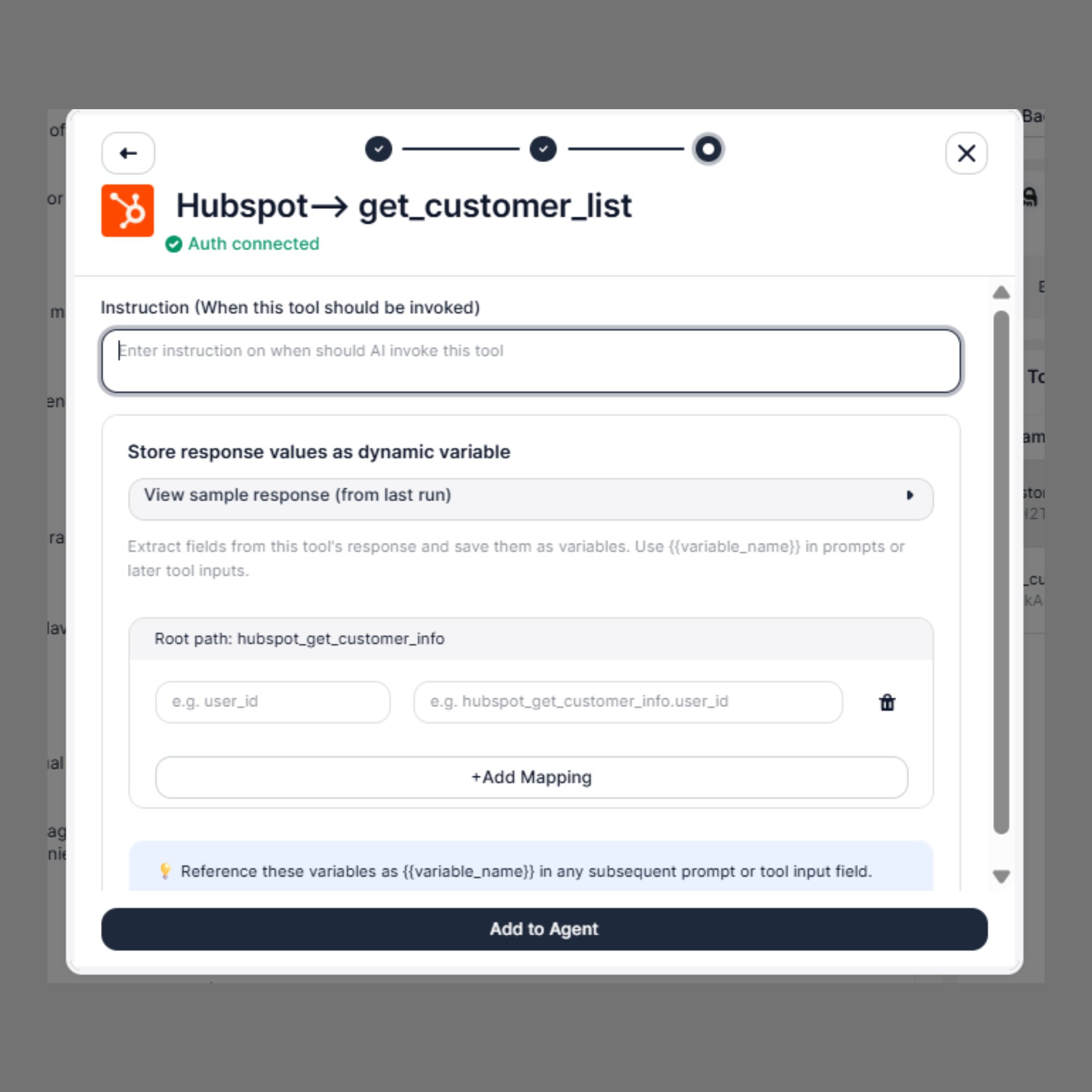
Step 3: Map Response Values as Dynamic Variables
The final step lets you extract values from the API response and save them as{{variable_name}} variables for use in subsequent prompts or tool inputs.
View Sample Response
After the tool has been run at least once, click View sample response (from last run) to see the actual JSON returned by the API. Example — HubSpotget_customer_list response:
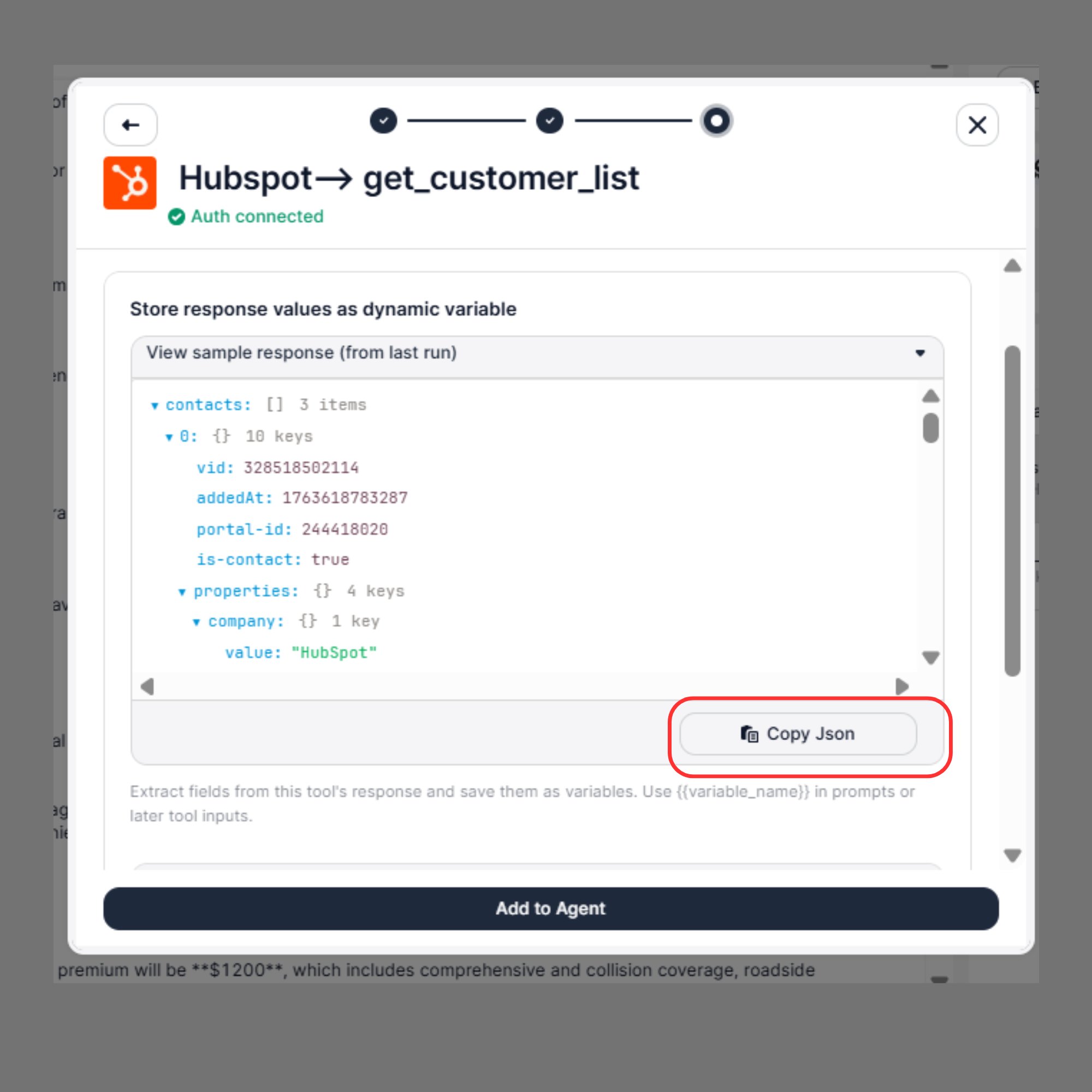
Root Path
The Root path defines the base key in the response from which field mappings are extracted. It is auto-populated based on the tool name.Add Mapping
Click + Add Mapping to define which fields from the API response should be saved as variables. Each mapping row has two parts:- Response field path — the key from the JSON response you want to capture (e.g.,
1.value,vid-offset) - Variable name — the
{{variable_name}}the value will be stored as
Once mapped, these variables are immediately available in all subsequent prompts and tool inputs within the same agent:
Reference these variables as {{variable_name}} in any subsequent prompt or tool input field.
Full Example: HubSpot Lookup + Update Flow
Scenario: An insurance renewal agent looks up the customer in HubSpot, then updates their renewal status after confirmation.Tool 1 — get_customer_list
Tool 2 — update_customer_info
The
{{contact_guid}} extracted from the first tool flows directly into the endpoint URL of the second tool — no manual copying or re-entry needed.
Using Dynamic Variables in Integration Tools
Variables from Extract Dynamic Variables or from a previous integration tool’s response mapping can be used anywhere in your tool configuration: In endpoint URLs:Best Practices
- Write specific Instructions for each tool — if two tools have similar descriptions, the agent may call the wrong one
- Always check Auth connected is showing before adding a tool to your agent — unauthenticated tools will fail silently
- Use response mapping to extract IDs and keys from the first API call, so subsequent calls can reference them without re-asking the customer
- Add mappings only for fields you will actually use — unnecessary variables add noise to the agent context
- Test each tool independently using the Test button in the Tool Library before combining them in a live agent flow
- Combine with Extract Dynamic Variables to capture customer-provided values before making API calls that need them