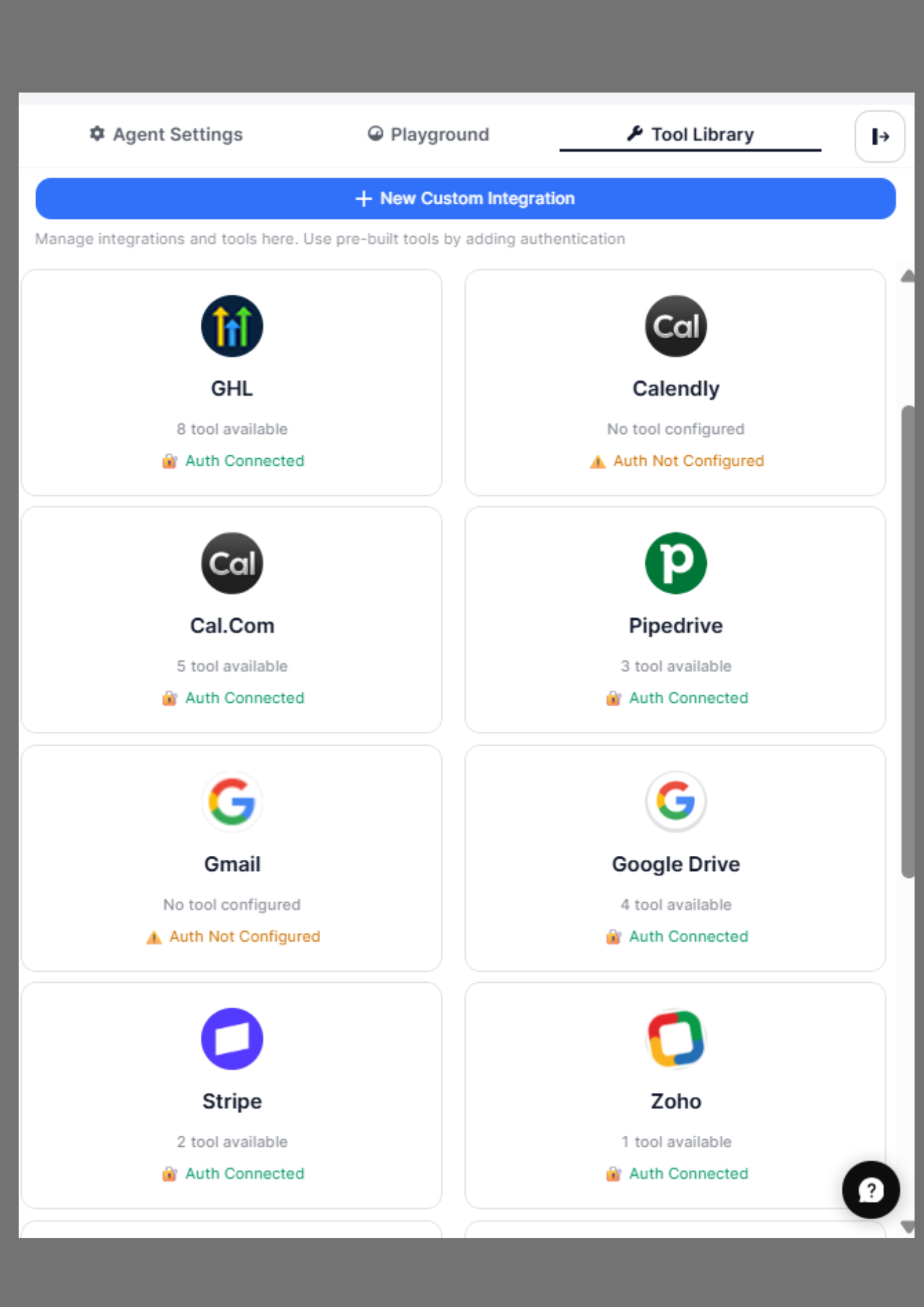
The Manage Tools & Apps section in SigmaMind AI allows you to connect external applications, configure actions, and enable your Voice AI agents to interact with real-world services such as scheduling, CRM, email, and more.
Manage Tool
This App Marketplace provides a centralized interface where you can:
  • Connect third-party apps
  • Configure authentication
  • Create and manage tool actions
  • Define dynamic variables
  • Test API integrations
  • Enable actions for Voice AI agents
These integrations allow your AI agent to perform tasks such as booking appointments, retrieving data, sending notifications, and automating workflows. How Tool Execution Works
User → AI Agent → Tool Action → External API → Response → AI Agent → User

Accessing Manage Tools & Apps

To access this section:
  1. Open the Agent Builder
  2. Click Manage Tools/Apps option
  3. Browse available integrations or add custom tools
This section allows you to view connected apps, configure authentication, create actions, and manage integrations for your AI agent. You will see a list of pre-built integrations, such as:
  • Cal.com
  • Shopify
  • Recharge
  • HubSpot
  • Stripe
  • Zoho
  • Pipedrive
Each app displays its authentication status and available actions. Default Integrations vs Custom Tools Use Default Integrations when: • The app is already available (Cal.com, Shopify, HubSpot, etc.) • No custom API configuration needed Use Custom Tools when: • Your app is not listed • You want to connect internal systems • You need custom API workflows

Connecting an App

To connect an app:
  1. Select the desired app (e.g., Cal.com)
  2. Click Configure Authentication
  3. Choose an authentication method
  4. Enter the required credentials
  5. Click Submit
Once connected, the app’s actions become available for your AI agent.

Supported Authentication Types

SigmaMind AI provides multiple authentication methods to securely connect external applications. You can select the required authentication type based on the API requirements of the app you are integrating.

Available Authentication Types

The following authentication types are supported:
  • Bearer Token – Uses a token generated by the external app (from its API or developer settings) to authenticate requests.
  • API Key – Uses a key included in headers or query parameters
  • Basic Auth – Uses a username and password combination
  • No Auth – Used when no authentication is required

How to Configure Authentication

Follow these general steps to configure authentication:
  1. Open the Manage Tools/Apps section
  2. Select the app you want to configure
  3. Click Configure Authentication
  4. Select the required Auth Type from the dropdown
  5. Enter the required authentication details
  6. Click Submit Authentication

Bearer Token

Bearer Token is the most commonly used authentication method for APIs such as Cal.com.
Agent Bearertoken)
Configuration Steps:
  1. Select Bearer Token from the Auth Type dropdown
  2. Enter the token in the Token field
  3. Click Submit Authentication
Example Header Sent Automatically: Authorization: Bearer your_token The AI agent will automatically include this token in every API request.

API Key

Use this method when the API provides an API key for authentication.
Apikey
Configuration Fields:
  • Add to – Select where the API key should be included:
    • Header
    • Query Parameter
  • Key Name – The parameter name defined by the API (e.g., x-api-key, Authorization, api_key)
  • API Key Value – Your actual API key provided by the service
Example (Header): x-api-key: your_api_key Example (Query Parameter): https://api.example.com/events?api_key={your_api_key} After clicking Submit Authentication, SigmaMind AI securely stores the API key and automatically includes it in all tool action requests.

Basic Auth

Use Basic Auth when the API requires a username and password combination.
Basicauth
Configuration Fields:
  • Username – Your account username or client ID
  • Password – Your password or client secret
Example Header Generated Automatically: Authorization: Basic base64_encoded_username_password Example: Authorization: Basic YWRtaW46cGFzc3dvcmQ= After clicking Submit Authentication, SigmaMind AI securely stores your credentials and automatically applies authentication to all API calls.

No Auth

Use this option when:
  • The API does not require authentication, or
  • Authentication is handled in headers manually inside tool actions
    Noauth)

How Authentication Works

Once authentication is submitted:
  • Credentials are securely stored
  • Authentication headers are automatically included
  • Tool actions can access the connected app
Your Voice AI agent can execute API actions securely

Tool Execution Example

Example: Booking Appointment User: Book an appointment tomorrow at 10 AM What happens internally:
User request → AI detects booking intent → AI extracts date and time → AI selects book_appointment tool → AI replaces input variables in API request → API request sent to external service → External service processes booking → API returns confirmation response → AI receives response → AI generates natural language reply → User receives booking confirmation
Agent Response:
Your appointment has been successfully booked.
Some apps include pre-configured actions. For example, Cal.com provides:
  • Get available slots
  • Book appointment
  • Fetch event types
These actions can be directly enabled and used by the Voice AI agent.
You can also add new custom actions to existing apps using the Add Tool Actions option. For detailed instructions, see Add a Custom Tool