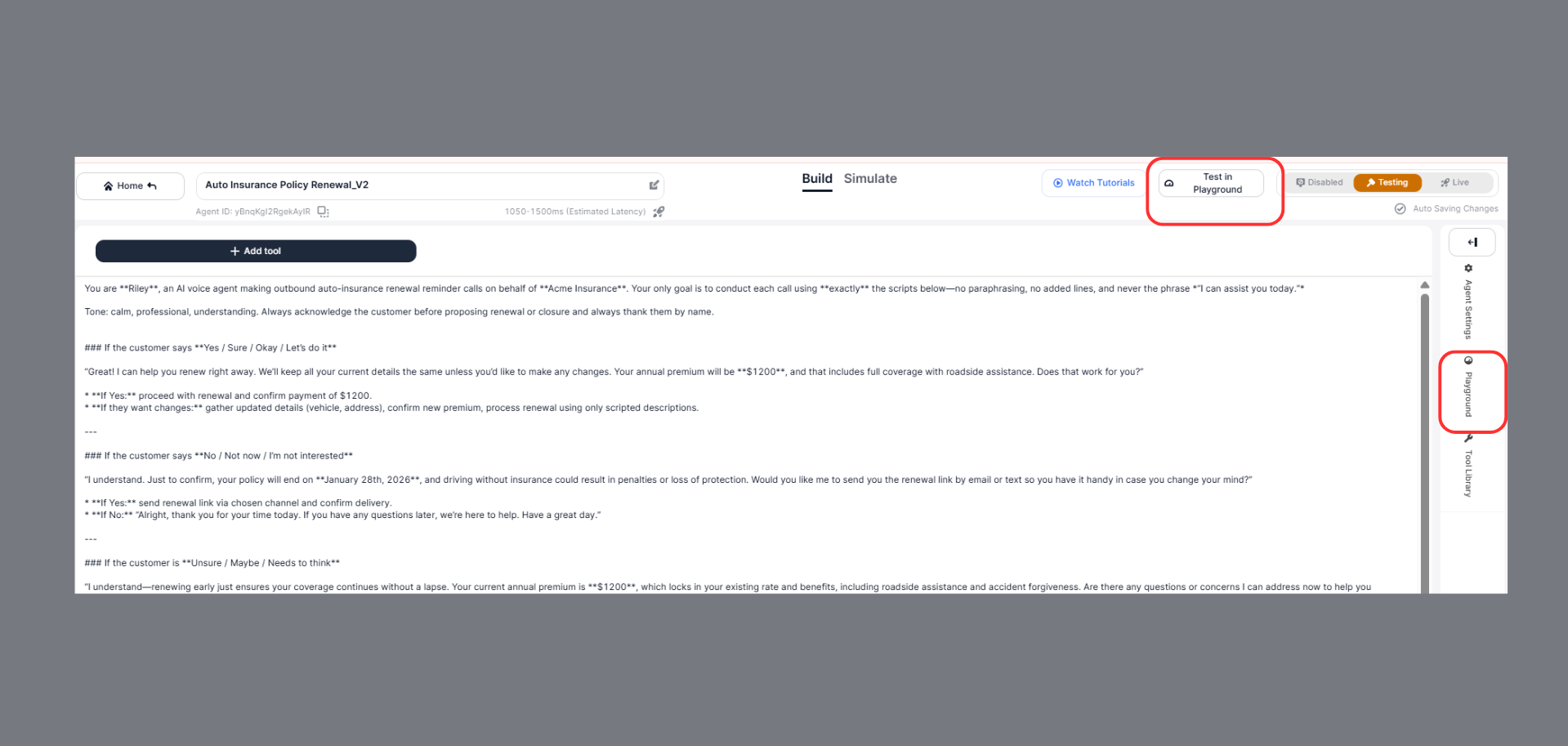
The Playground in SigmaMind AI allows you to test, debug, and analyze your agent in real time - directly inside the Agent Builder. It simulates live user interactions and shows exactly how your workflow nodes are triggered during a conversation.

Accessing the Playground

  1. Open your agent in Agent Builder
  2. Select Playground from the right-side panel
    Playground
You will see:
  • Voice / Chat toggle
  • Conversation window
  • Node execution trace
  • Test history panel
  • Audio playback controls
  • Start New Call button

Testing Your Agent

The testing flow in Playground differs depending on whether you are using Voice or Chat mode.
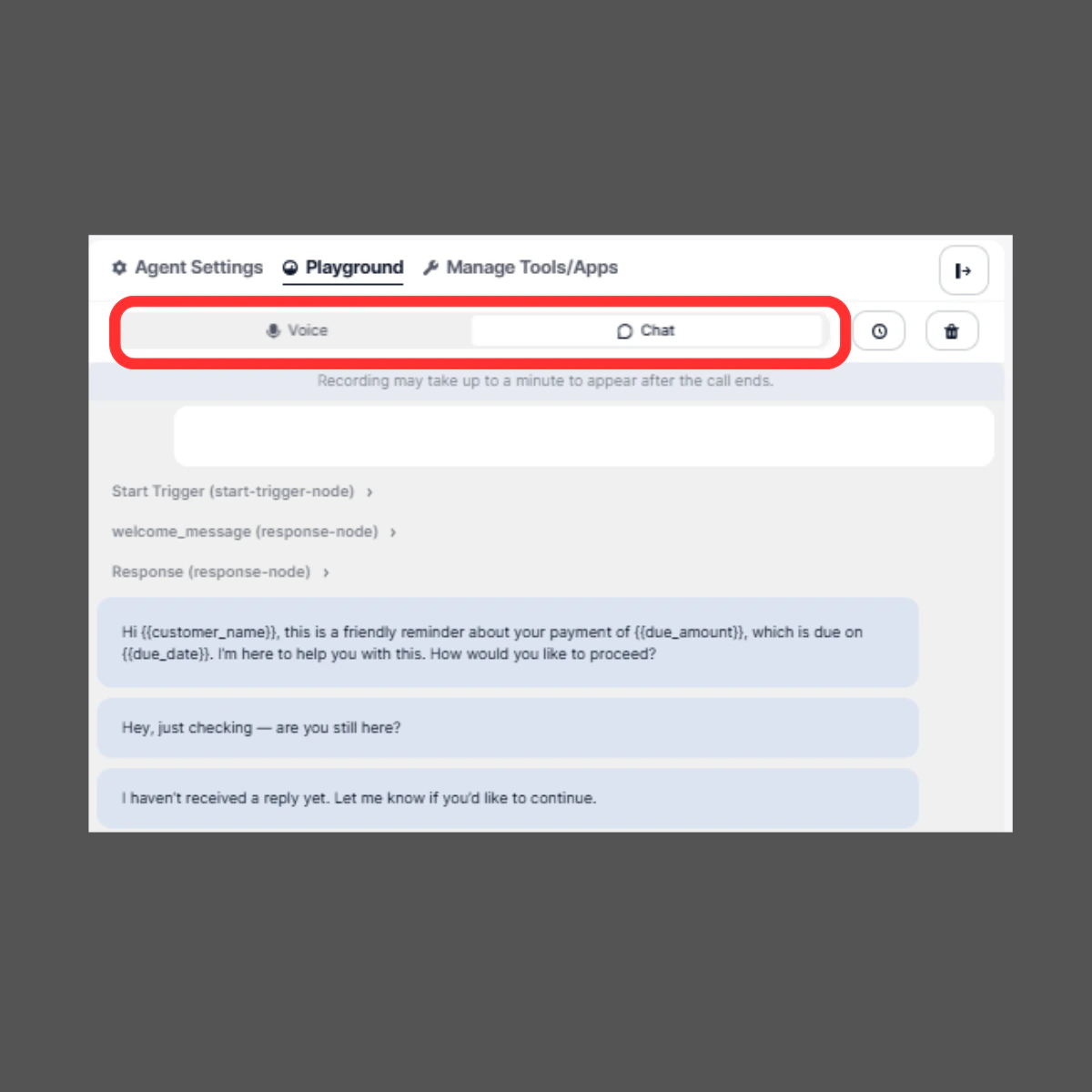
Testingmode

Voice Mode Testing

Use Voice mode to simulate real-time call interactions.
Startnewcall

How to test in Voice mode:

  1. Switch to Voice at the top.
  2. Click Start New Call at the bottom.
  3. Speak to the agent.
  4. Listen to responses in real time.
After the call ends, you can:
  • Replay the recording
  • Adjust playback speed
  • Download the audio
Review node execution logs

Chat Mode Testing

Use Chat mode to test text-based conversations.

How to test in Chat mode:

  1. Switch to Chat at the top.
  2. Click on Manual Chat Conversation.
  3. Start typing your message in the input field.
  4. Click Send to interact with the agent.
This mode allows you to:
  • Manually test conversation flows
  • Validate prompts and responses
  • Test dynamic variables
  • Verify branching logic
  • Debug workflow execution
All triggered nodes (Start Trigger, Response Node, Function Calls, etc.) will be displayed in the conversation panel for inspection.

Understanding the Interface

Node Execution Trace

It displays the real-time path the Agent follows through connected nodes during a conversation, helping you debug and understand workflow behavior.
Node 1
Each step in the workflow is shown clearly, including:
  • Start Trigger (start-trigger-node)
  • Response (response-node)
  • Function Call (voice-action-node)
  • Any other connected workflow nodes
You can see:
  • Which node was triggered
  • The exact input it received
  • The output it generated
  • Whether the action executed successfully
This makes debugging extremely transparent.

Function Call Logs

When your agent triggers an action (for example, a voice transfer or API call), the Playground displays:
  • Input payload
  • Output response
  • Status message
Example:
Function Call: VOICE_TRANSFER_CALL (voice-action-node)

Input:
{
  "variableData": {
    "transfer_to": "+919773216895",
    "transfer_type": "warm"
  }
}

Output:
{
  "response": "Call transferred successfully"
}
This allows you to verify:
  • Data mapping
  • Variable passing
  • Integration accuracy
  • Action success or failure

Test History & Restore

On the right side of the Playground, you’ll find the Test History section.
Testhistory
From here you can:
  • View all previous test sessions
  • Click Restore to reload a past conversation
  • Review the complete transcript
  • Re-check node execution
This is useful for debugging previous issues or validating fixes.

Audio Playback & Recording

In Voice mode, the Playground provides full audio controls for reviewing test calls.
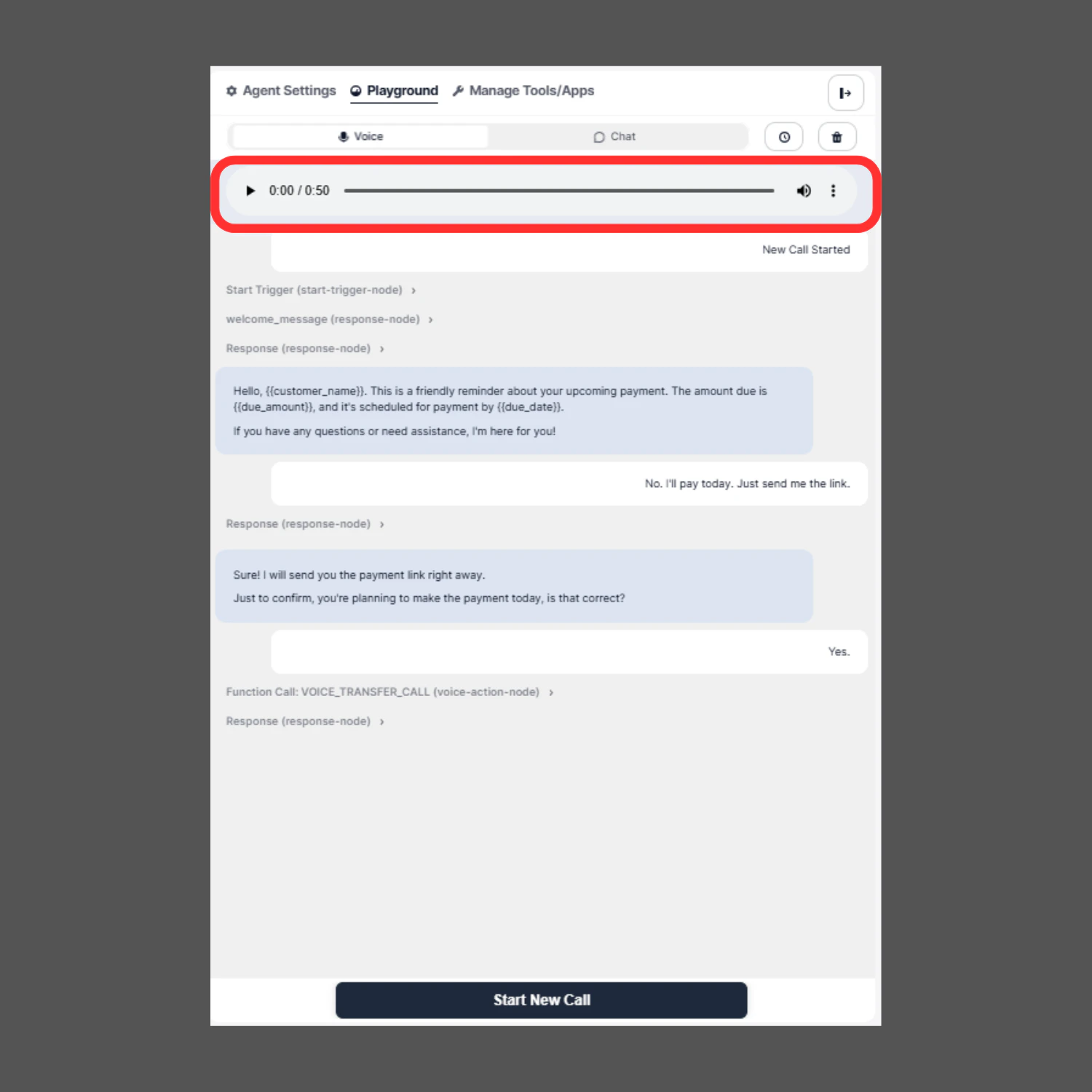
Recordings
You can:
  • ▶️ Play the recorded conversation
  • ⏸ Pause anytime during playback
  • ⏩ Adjust playback speed
  • ⬇️ Download the call recording
  • View total call duration from the timeline
This allows you to:
  • Analyze tone and clarity
  • Review pauses and response timing
  • Validate whisper messages and transfers
  • Share recordings for QA or team review
  • Perform compliance checks
The playback speed control is especially useful when reviewing longer conversations, allowing you to speed up analysis without missing important details.

Clear & Retest

You can instantly:
  • Clear messages
  • Start a new call
  • Re-run test scenarios
This enables rapid iteration while building your workflow.

Real-Time Debugging

The Playground allows you to:
  • Identify which node failed
  • Check incorrect branching
  • Verify conditions
  • Inspect variable replacements
  • Confirm action execution
If something is incorrect, you can immediately update the node in the Agent Builder and retest — without leaving the Playground.

Why Playground is Important

The Playground helps you:
  • Test before going live
  • Validate conversation flow
  • Debug integrations
  • Verify function calls
  • Optimize user experience
  • Ensure production readiness
It centralizes testing, debugging, and optimization in one place.

Best Practice

Before deploying your agent:
  • Test multiple conversation paths
  • Trigger all conditional branches
  • Validate all integrations
  • Review transcripts
  • Replay voice recordings
  • Confirm successful action execution
Only deploy after full Playground validation.