

- Stored
- Analyzed
Enable Post-Conversation Analysis
To enable and configure Post-Conversation Analysis:- Open your Agent Builder.
- From the side panel, click Agent Settings.
- Expand the Post-Conversation Analysis section.
- Toggle the switch ON to enable the analysis
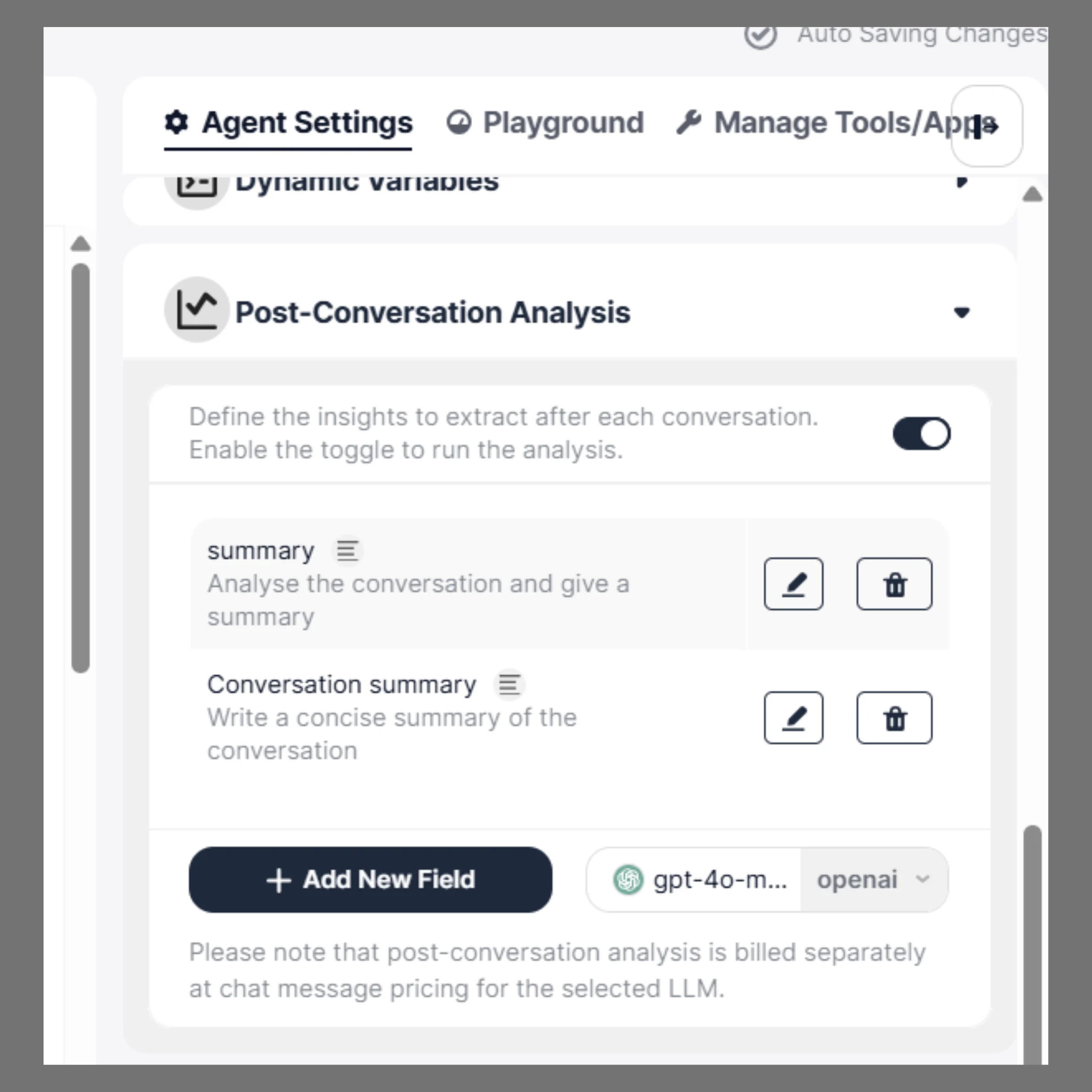
Add New Field
To extract specific information from conversations, you can create custom fields.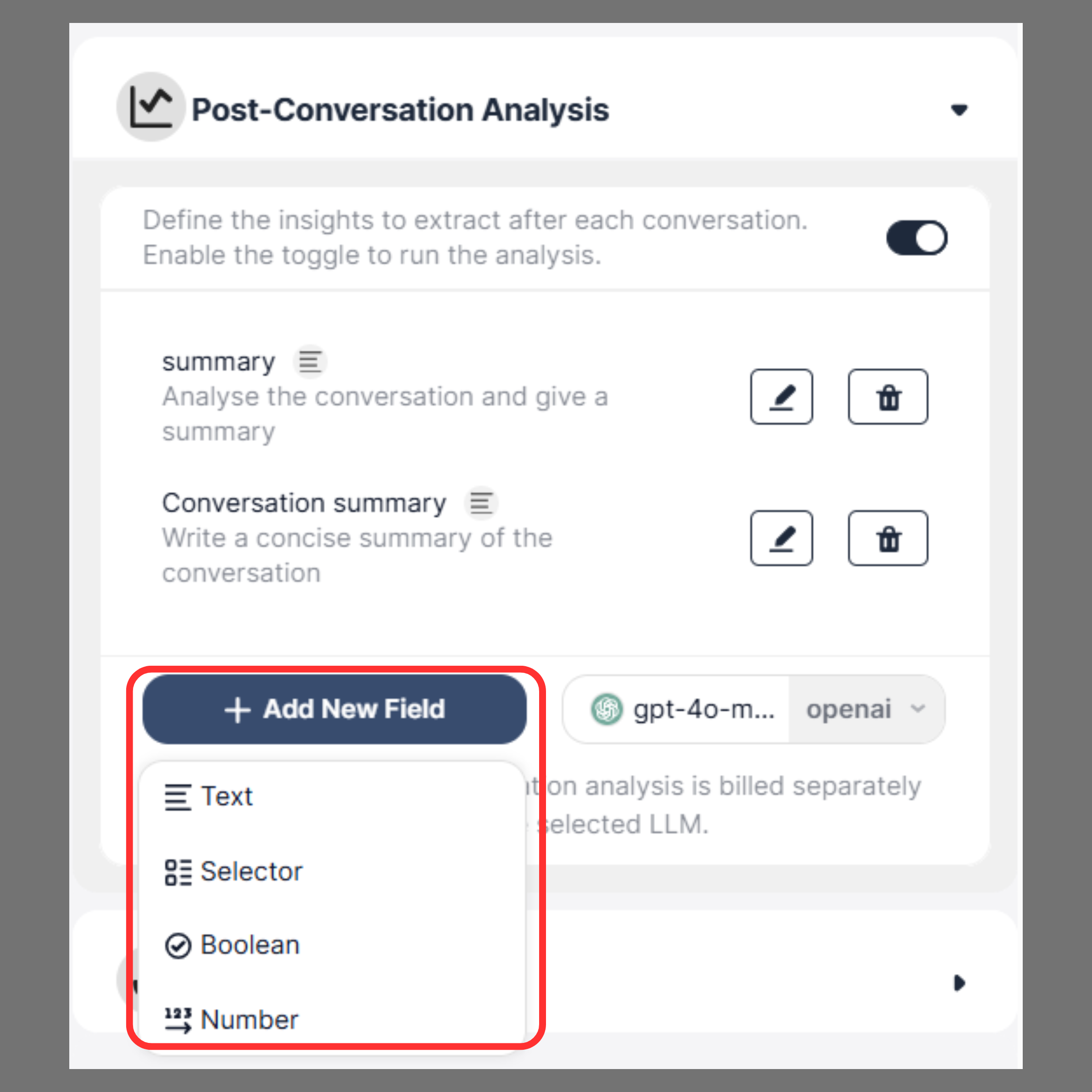
- In the Post-Conversation Analysis section, click Add New Field.
- Select the type of Field you want to create.
- Enter an Name of Analysis.
- Provide Analysis Instructions that tell the AI what to extract from the conversation.
- Click Submit.
Field Types
SigmaMind supports four types of fields.Text
The Text field is used when you want the AI to generate written output.Best For:
Selector
The Selector field allows the AI to choose one value from predefined options. This is useful for categorizing conversations into structured outcomes.Best For:
Boolean
The Boolean field returns a true or false value. This is useful for determining whether a specific event occurred during the conversation.Best For:
Number
The Number field allows the AI to return a numeric value. This is useful for scoring or counting information from the conversation.Best For:
Recommended Models by Use Case
For Simple Classification (Fast & Low Cost)Use:
- GPT-4o mini
- Boolean fields (true/false)
- Selector fields (categorization)
- ⚡ Fastest response time
- 💲 Lowest cost
- 📉 Lower depth of analysis
For Balanced Performance (Most Common Use Cases)
Use:
- GPT-4o
- Conversation summaries
- Key information extraction
- General analysis with good accuracy
- ⚖️ Balanced latency and quality
- 💲 Moderate cost
- ✅ Recommended default for most users
For Advanced Analysis (High Accuracy)
Use:
- GPT-5 (or latest high-quality model available)
- Complex reasoning
- Detailed summaries
- Multi-step analysis
- High-stakes workflows (sales insights, compliance, etc.)
- 🧠 Highest quality output
- 🐢 Higher latency (slower responses)
- 💲 Higher cost
Trade-offs
- GPT-4o mini → Lowest cost, fastest, but less detailed
- GPT-4o → Balanced cost and quality (recommended default)
- GPT-5 → Highest quality, but higher cost and latency
Recommendation
- Start with GPT-4o for most use cases
- Use GPT-4o mini for simple structured fields
- Upgrade to GPT-5 only when higher accuracy is required
Managing Fields
After creating a field, you can:- Edit the field to update the instructions
- Delete the field if it is no longer required
- Add multiple fields to capture different insights from conversations
Sending Extracted Data
The Analysisextracted through Post-Conversation Analysis can be sent to external systems using SigmaMind Webhooks. Using webhooks, you can automatically send the extracted data to:- CRM systems
- Google Sheets
- Databases
- Automation platforms such as n8n or Zapier
- Custom applications
Where to View Analysis
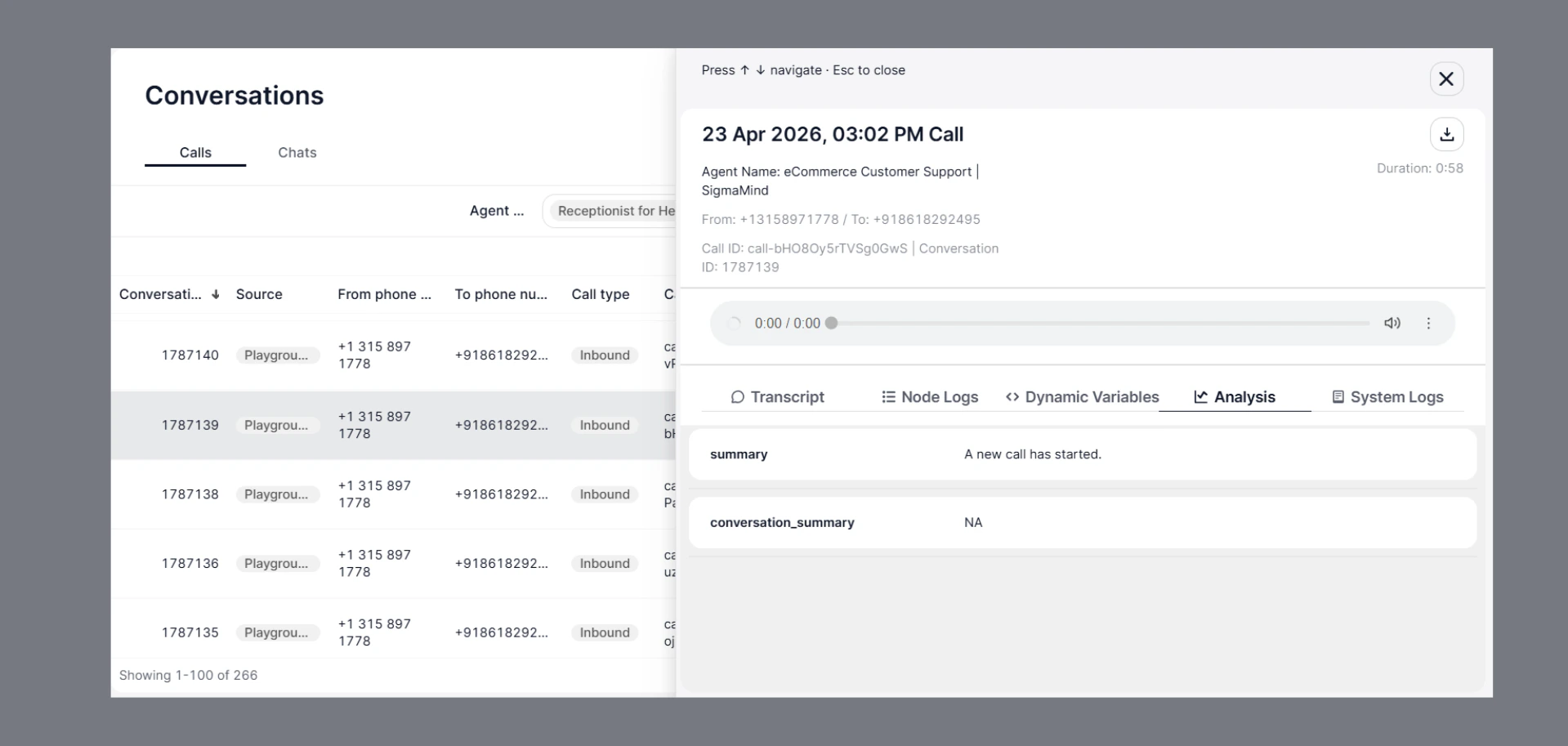
After a conversation ends, you can view extracted insights in:- Go to Conversations
- Open any Call or Chat
- Navigate to the Analysis tab
- Alongside:
- Transcript
- Node Logs
- Dynamic Variables
👉 This helps you:
- Verify output
- Debug instructions
- Improve accuracy