Documentation Index

Fetch the complete documentation index at: https://docs.sigmamind.ai/llms.txt

Use this file to discover all available pages before exploring further.

Manage Your Workspace and Team in SigmaMind AI

Create workspaces, invite members, and control access all in one place.

Create a New Workspace

Steps

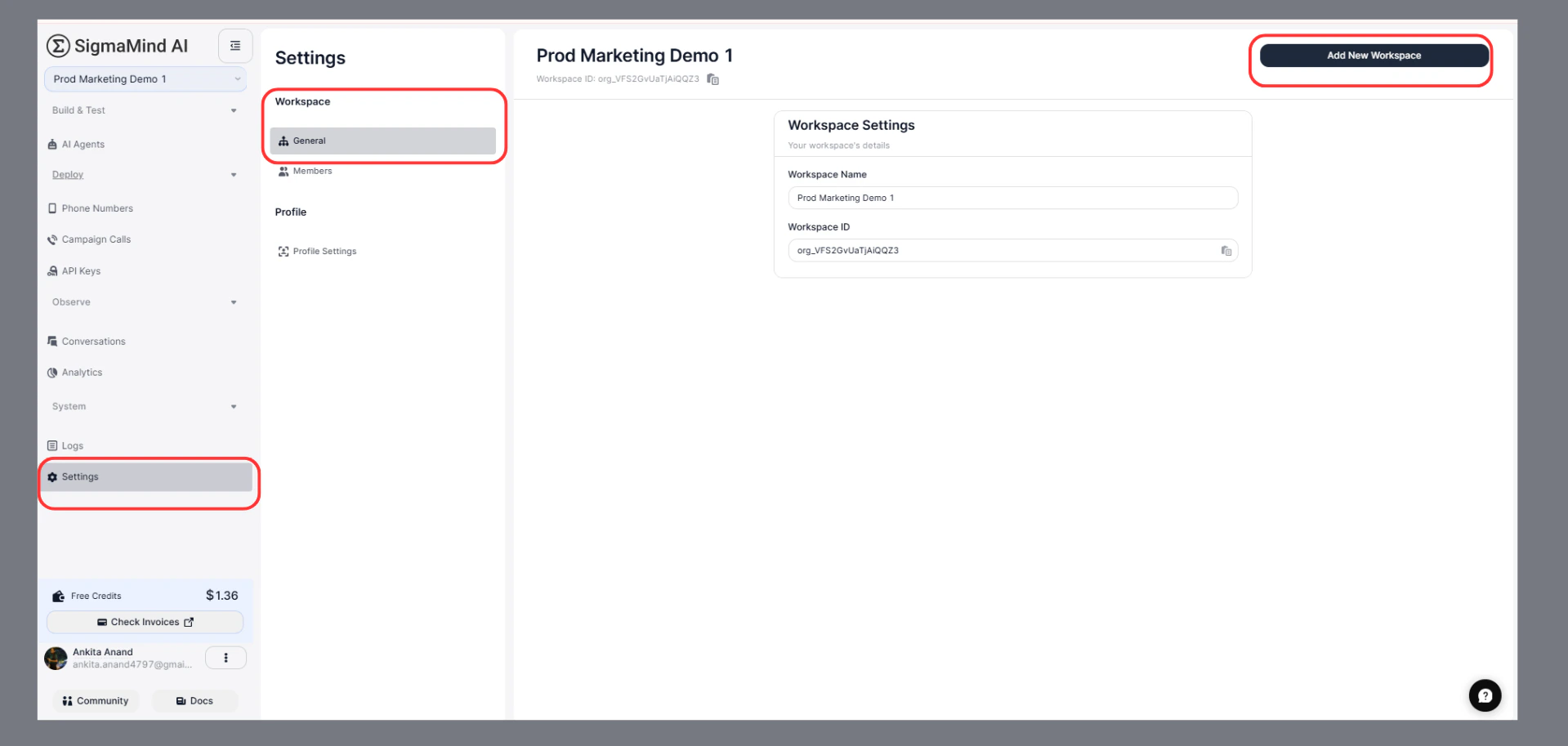
  1. From the dashboard, click on the Settings
  2. Click “Add New Workspace”
  3. Enter the Workspace Name
  4. Click “Create Workspace”
Settings

What Happens Next

  • The workspace is created instantly
  • You are added as an Admin
  • You can switch between workspaces anytime

View Workspace Details

Steps

  1. Go to Settings
  2. Click on Workspace → General

Details Available

  • Workspace Name (editable)
  • Workspace ID (auto-generated, read-only)

Manage Members

Go to:
Settings → Members

You Can View

  • Member Name
  • Email ID
  • Role
  • Status
  • Created Date

Invite a Team Member

Steps

  1. Go to the Dashboard
  2. Click on Settings
  3. Click on Members
  4. Click “Invite a new member”
  5. Enter:
    • Member’s Name
    • Member’s Email ID
  6. Click “Send Invite”
Inviteteam 1

What Happens Next

  • The invited user receives an email invitation
  • After accepting, they are added to the workspace
  • The member appears in the Members list

Delete (Remove) a Member

Steps

  1. Go to Settings
  2. Click on Members
  3. Find the member you want to remove
  4. Click the three-dot menu (⋯) on the right side
  5. Click “Delete”
  6. Confirm the action

Best Practices

  • Use clear and meaningful workspace names
  • Double-check email IDs before sending invites
  • Regularly review and remove inactive members