

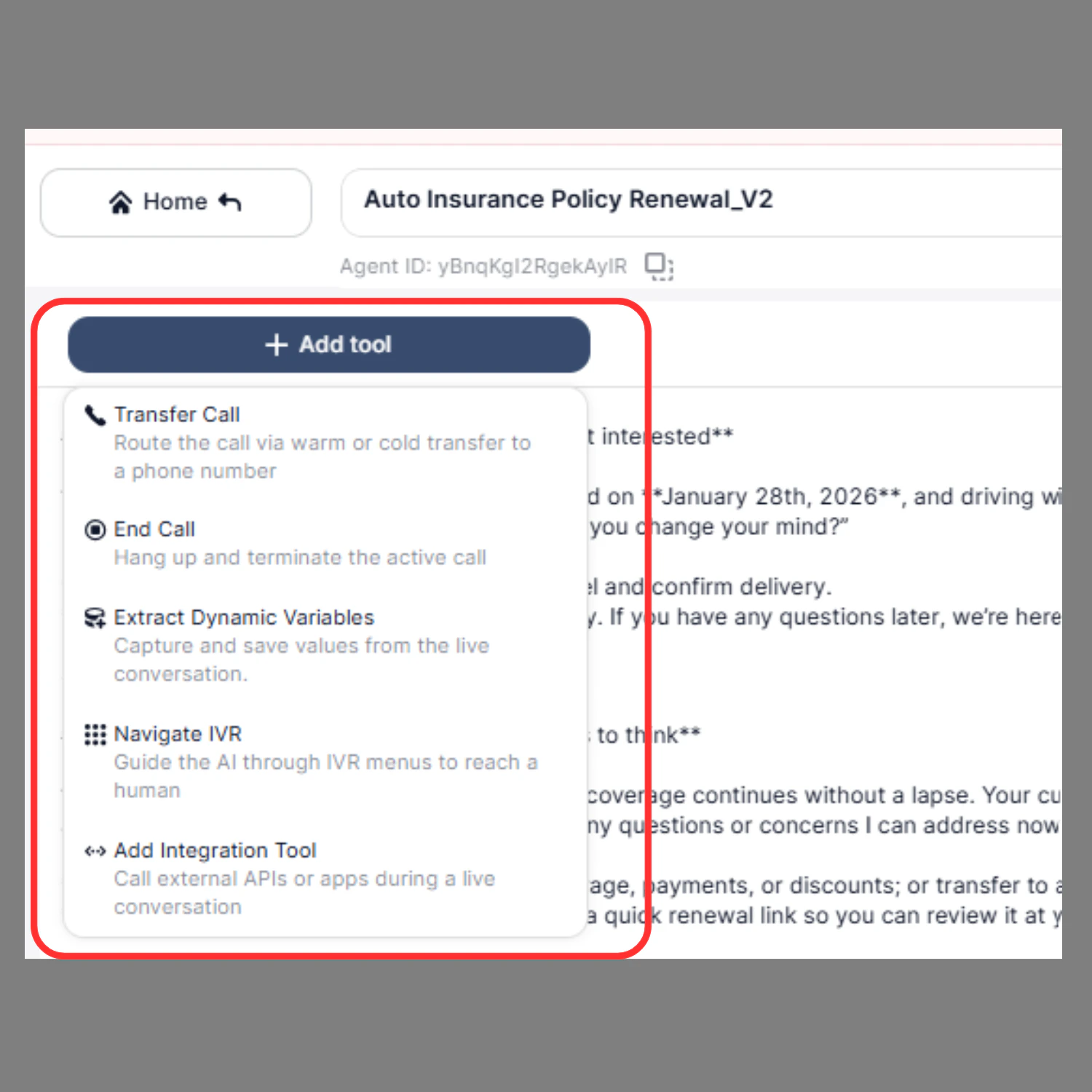
Steps:
- Click on Add New Tool
- Enter the following details:
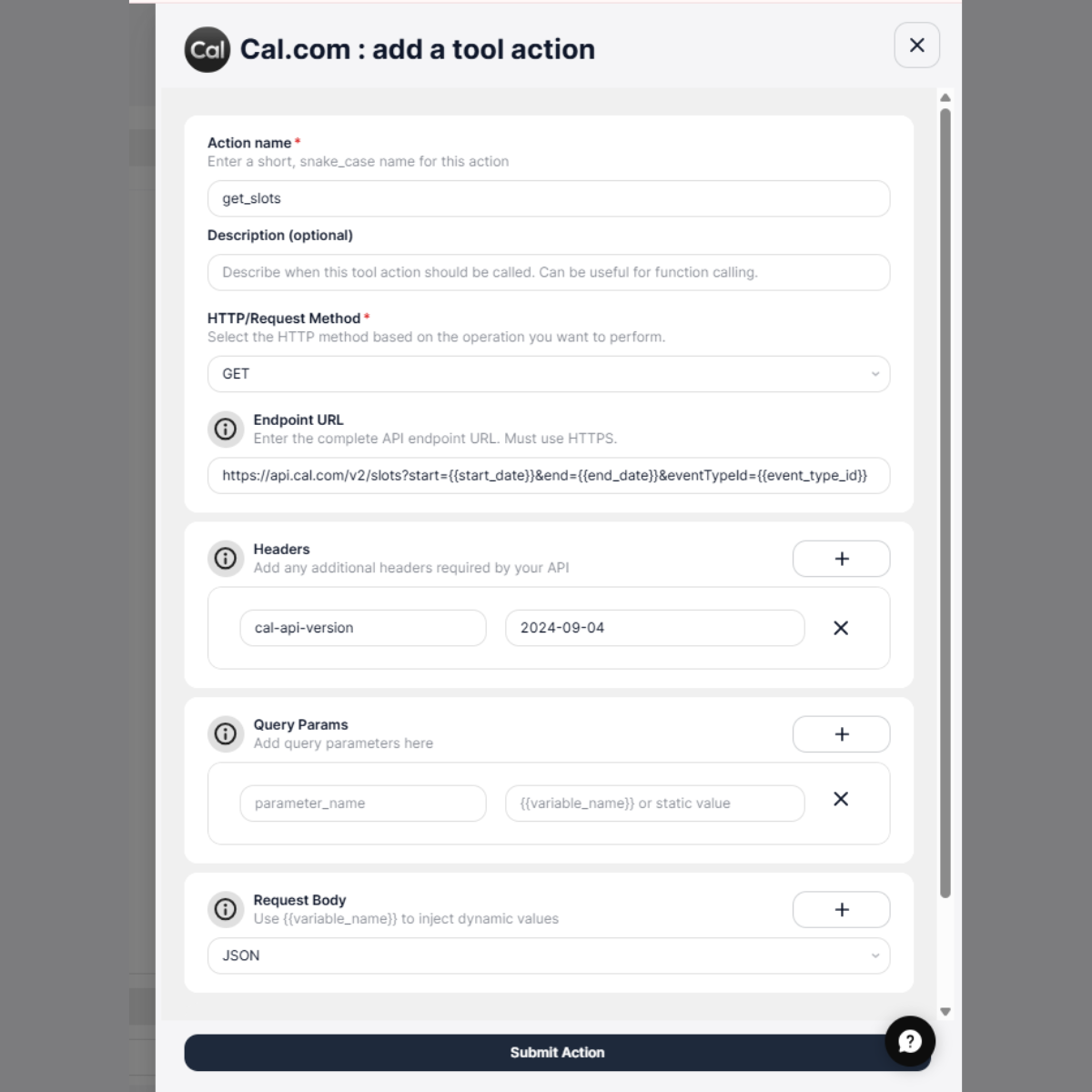
Tool Name
Definition:A unique identifier for the tool action. The agent uses this name internally to trigger the correct API call. Requirements:
- Must be unique
- Use snake_case format
- No spaces allowed
Description (Optional)
Definition:Explains when and why the agent should use this action. This helps the AI understand the correct context for calling the API. Example:
HTTP / Request Method
Definition:Specifies the type of operation to perform on the API. Supported methods:
- GET → Retrieve data
- POST → Create data
- PUT → Update data
- PATCH → Partially update data
- DELETE → Remove data
Endpoint URL
Definition:The API endpoint where the request will be sent. You can use input variables to dynamically insert values. Static example:
{{booking_id}} will be dynamically provided by the agent.
Headers
Definition:Headers provide additional information required by the API, such as authentication and content type. Common headers example:
Example configuration:
Query Parameters
Definition:Query parameters allow you to filter or modify the API response. These are appended to the endpoint URL. Example configuration:
Final request example:
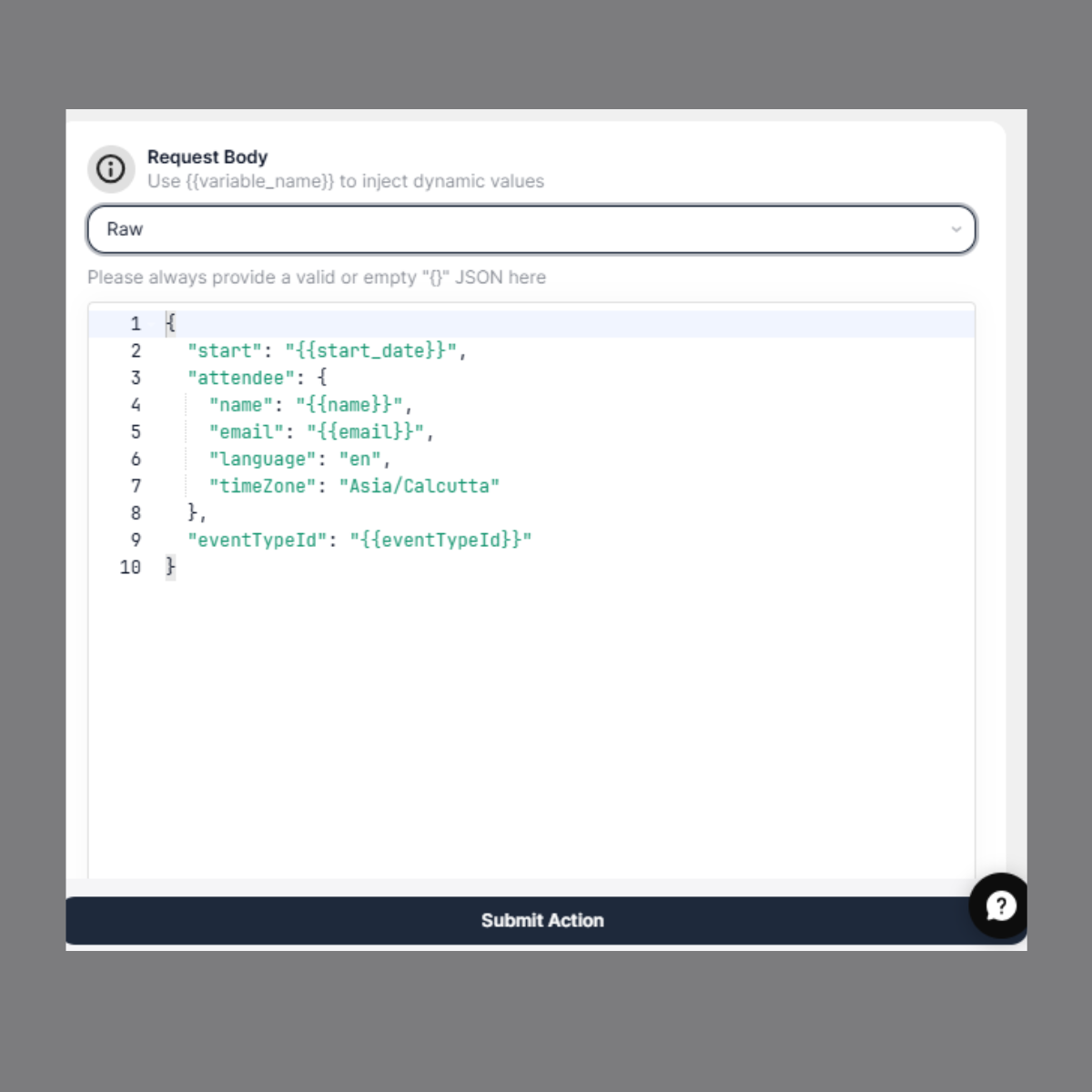
Request Body
Definition:The request body contains the data sent to the API when creating or updating resources. You can use input variables to dynamically pass values.
Input Variables (Dynamic Placeholders)
Input variables are dynamic placeholders written inside double curly braces. Format:- User input
- Conversation context
- Extracted variables configured in the agent workflow
- Agent configuration
- Endpoint URL
- Query Parameters
- Request Body
Complete Example: Reschedule Booking (Cal .com)
Action NameHow Input Variables Work
Conversation Example:
User: I want to reschedule my appointment for tomorrow at 10 AM.What SigmaMind AI does:
- Extracts values from conversation
- Maps values to variables
- Replaces variables in the API body
- Calls the API automatically
Final API Request Sent:
- Click Submit Action
You can add new actions to an existing integration in the App Marketplace in the same way, allowing your AI agent to perform additional operations using the connected app.
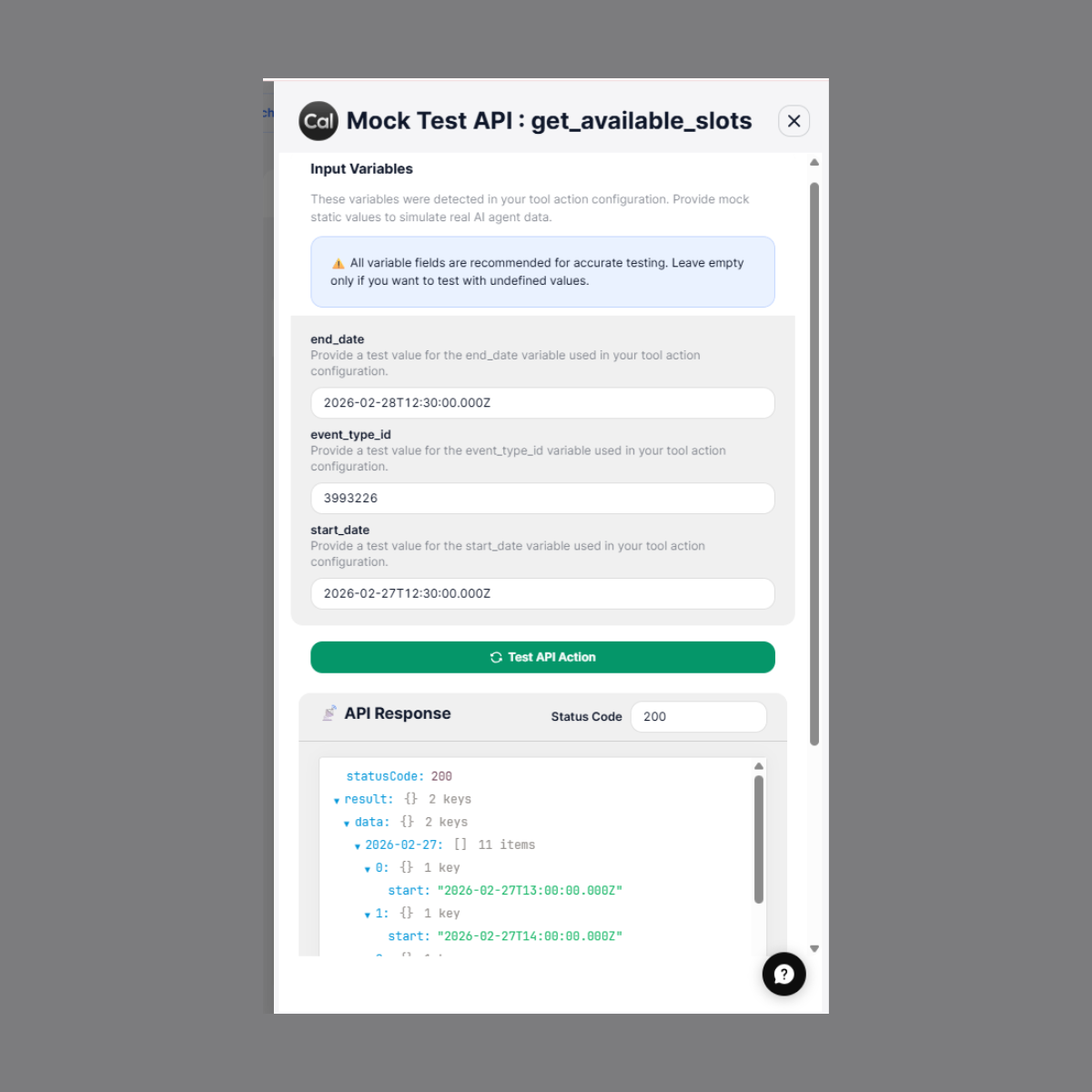
How to Test Tool
You can test a tool action to verify that the API works correctly before using it in your agent.
Steps:
- Go to Tool Library from the Agent Builder
- Select the tool (for example, Cal.com)
- In the Tools section, locate the tool you want to test
- Click the Test button next to the action
- Enter test values for the detected input variables (such as
{{start_date}},{{end_date}},{{event_type_id}}) - Click Run Test
- Review the response to confirm the API is working correctly
Step 5: Use the Custom Tool in the Agent
After creating and testing your tool actions, you must add them to your agent. This allows the agent to call the tool during conversations and perform real-world operations.Method 1: Go to your Tools Section
- Find your tool (like
get_available_slots) - Click Add to Agent
- Fill in the Instructions — describe when the AI should invoke this tool
- Bind placeholders (if required) — see the +Add Mapping section below
- Click Add to Agent to confirm
Method 2: Via the Agent Builder
- Open the Agent Builder
- Click Add Tool
- Click Add Integration Tool
- Select the app you created or configured
- Select the tool you want the agent to use
- Click Add to Agent
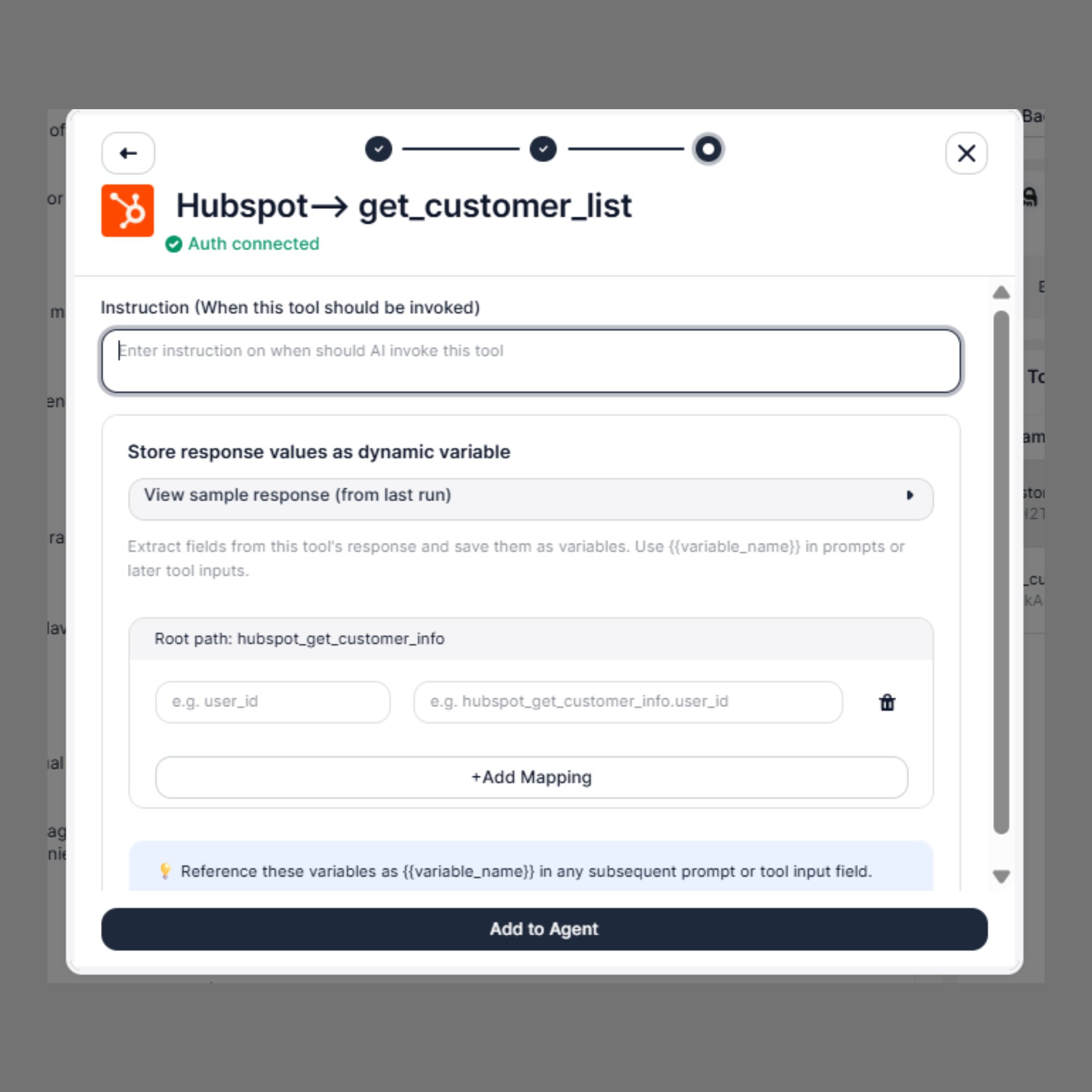
+Add Mapping: Binding Response Values as Dynamic Variables
The +Add Mapping feature lets you extract specific fields from a tool’s response and save them as named variables. These variables can then be referenced in subsequent prompts or tool inputs using the{{variable_name}} syntax.
Understanding the Sample Response
Click View sample response (from last run) to expand a live preview of the JSON returned by the tool. This helps you identify the exact field names to use when configuring mappings.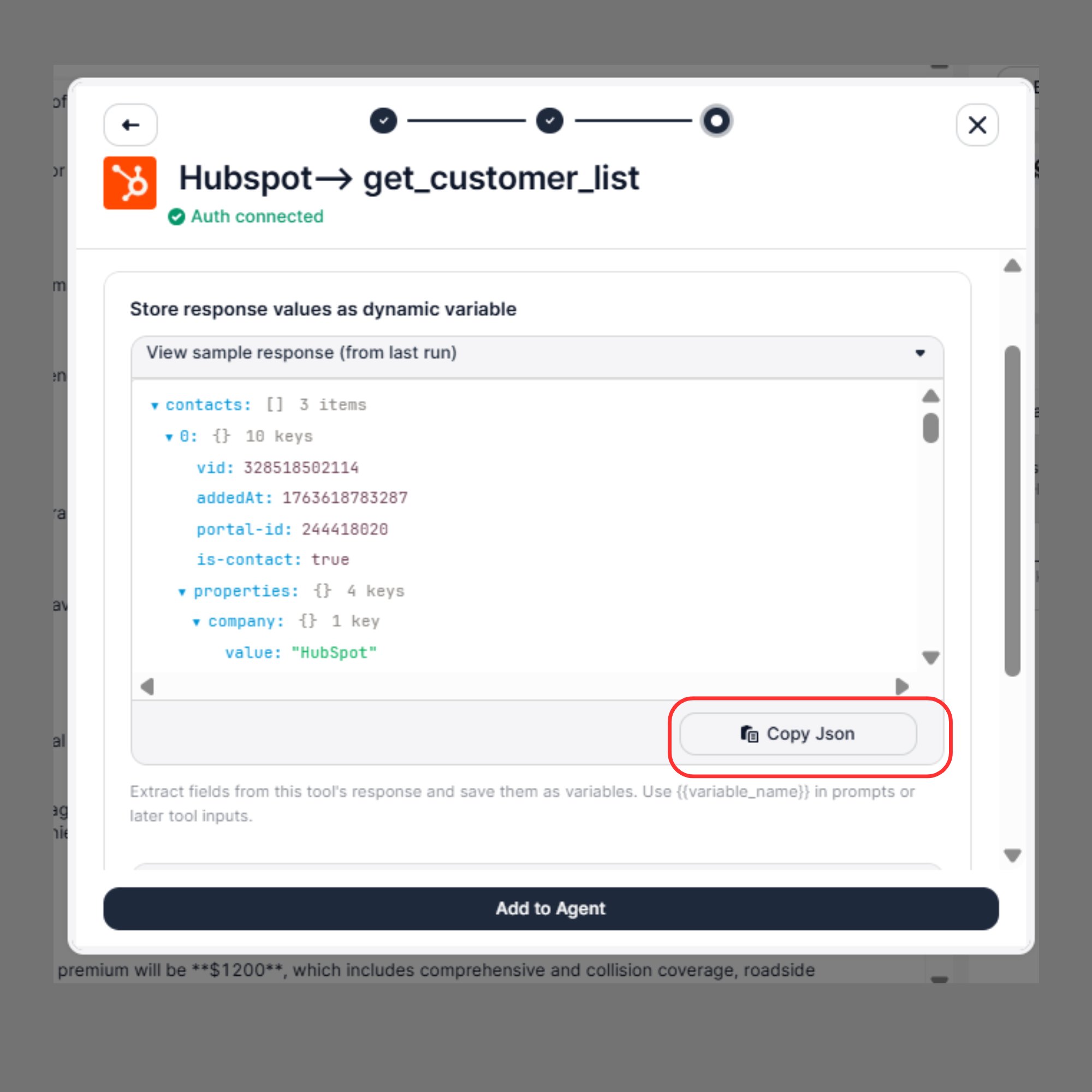
get_customer_list tool returns a structure like this:
Use the Copy JSON button inside the sample response panel to copy the full response and inspect nested fields before setting up your mappings.
company.value, you would enter contacts.0.properties.company.value as the field path in the left input.
How to Configure a Mapping
- In the tool configuration panel, scroll to Store response values as dynamic variable
- Confirm the Root path — this is auto-populated based on the tool name (e.g.,
hubspot_get_customer_info) - In the left field, enter the field name from the API response (e.g.,
user_id) - In the right field, the full variable path is auto-generated (e.g.,
hubspot_get_customer_info.user_id) - Click +Add Mapping to add more fields as needed
- Use the 🗑 delete icon to remove any unwanted mappings
Example Mappings for get_customer_list
Based on the actual sample response, here are useful field mappings you can configure:
Using Variables in Subsequent Steps
Once mapped, reference these variables anywhere in your agent flow:Tips & Best Practices
Preview sample response before mapping
Preview sample response before mapping
Click View sample response (from last run) before adding mappings to confirm exact field names returned by the API. If no sample is available, run the tool once from the Test panel first.
Map only what you need
Map only what you need
Only map fields you’ll actually use in downstream steps. Unused variables add clutter without any benefit.
Variable names are case-sensitive
Variable names are case-sensitive
Ensure consistency between the mapped name and how you reference it in prompts.
{{Email}} and {{email}} are treated as different variables.Root path prefix is automatic
Root path prefix is automatic
The root path prefix (e.g.,
hubspot_get_customer_info.) is automatically prepended. You only need to type the leaf field name (e.g., user_id) in the left input field.2. Using the API
If you prefer programmatic control, use the Integration Tools API to create a tool.Field descriptions
Add New Tool
- User: I want to reschedule my appointment
- Agent collects the required information
- Agent calls Reschedule Booking action
- API processes the request
- Agent confirms the reschedule
Best Practices
- Always follow the API documentation of the external app
- Use clear variable names
- Test actions before enabling
- Configure authentication properly
- Use descriptive action names