

Phone calls only. This tool works exclusively for voice calls and is not available for web or chat agents.
When to Use
Configure this tool when your agent needs to:- Make an outbound call to a business that has an IVR phone menu
- Navigate a multi-level menu to reach a billing agent, support team, or specific department
- Bypass automated menus and connect directly to a human representative
- Handle outbound campaigns where the destination number has an IVR system
Steps to Add
- Open the Agent Builder
- Click + Add Tool
- Select Navigate IVR from the tool menu
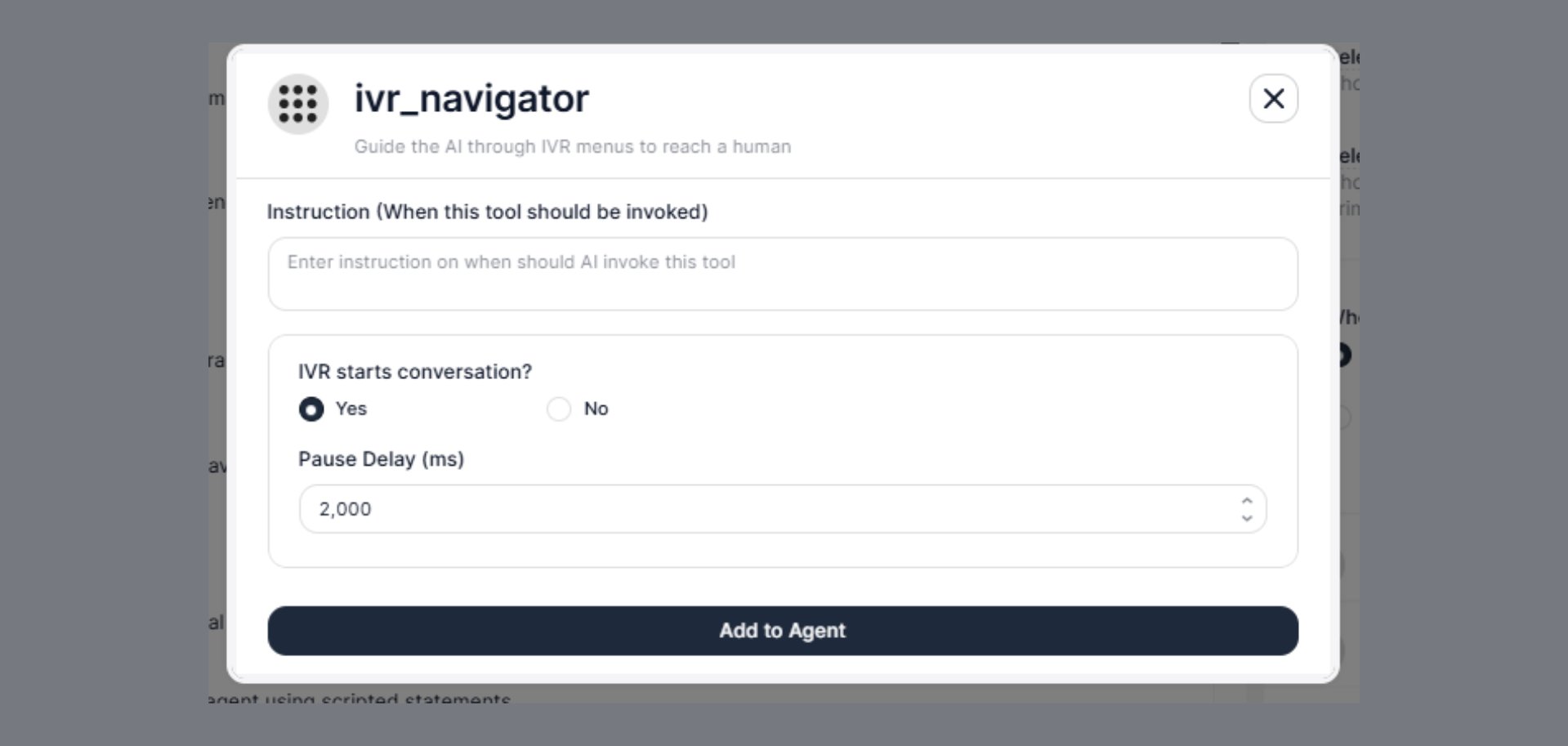
- A configuration modal will appear — fill in all fields (described below)
- Click Add to Agent
Configuration Fields
Instruction (When this tool should be invoked)
Write a clear instruction that tells the AI agent when to trigger IVR navigation. The agent uses this to decide the right moment to activate the tool during a live call.IVR Starts Conversation?
This setting tells the agent whether the IVR system is the first thing that speaks when the call connects, or whether the call connects to silence or ringing first.Why This Matters
When Yes is selected, the agent knows to start listening for IVR prompts from the very first second of the call. It will not wait for a human greeting — it immediately enters navigation mode. When No is selected, the agent waits for its turn to speak first (as configured in Basic Settings → Who speaks first) before checking for IVR prompts. This avoids misidentifying a human as an IVR system. Default:Yes
Setting this incorrectly causes one of two problems:
- Set to Yes when a human answers → agent tries to navigate a person using DTMF tones
- Set to No when IVR answers immediately → agent misses the first prompt and fails to navigate
Pause Delay (ms)
The number of milliseconds the agent waits after detecting an IVR prompt before responding. This simulates a natural pause and ensures the IVR has finished speaking before the agent sends its response. Default:2,000 ms (2 seconds)
Why Pause Delay Matters
IVR systems are not instant. They play a recorded message and then wait for input. If the agent responds too quickly, the DTMF tone may be sent while the announcement is still playing — and some IVR systems reject early inputs. If the agent responds too slowly, the IVR may interpret silence as a non-response and either repeat the menu or route to a default option. When to increase the delay:- The IVR plays a long welcome message before the menu options
- The destination uses an older PBX system with slow prompt processing
- The agent is consistently navigating to the wrong option
- The IVR responds quickly and your campaigns need faster connection times
- You’ve tested the flow and confirmed the IVR accepts early inputs without issue
How the Agent Navigates IVR
Once the tool is triggered, the agent:- Listens for the IVR prompt (menu options, recorded announcements)
- Waits for the configured Pause Delay
- Responds with the correct DTMF key press or spoken input based on the prompt
- Repeats for each menu level until the destination is reached
- Hands off to the next tool (e.g., records a message, delivers information, transfers the customer in)
Real-World Example
Scenario: An outbound agent is calling a hospital to reschedule a patient appointment. The hospital line has a multi-level IVR. IVR flow:Combining with Other Tools
Best Practices
- Set IVR Starts Conversation? to Yes for most outbound use cases — the vast majority of business phone lines play an IVR immediately on connection
- Start with the default 2,000 ms Pause Delay and increase only if you observe navigation errors during testing
- Write a specific Instruction that references the call context (e.g., “when the call connects to the hospital line”) to avoid the tool triggering on human conversations
- Test the full IVR flow using the Test Voice playground before deploying your campaign
- If the target IVR changes its menu structure, update the agent’s system prompt to reflect the new options — no tool reconfiguration needed