

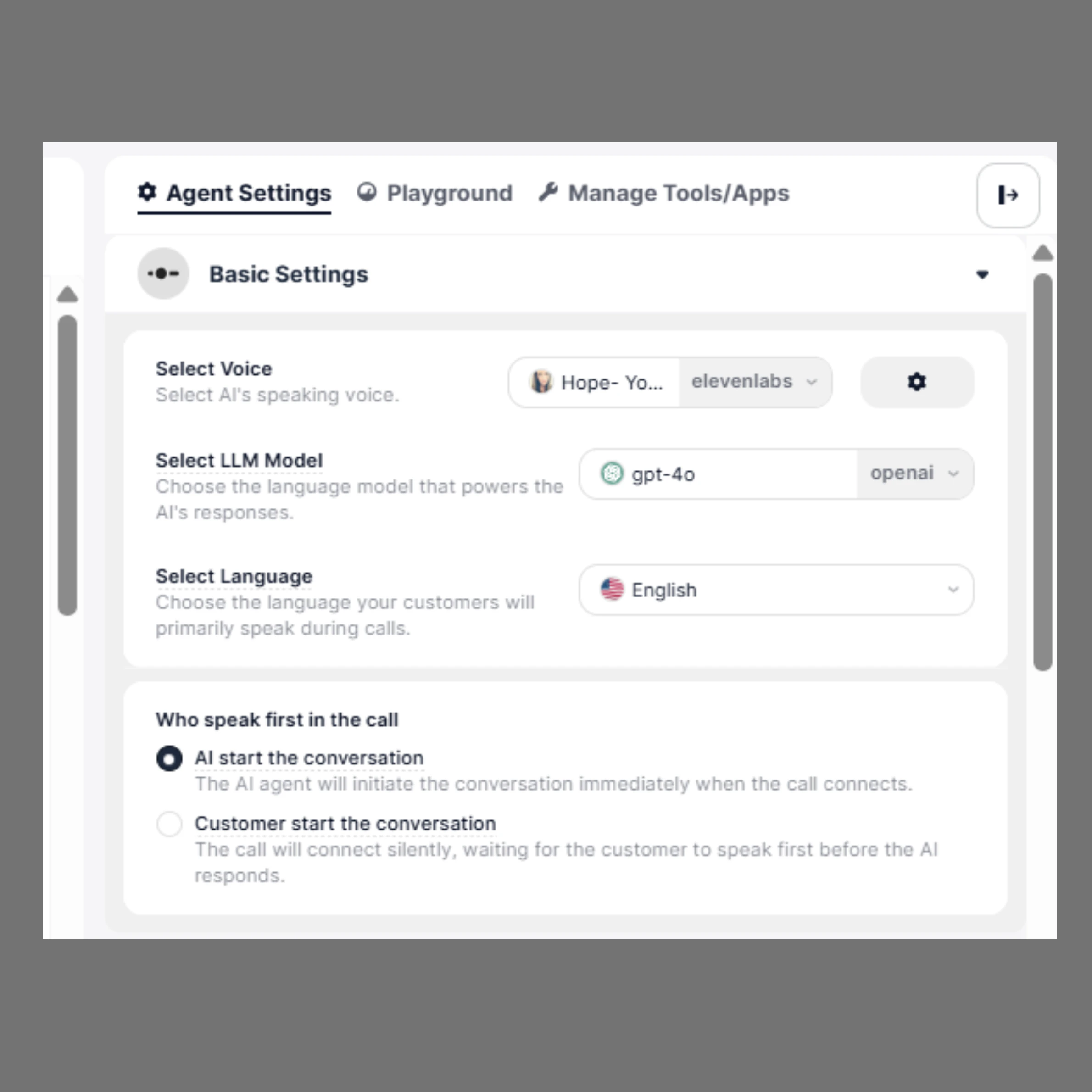
- How your agent speaks (Voice)
- How your agent thinks (LLM Model)
- Which language it understands
- Who starts the conversation
How to Configure
- Open your agent in the Agent Builder
- From the right-side panel, click on Agent Settings
- In the Basic Settings section, configure Voice, LLM Model, Language, and conversation start preference
1. Select Voice
The Select Voice option allows you to choose how your AI Agent sounds during conversations.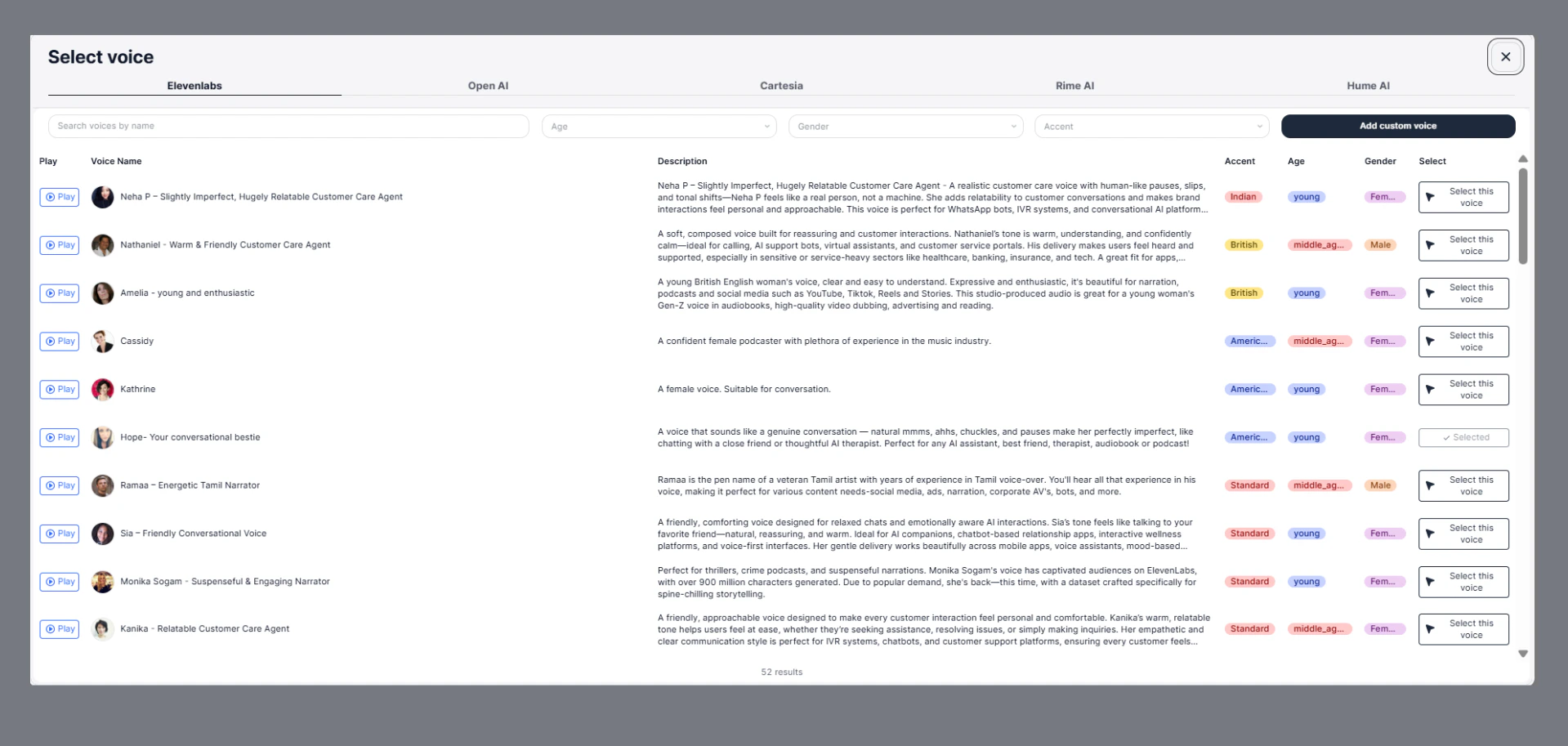
- ElevenLabs
- OpenAI
- Cartesia
- Rime AI
- Hume AI
Features
- Search Voices
Quickly find voices using the search bar. - Filters Available
Narrow down voices based on:- Age (young, middle-aged, etc.)
- Gender (male, female)
- Accent (Indian, British, American, etc.)
- Voice Preview
Click Play to listen before selecting. - Voice Details
Each voice includes:- Description
- Accent
- Age group
- Gender
- Select Voice
Choose a voice that best matches your use case and brand tone. - Add Custom Voice
You can also upload or create a custom voice for a more personalized experience.
Example
A warm and friendly voice is ideal for customer support, while an energetic voice works well for marketing or engagement calls.2. Select LLM Model
The LLM Model determines how your AI Agent understands and responds to users.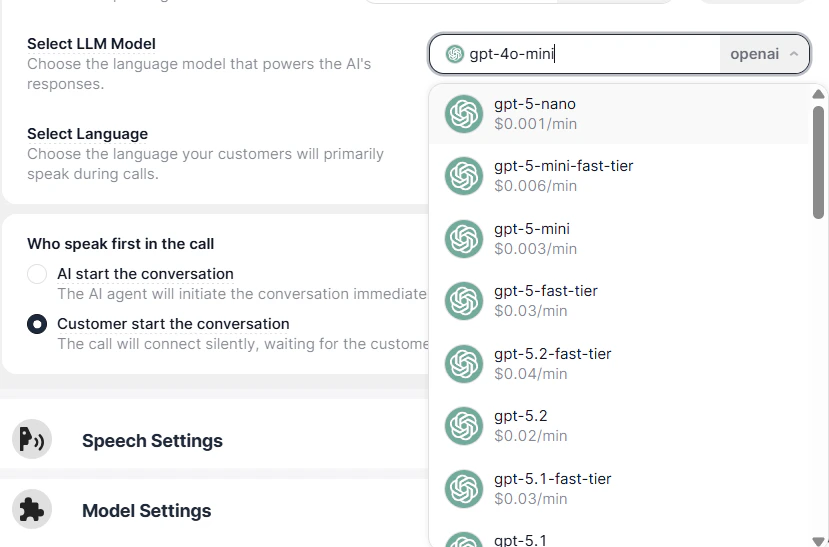
- Intelligence
- Speed
- Cost
Available Models (Example)
- GPT-5 Nano – Ultra fast and low cost
- GPT-5 Mini – Balanced performance
- GPT-5 Fast Tier – Faster responses for real-time interactions
- GPT-5.2 / GPT-5.1 – More advanced reasoning and accuracy
How to Choose
- Use lightweight models for simple, high-volume conversations
- Use advanced models for complex queries and detailed interactions
Each model may have a cost per minute associated with usage, so choose based on your budget and requirements.
3. Select Language
The Select Language option allows you to define the primary language your AI Agent will use during conversations. This setting ensures that the agent can accurately understand user input and respond in a natural, fluent manner.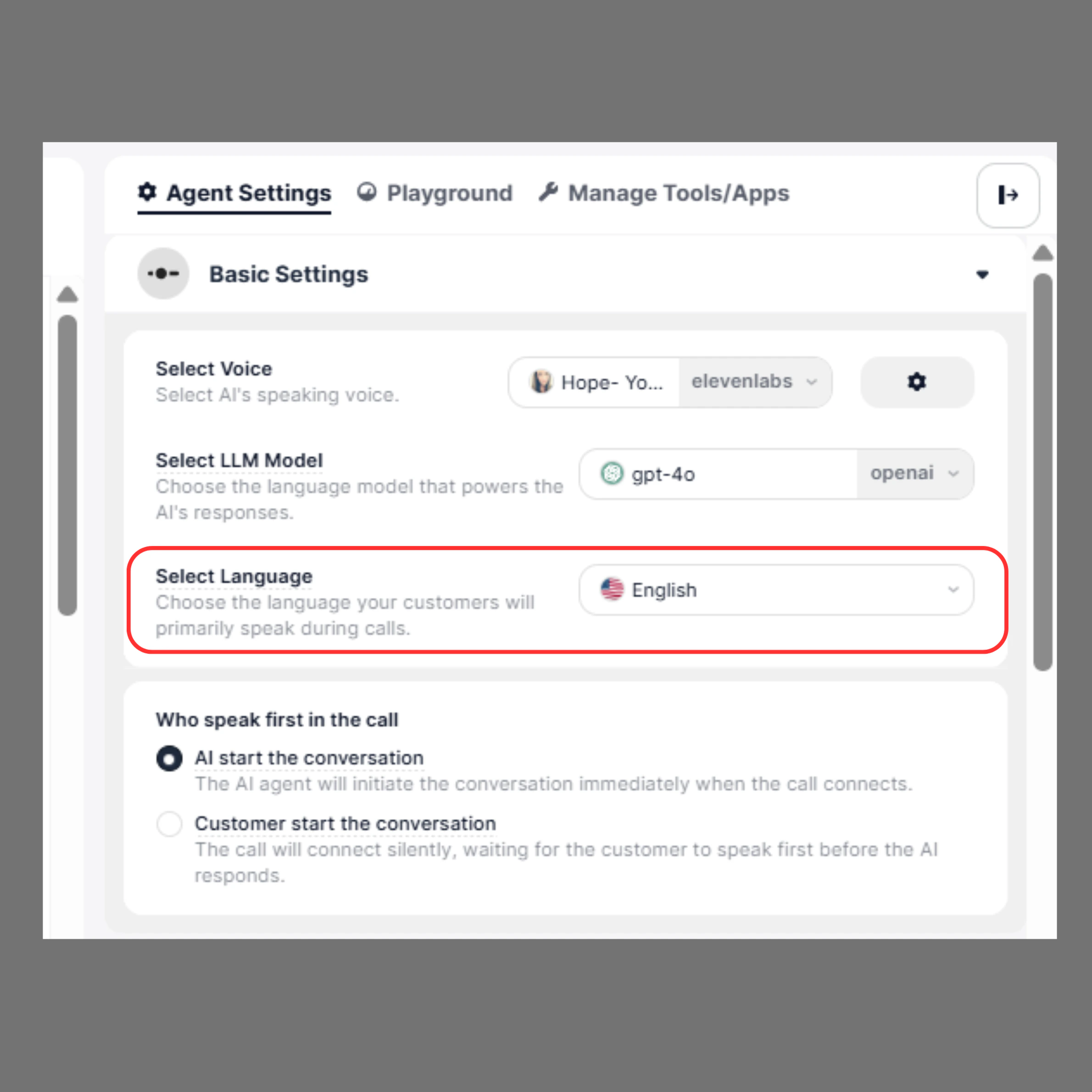
Overview
Choosing the correct language improves:- Speech recognition accuracy
- Response quality
- Overall conversation experience
Available Options
The platform supports a wide range of languages and regional variations. For example:- English
- English (US)
- English (UK)
- English (India)
- English (Australia)
- Hindi
- Multilingual (English + Spanish)
- Multilingual (Spanish + English)
How It Works
- The AI Agent listens and processes input based on the selected language
- It responds in the same language for a consistent experience
- Multilingual settings allow the agent to switch between supported languages dynamically
Examples
English (US)Best suited for customers based in the United States or global audiences familiar with US English. English (India)
Ideal for Indian users, with better alignment to accent and communication style. Hindi
Useful for regional audiences who prefer Hindi communication. Multilingual (English + Spanish)
Enables the agent to handle conversations in both English and Spanish seamlessly.
Best Practices
- Select the language based on your target audience
- Use multilingual options only when necessary to avoid confusion
- Match language with the selected voice for better consistency
- Test conversations to ensure accuracy and fluency
Notes
- Incorrect language selection may lead to poor understanding of user input
- Always validate your configuration in the Playground before going live
4. Who Speaks First in the Call
This setting controls how the conversation begins when a call is connected.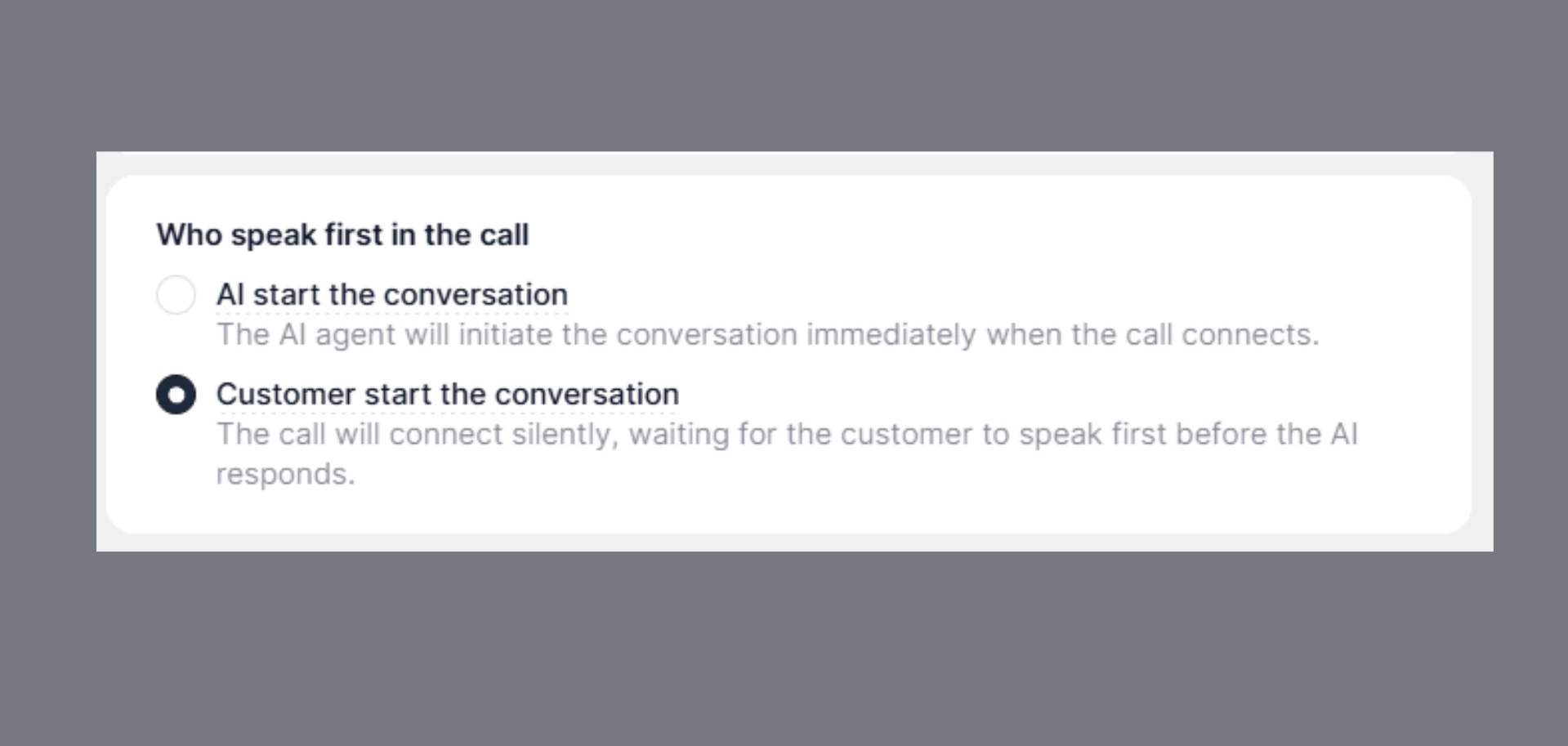
AI Starts the Conversation
The AI Agent immediately initiates the conversation.- Sets the tone and context
- Provides a structured start
- Ideal for guided interactions
Example:
“Hello, thanks for calling SigmaMind support. How can I help you today?”
Customer Starts the Conversation
The AI Agent waits for the user to speak first.- Creates a natural, user-driven interaction
- Allows customers to explain their issue directly
- Best for support and inbound scenarios
Example:
Customer: “Hi, I need help with my order.”
Agent: Responds accordingly
Use Cases
AI First- Outbound calls
- Sales or onboarding flows
- Structured support interactions
- Inbound support calls
- Helpdesks
- Self-service or query-based interactions
Best Practices
- Choose a voice that matches your brand personality
- Test different LLM models for performance vs cost
- Always set the correct language for your audience
- Select the conversation flow based on your use case