> ## Documentation Index
> Fetch the complete documentation index at: https://docs.sigmamind.ai/llms.txt
> Use this file to discover all available pages before exploring further.
# How to use Transfer Call
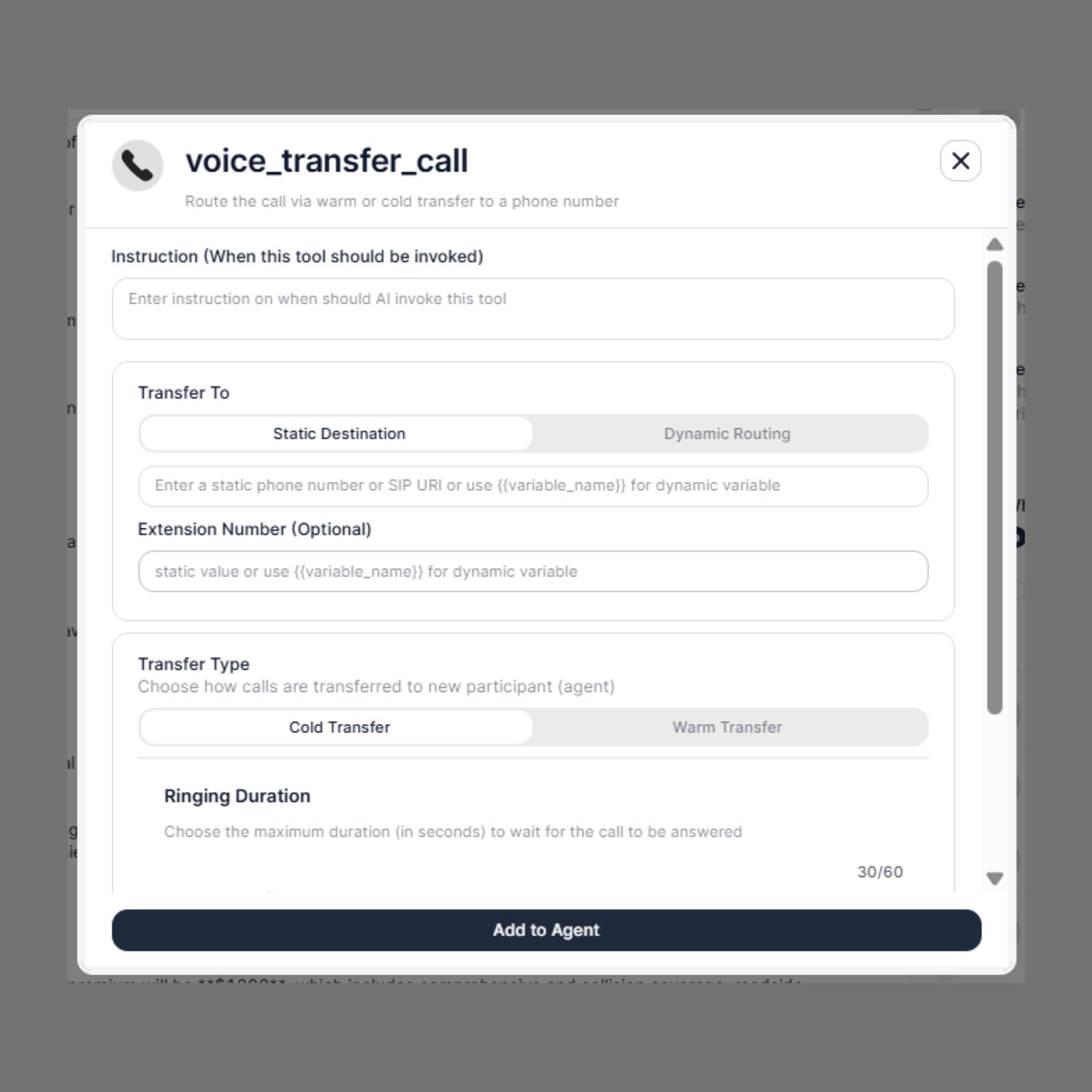
The **Transfer Call** tool allows your AI agent to hand off an active call to a human agent, department, or any phone number — at exactly the right moment in a conversation. It supports both **Cold Transfer** (instant handoff) and **Warm Transfer** (assisted handoff with context sharing) to give you full control over how the transition happens.
 > **Phone calls only.** This tool works exclusively for phone calls and is not supported for web-based chat or voice sessions.
***
## When to Use
Trigger this tool when:
* The customer asks to speak with a human agent
* The request requires human judgement or specialist knowledge
* The conversation needs escalation (e.g., complaint, complex query)
* Routing to a specific department is required — Sales, Support, Billing, Renewals, Claims
***
## Steps to Add
1. Open the **Agent Builder**
2. Click **+ Add Tool**
3. Select **Voice Tool Call**
4. From the **Select Action** dropdown, choose `voice_transfer_call`
5. Fill in all configuration fields (described below)
6. Click **Add to Agent**
***
## Step 1: Instruction *(When this tool should be invoked)*
Write a clear instruction that tells the AI agent when to trigger the transfer. The more specific you are, the more reliably the agent will initiate the transfer at the correct moment.
```text theme={null}
Transfer the call when the customer asks to speak with a human, expresses frustration,
or needs assistance that goes beyond what the AI can handle.
```
```text theme={null}
Transfer to the billing department when the customer raises a payment dispute
or questions their invoice amount.
```
Vague instructions like *"transfer when needed"* make it harder for the agent to decide. Always describe the **exact trigger condition**.
***
## Step 2: Transfer To
Defines where the call will be sent.
### Destination Options
| Option | Description |
| ---------------------- | ----------------------------------------------------------------------------------------------- |
| **Static Destination** | A fixed phone number or SIP URI — always routes to the same endpoint |
| **Dynamic Routing** | Destination is resolved at runtime from a `{{variable_name}}` extracted during the conversation |
### Accepted Formats
* **Phone number (E.164 format):** `+919876543210`
* **SIP URI:** `sip:agent@yourdomain.com`
* **Dynamic variable:** `{{assigned_agent_number}}`
> All phone numbers must be in **E.164 international format**, including the country code (e.g., `+1` for US, `+91` for India).
### Extension Number *(Optional)*
> **Phone calls only.** This tool works exclusively for phone calls and is not supported for web-based chat or voice sessions.
***
## When to Use
Trigger this tool when:
* The customer asks to speak with a human agent
* The request requires human judgement or specialist knowledge
* The conversation needs escalation (e.g., complaint, complex query)
* Routing to a specific department is required — Sales, Support, Billing, Renewals, Claims
***
## Steps to Add
1. Open the **Agent Builder**
2. Click **+ Add Tool**
3. Select **Voice Tool Call**
4. From the **Select Action** dropdown, choose `voice_transfer_call`
5. Fill in all configuration fields (described below)
6. Click **Add to Agent**
***
## Step 1: Instruction *(When this tool should be invoked)*
Write a clear instruction that tells the AI agent when to trigger the transfer. The more specific you are, the more reliably the agent will initiate the transfer at the correct moment.
```text theme={null}
Transfer the call when the customer asks to speak with a human, expresses frustration,
or needs assistance that goes beyond what the AI can handle.
```
```text theme={null}
Transfer to the billing department when the customer raises a payment dispute
or questions their invoice amount.
```
Vague instructions like *"transfer when needed"* make it harder for the agent to decide. Always describe the **exact trigger condition**.
***
## Step 2: Transfer To
Defines where the call will be sent.
### Destination Options
| Option | Description |
| ---------------------- | ----------------------------------------------------------------------------------------------- |
| **Static Destination** | A fixed phone number or SIP URI — always routes to the same endpoint |
| **Dynamic Routing** | Destination is resolved at runtime from a `{{variable_name}}` extracted during the conversation |
### Accepted Formats
* **Phone number (E.164 format):** `+919876543210`
* **SIP URI:** `sip:agent@yourdomain.com`
* **Dynamic variable:** `{{assigned_agent_number}}`
> All phone numbers must be in **E.164 international format**, including the country code (e.g., `+1` for US, `+91` for India).
### Extension Number *(Optional)*
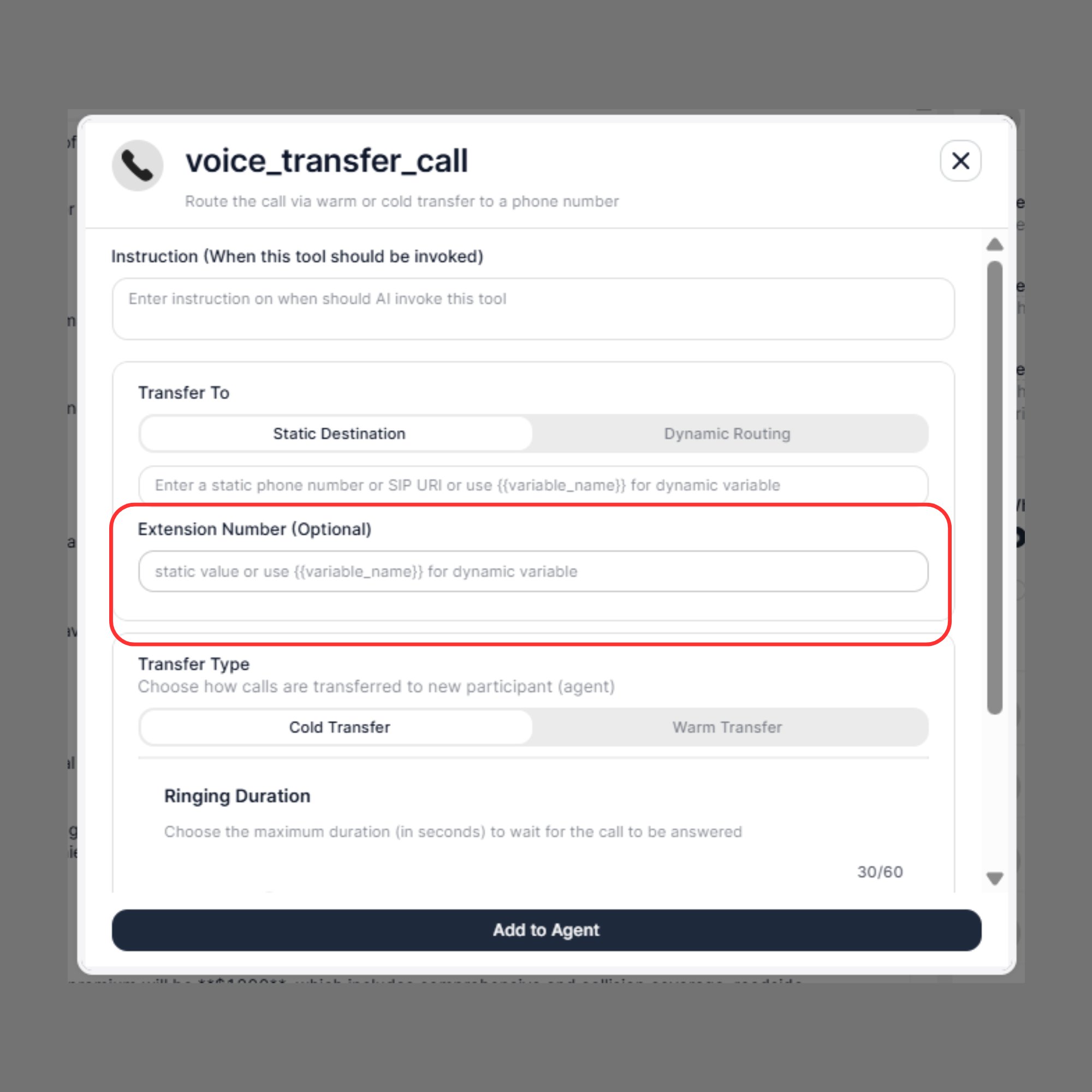 After the main number connects, the extension routes the call to the correct internal team or agent — automatically, without the customer needing to press anything.
```text theme={null}
Main Number: +1-800-555-0199 ← connects to the company switchboard
Extension: 302 ← routes directly to the Billing team
```
#### Why the Extension Field Matters
Most business phone systems (PBX, RingCentral, 8x8, Vonage, Twilio) share a single main inbound number across departments. Without an extension, the AI agent connects to the front-line IVR or receptionist and stalls — requiring manual routing.
With the extension configured, the handoff is seamless: the agent dials the main number and immediately routes to the right desk, with no customer interaction needed.
#### When to Use the Extension
**Your business has multiple departments on one main line:**
```text theme={null}
Main: +1-888-200-1000
├── ext. 101 → Sales
├── ext. 202 → Customer Support
└── ext. 303 → Billing & Accounts
```
**You want to bypass the IVR entirely:** Many phone systems allow direct extension dialing, skipping IVR menus altogether. The customer saves 30–60 seconds and reaches the right person immediately.
**You're routing to a specific named agent:** If a customer has a dedicated account manager (e.g., ext. 415 for James in Renewals), the extension ensures they always land at the right person — not a random available agent.
**You use SIP-based infrastructure:** SIP URIs often require an extension to reach the correct endpoint. Without it, calls may fall back to a default destination.
#### Static vs. Dynamic Extension
**Static** — same extension on every transfer:
```text theme={null}
Extension: 302
```
Best for single-purpose bots where all transfers always go to one team.
**Dynamic** — extension resolved from conversation context:
```text theme={null}
Extension: {{department_extension}}
```
Pair this with **Extract Dynamic Variables** to map customer intent to the right extension at runtime:
| Customer Says | Extracted Intent | Extension Routed |
| --------------------------- | ---------------- | ---------------- |
| "I want to renew my policy" | `renewals` | `201` |
| "I need to file a claim" | `claims` | `305` |
| "I have a billing question" | `billing` | `410` |
| "I want to cancel" | `cancellations` | `500` |
This lets a single Transfer Call tool handle all your departments — no need to create a separate tool for each one.
***
## Step 3: Transfer Type
SigmaMind provides two transfer types. Choose based on whether context sharing is needed before the customer connects.
After the main number connects, the extension routes the call to the correct internal team or agent — automatically, without the customer needing to press anything.
```text theme={null}
Main Number: +1-800-555-0199 ← connects to the company switchboard
Extension: 302 ← routes directly to the Billing team
```
#### Why the Extension Field Matters
Most business phone systems (PBX, RingCentral, 8x8, Vonage, Twilio) share a single main inbound number across departments. Without an extension, the AI agent connects to the front-line IVR or receptionist and stalls — requiring manual routing.
With the extension configured, the handoff is seamless: the agent dials the main number and immediately routes to the right desk, with no customer interaction needed.
#### When to Use the Extension
**Your business has multiple departments on one main line:**
```text theme={null}
Main: +1-888-200-1000
├── ext. 101 → Sales
├── ext. 202 → Customer Support
└── ext. 303 → Billing & Accounts
```
**You want to bypass the IVR entirely:** Many phone systems allow direct extension dialing, skipping IVR menus altogether. The customer saves 30–60 seconds and reaches the right person immediately.
**You're routing to a specific named agent:** If a customer has a dedicated account manager (e.g., ext. 415 for James in Renewals), the extension ensures they always land at the right person — not a random available agent.
**You use SIP-based infrastructure:** SIP URIs often require an extension to reach the correct endpoint. Without it, calls may fall back to a default destination.
#### Static vs. Dynamic Extension
**Static** — same extension on every transfer:
```text theme={null}
Extension: 302
```
Best for single-purpose bots where all transfers always go to one team.
**Dynamic** — extension resolved from conversation context:
```text theme={null}
Extension: {{department_extension}}
```
Pair this with **Extract Dynamic Variables** to map customer intent to the right extension at runtime:
| Customer Says | Extracted Intent | Extension Routed |
| --------------------------- | ---------------- | ---------------- |
| "I want to renew my policy" | `renewals` | `201` |
| "I need to file a claim" | `claims` | `305` |
| "I have a billing question" | `billing` | `410` |
| "I want to cancel" | `cancellations` | `500` |
This lets a single Transfer Call tool handle all your departments — no need to create a separate tool for each one.
***
## Step 3: Transfer Type
SigmaMind provides two transfer types. Choose based on whether context sharing is needed before the customer connects.
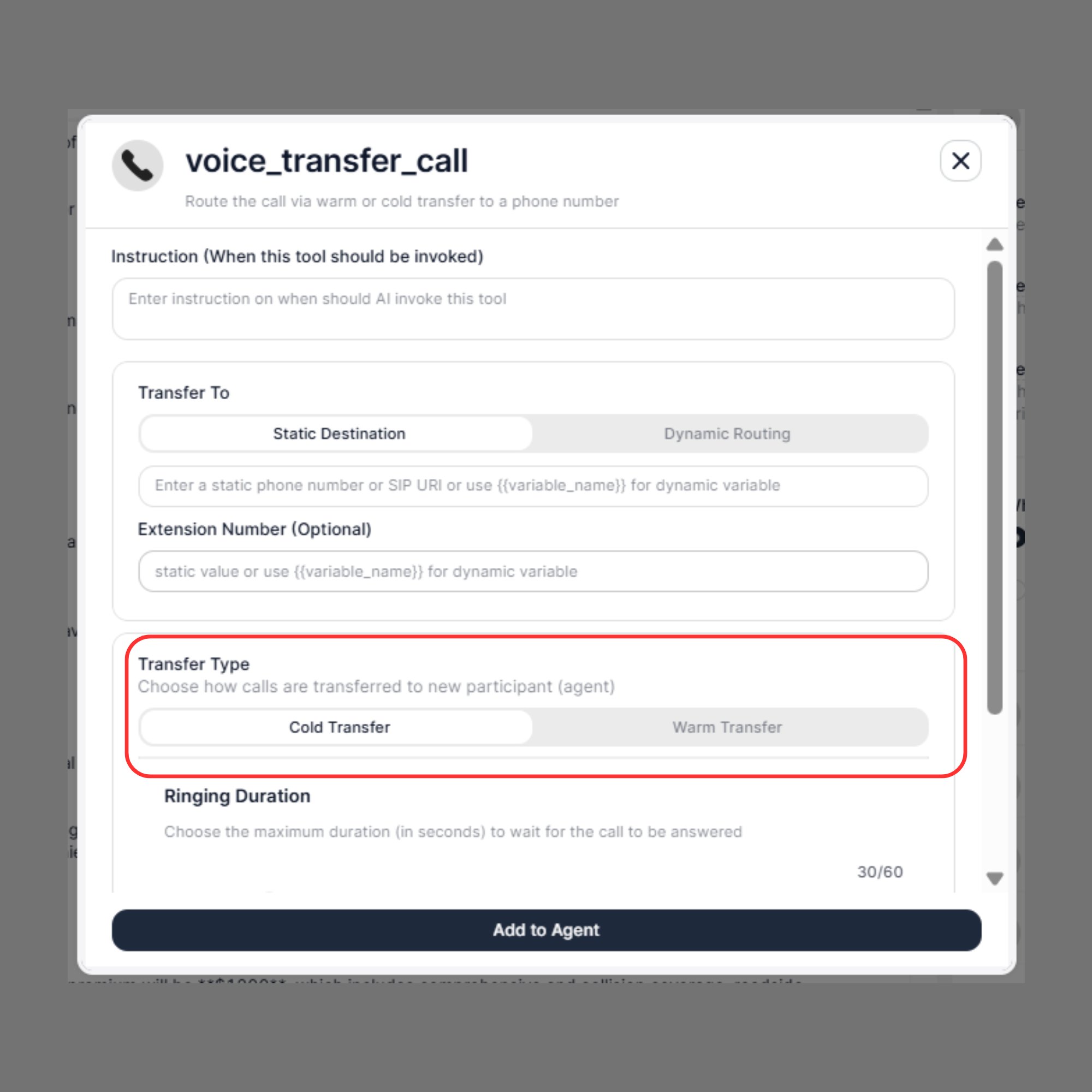 ***
### Cold Transfer
The AI agent immediately routes the call to the destination and disconnects.
**What happens:**
* The AI initiates the transfer and exits the conversation instantly
* The customer hears ringing and connects directly to the destination
* No context or summary is shared with the receiving agent
**When to use Cold Transfer:**
* Simple department routing where no background is needed
* Fast escalations where speed matters more than context
* Internal lines where agents already have CRM access
```text theme={null}
Customer: "Can I speak to someone in support?"
→ AI triggers voice_transfer_call
→ Call routes to +1-800-555-0100
→ AI drops off immediately
→ Customer hears ringing, support agent picks up
```
***
### Warm Transfer
The receiving agent is connected first, context is shared privately, then the customer is bridged in. This creates a smooth, professional handoff experience.
Warm Transfer happens in **two distinct stages:**
***
## Stage 1: Connecting Stage
In the Connecting Stage, the receiving agent's line is dialed and connected — but the customer and the agent **cannot yet hear each other**. The customer is still on hold, listening to ringing or hold music.
This stage exists so the receiving agent can receive context **before** the customer joins, allowing them to prepare a response or pull up the right information.
```text theme={null}
[Connecting Stage]
Customer ──── on hold (hears ringing) ────►
AI ──► Agent connected
↓
Whisper Message played to agent only
```
### Whisper Message
The **Whisper Message** is a private audio message played **only to the receiving agent** during the Connecting Stage. The customer cannot hear it under any circumstances.
Use the Whisper Message to give the agent the context they need before they say hello — customer name, reason for calling, policy number, account history, or any other relevant detail.
**To enable Whisper Message:**
1. Toggle **Whisper Message** ON
2. Enter your message in the text box
3. Choose either **Static** or **Prompt** mode
#### Static Whisper Message
A fixed, pre-written message — the same text plays on every transfer.
```text theme={null}
You are being connected to a customer regarding an insurance renewal request.
Please review their policy and assist accordingly.
```
You can make static messages smarter by embedding dynamic variables:
```text theme={null}
You are being connected to {{customer_name}} regarding insurance policy {{policy_id}}.
The customer wants assistance with {{request_type}}.
Please have their account ready before greeting them.
```
Best for: predictable, structured use cases where the context format never changes.
#### Prompt Whisper Message
Instead of writing a fixed message, you provide an **instruction** — and SigmaMind AI automatically generates a contextual summary based on the actual conversation before playing it to the agent.
**Prompt instruction:**
```text theme={null}
Summarize the customer's request and include their name, issue, and requested service.
```
**What the system generates automatically (example output):**
```text theme={null}
Customer name is Rahul Sharma. He is calling to renew his car insurance policy
and wants clarification on premium pricing and coverage details.
```
**Prompt with variables:**
```text theme={null}
Provide a short summary for the receiving agent. Include customer name {{customer_name}},
service {{service_type}}, and request {{customer_request}}.
```
Best for: conversations where the context varies widely — complaints, complex queries, multi-topic calls — and a fixed script wouldn't cover every scenario.
> If the Whisper Message is left empty, the transfer will still proceed, but no context will be shared with the receiving agent. In this case, the Warm Transfer effectively behaves like a Cold Transfer.
***
## Stage 2: Bridged Stage
In the Bridged Stage, the call bridge is established and **both the customer and the receiving agent can now hear each other**. The AI agent drops off, and the human takes over the conversation.
This is the moment the transfer is truly complete.
```text theme={null}
[Bridged Stage]
Customer ◄──────────────────────────► Human Agent
(full duplex audio)
AI drops off
```
### Three-Way Message *(Bridge Message)*
At the moment of bridging, the AI can play one final message **heard by both the customer and the receiving agent** simultaneously. This ensures a clear, professional transition and eliminates any awkward silence or confusion about whether the connection has succeeded.
**To enable Three-Way Message:**
1. Toggle **Three-way Message** ON
2. Enter the message in the text box
3. Choose either **Static** or **Prompt** mode
#### Static Three-Way Message
A fixed announcement confirming the connection:
```text theme={null}
Thank you for waiting. You are now connected to our support specialist.
```
With dynamic variables:
```text theme={null}
Thank you for waiting, {{customer_name}}. You are now connected to our support specialist.
```
#### Prompt Three-Way Message
A dynamically generated message tailored to the specific call:
```text theme={null}
Generate a short, clear, and neutral three-way message to be played to both the customer
and the agent after the call is bridged. Confirm the connection is complete and invite
the conversation to continue. Keep it professional and concise.
```
With variables:
```text theme={null}
Generate a short, clear, and neutral three-way message to be played to both {{customer_name}}
and the agent after the call is bridged. Mention that {{customer_name}} is now connected
with the {{agent_role}} regarding {{call_reason}}.
Keep it professional, concise, and welcoming.
```
> All variables must always be written using double curly braces: `{{variable_name}}`
***
## Step 4: Custom Headers *(Optional)*
Custom Headers let you send structured metadata along with the call transfer. This information is **invisible to the customer** but available to the receiving agent's system, CRM, call center software, or backend automation.
Headers are sent as key-value pairs:
```text theme={null}
X-Intent: billing_issue
X-Language: en
X-Customer-Type: existing
X-Ticket-ID: 12345
X-Call-Source: outbound_campaign
X-Policy-ID: POL-98271
```
### When Custom Headers Are Useful
| Use Case | Header Example |
| ----------------------------------- | ------------------------------------- |
| Route to the right CRM queue | `X-Intent: claims_inquiry` |
| Tag language for multilingual teams | `X-Language: hi` |
| Associate call with a campaign | `X-Call-Source: renewal_campaign_Q2` |
| Pre-load customer record | `X-Customer-ID: CUS-00421` |
| Log call reason for reporting | `X-Call-Reason: cancellation_request` |
Headers provide structured context for automation, reporting, and agent preparation — all without requiring the customer to repeat themselves.
***
## Step 5: Add to Agent
Once all fields are configured, click **Add to Agent** to save the tool.
If the receiving agent does not answer or the transfer fails due to network issues, SigmaMind automatically retries the transfer based on your configured settings.
***
## Full Warm Transfer Execution Flow
```text theme={null}
Customer requests transfer
↓
AI triggers voice_transfer_call
↓
[Connecting Stage]
Receiving agent's line is dialed
Customer placed on hold (hears ringing)
↓
Whisper Message played to agent only
(Customer cannot hear this)
↓
[Bridged Stage]
Call bridge established
Both customer and agent can hear each other
↓
Three-way Message played to both parties
↓
AI drops off
Human agent continues the conversation
```
***
## Cold vs. Warm
| Feature | Cold Transfer | Warm Transfer |
| ---------------------------------- | -------------- | ---------------------------- |
| Agent connected before customer | ❌ | ✅ |
| Whisper Message to receiving agent | ❌ | ✅ |
| Three-way bridge announcement | ❌ | ✅ |
| Customer hears hold music | ❌ | ✅ |
| Context shared before handoff | ❌ | ✅ |
| Speed | Fastest | Slightly slower (seconds) |
| Best for | Simple routing | High-stakes or complex calls |
***
## Example Configurations
### Example 1 — Cold Transfer to Support
| Field | Value |
| ------------- | -------------------------------------------------- |
| Instruction | Transfer when the customer requests a human agent. |
| Transfer To | Static → `+1-800-555-0100` |
| Extension | `202` |
| Transfer Type | Cold Transfer |
***
### Example 2 — Warm Transfer with Whisper + Bridge Message
| Field | Value |
| ----------------- | --------------------------------------------------------------------------------------------------- |
| Instruction | Transfer when the customer raises a billing dispute or payment issue. |
| Transfer To | Static → `+1-800-555-0199` |
| Extension | `{{department_extension}}` |
| Transfer Type | Warm Transfer |
| Whisper Message | `You are being connected to {{customer_name}} regarding a billing dispute on policy {{policy_id}}.` |
| Three-way Message | `Thank you for waiting, {{customer_name}}. You are now connected with our billing specialist.` |
***
## Best Practices
* Write **specific trigger instructions** — vague conditions cause missed or premature transfers
* Use **Warm Transfer** for high-value calls, complaints, or any scenario where the receiving agent benefits from knowing context upfront
* Use **Prompt Whisper Messages** when call topics vary widely — the AI generates a tailored summary every time
* Pair **Dynamic Routing** with **Extract Dynamic Variables** to handle multi-department routing from a single transfer tool
* Use **Custom Headers** to pre-load CRM records or tag calls for analytics — reduces repeat questions for the customer
* Always enter phone numbers in **E.164 format** (`+[country code][number]`)
* Test transfer flows using the **Test Voice** playground before going live
***
## Troubleshooting
| Issue | Fix |
| ---------------------------------- | ------------------------------------------------------------------------------ |
| Transfer not triggering | Make the Instruction more specific and match actual conversation phrases |
| Call drops instead of transferring | Verify phone number is in correct E.164 format |
| Extension not connecting | Confirm the extension is active on your PBX/phone system and accepts auto-dial |
| Dynamic variable not resolving | Ensure **Extract Dynamic Variables** runs earlier in the agent flow |
| Whisper message not playing | Check that the Whisper Message toggle is ON and the message text is not empty |
| Warm transfer behaves like cold | Whisper Message is likely empty — add content to distinguish the stages |
| Three-way message not heard | Confirm the Three-way Message toggle is ON in the Bridged Stage settings |
***
### Cold Transfer
The AI agent immediately routes the call to the destination and disconnects.
**What happens:**
* The AI initiates the transfer and exits the conversation instantly
* The customer hears ringing and connects directly to the destination
* No context or summary is shared with the receiving agent
**When to use Cold Transfer:**
* Simple department routing where no background is needed
* Fast escalations where speed matters more than context
* Internal lines where agents already have CRM access
```text theme={null}
Customer: "Can I speak to someone in support?"
→ AI triggers voice_transfer_call
→ Call routes to +1-800-555-0100
→ AI drops off immediately
→ Customer hears ringing, support agent picks up
```
***
### Warm Transfer
The receiving agent is connected first, context is shared privately, then the customer is bridged in. This creates a smooth, professional handoff experience.
Warm Transfer happens in **two distinct stages:**
***
## Stage 1: Connecting Stage
In the Connecting Stage, the receiving agent's line is dialed and connected — but the customer and the agent **cannot yet hear each other**. The customer is still on hold, listening to ringing or hold music.
This stage exists so the receiving agent can receive context **before** the customer joins, allowing them to prepare a response or pull up the right information.
```text theme={null}
[Connecting Stage]
Customer ──── on hold (hears ringing) ────►
AI ──► Agent connected
↓
Whisper Message played to agent only
```
### Whisper Message
The **Whisper Message** is a private audio message played **only to the receiving agent** during the Connecting Stage. The customer cannot hear it under any circumstances.
Use the Whisper Message to give the agent the context they need before they say hello — customer name, reason for calling, policy number, account history, or any other relevant detail.
**To enable Whisper Message:**
1. Toggle **Whisper Message** ON
2. Enter your message in the text box
3. Choose either **Static** or **Prompt** mode
#### Static Whisper Message
A fixed, pre-written message — the same text plays on every transfer.
```text theme={null}
You are being connected to a customer regarding an insurance renewal request.
Please review their policy and assist accordingly.
```
You can make static messages smarter by embedding dynamic variables:
```text theme={null}
You are being connected to {{customer_name}} regarding insurance policy {{policy_id}}.
The customer wants assistance with {{request_type}}.
Please have their account ready before greeting them.
```
Best for: predictable, structured use cases where the context format never changes.
#### Prompt Whisper Message
Instead of writing a fixed message, you provide an **instruction** — and SigmaMind AI automatically generates a contextual summary based on the actual conversation before playing it to the agent.
**Prompt instruction:**
```text theme={null}
Summarize the customer's request and include their name, issue, and requested service.
```
**What the system generates automatically (example output):**
```text theme={null}
Customer name is Rahul Sharma. He is calling to renew his car insurance policy
and wants clarification on premium pricing and coverage details.
```
**Prompt with variables:**
```text theme={null}
Provide a short summary for the receiving agent. Include customer name {{customer_name}},
service {{service_type}}, and request {{customer_request}}.
```
Best for: conversations where the context varies widely — complaints, complex queries, multi-topic calls — and a fixed script wouldn't cover every scenario.
> If the Whisper Message is left empty, the transfer will still proceed, but no context will be shared with the receiving agent. In this case, the Warm Transfer effectively behaves like a Cold Transfer.
***
## Stage 2: Bridged Stage
In the Bridged Stage, the call bridge is established and **both the customer and the receiving agent can now hear each other**. The AI agent drops off, and the human takes over the conversation.
This is the moment the transfer is truly complete.
```text theme={null}
[Bridged Stage]
Customer ◄──────────────────────────► Human Agent
(full duplex audio)
AI drops off
```
### Three-Way Message *(Bridge Message)*
At the moment of bridging, the AI can play one final message **heard by both the customer and the receiving agent** simultaneously. This ensures a clear, professional transition and eliminates any awkward silence or confusion about whether the connection has succeeded.
**To enable Three-Way Message:**
1. Toggle **Three-way Message** ON
2. Enter the message in the text box
3. Choose either **Static** or **Prompt** mode
#### Static Three-Way Message
A fixed announcement confirming the connection:
```text theme={null}
Thank you for waiting. You are now connected to our support specialist.
```
With dynamic variables:
```text theme={null}
Thank you for waiting, {{customer_name}}. You are now connected to our support specialist.
```
#### Prompt Three-Way Message
A dynamically generated message tailored to the specific call:
```text theme={null}
Generate a short, clear, and neutral three-way message to be played to both the customer
and the agent after the call is bridged. Confirm the connection is complete and invite
the conversation to continue. Keep it professional and concise.
```
With variables:
```text theme={null}
Generate a short, clear, and neutral three-way message to be played to both {{customer_name}}
and the agent after the call is bridged. Mention that {{customer_name}} is now connected
with the {{agent_role}} regarding {{call_reason}}.
Keep it professional, concise, and welcoming.
```
> All variables must always be written using double curly braces: `{{variable_name}}`
***
## Step 4: Custom Headers *(Optional)*
Custom Headers let you send structured metadata along with the call transfer. This information is **invisible to the customer** but available to the receiving agent's system, CRM, call center software, or backend automation.
Headers are sent as key-value pairs:
```text theme={null}
X-Intent: billing_issue
X-Language: en
X-Customer-Type: existing
X-Ticket-ID: 12345
X-Call-Source: outbound_campaign
X-Policy-ID: POL-98271
```
### When Custom Headers Are Useful
| Use Case | Header Example |
| ----------------------------------- | ------------------------------------- |
| Route to the right CRM queue | `X-Intent: claims_inquiry` |
| Tag language for multilingual teams | `X-Language: hi` |
| Associate call with a campaign | `X-Call-Source: renewal_campaign_Q2` |
| Pre-load customer record | `X-Customer-ID: CUS-00421` |
| Log call reason for reporting | `X-Call-Reason: cancellation_request` |
Headers provide structured context for automation, reporting, and agent preparation — all without requiring the customer to repeat themselves.
***
## Step 5: Add to Agent
Once all fields are configured, click **Add to Agent** to save the tool.
If the receiving agent does not answer or the transfer fails due to network issues, SigmaMind automatically retries the transfer based on your configured settings.
***
## Full Warm Transfer Execution Flow
```text theme={null}
Customer requests transfer
↓
AI triggers voice_transfer_call
↓
[Connecting Stage]
Receiving agent's line is dialed
Customer placed on hold (hears ringing)
↓
Whisper Message played to agent only
(Customer cannot hear this)
↓
[Bridged Stage]
Call bridge established
Both customer and agent can hear each other
↓
Three-way Message played to both parties
↓
AI drops off
Human agent continues the conversation
```
***
## Cold vs. Warm
| Feature | Cold Transfer | Warm Transfer |
| ---------------------------------- | -------------- | ---------------------------- |
| Agent connected before customer | ❌ | ✅ |
| Whisper Message to receiving agent | ❌ | ✅ |
| Three-way bridge announcement | ❌ | ✅ |
| Customer hears hold music | ❌ | ✅ |
| Context shared before handoff | ❌ | ✅ |
| Speed | Fastest | Slightly slower (seconds) |
| Best for | Simple routing | High-stakes or complex calls |
***
## Example Configurations
### Example 1 — Cold Transfer to Support
| Field | Value |
| ------------- | -------------------------------------------------- |
| Instruction | Transfer when the customer requests a human agent. |
| Transfer To | Static → `+1-800-555-0100` |
| Extension | `202` |
| Transfer Type | Cold Transfer |
***
### Example 2 — Warm Transfer with Whisper + Bridge Message
| Field | Value |
| ----------------- | --------------------------------------------------------------------------------------------------- |
| Instruction | Transfer when the customer raises a billing dispute or payment issue. |
| Transfer To | Static → `+1-800-555-0199` |
| Extension | `{{department_extension}}` |
| Transfer Type | Warm Transfer |
| Whisper Message | `You are being connected to {{customer_name}} regarding a billing dispute on policy {{policy_id}}.` |
| Three-way Message | `Thank you for waiting, {{customer_name}}. You are now connected with our billing specialist.` |
***
## Best Practices
* Write **specific trigger instructions** — vague conditions cause missed or premature transfers
* Use **Warm Transfer** for high-value calls, complaints, or any scenario where the receiving agent benefits from knowing context upfront
* Use **Prompt Whisper Messages** when call topics vary widely — the AI generates a tailored summary every time
* Pair **Dynamic Routing** with **Extract Dynamic Variables** to handle multi-department routing from a single transfer tool
* Use **Custom Headers** to pre-load CRM records or tag calls for analytics — reduces repeat questions for the customer
* Always enter phone numbers in **E.164 format** (`+[country code][number]`)
* Test transfer flows using the **Test Voice** playground before going live
***
## Troubleshooting
| Issue | Fix |
| ---------------------------------- | ------------------------------------------------------------------------------ |
| Transfer not triggering | Make the Instruction more specific and match actual conversation phrases |
| Call drops instead of transferring | Verify phone number is in correct E.164 format |
| Extension not connecting | Confirm the extension is active on your PBX/phone system and accepts auto-dial |
| Dynamic variable not resolving | Ensure **Extract Dynamic Variables** runs earlier in the agent flow |
| Whisper message not playing | Check that the Whisper Message toggle is ON and the message text is not empty |
| Warm transfer behaves like cold | Whisper Message is likely empty — add content to distinguish the stages |
| Three-way message not heard | Confirm the Three-way Message toggle is ON in the Bridged Stage settings |