> ## Documentation Index
> Fetch the complete documentation index at: https://docs.sigmamind.ai/llms.txt
> Use this file to discover all available pages before exploring further.
# How to Access Tool Library
The **Tool Library** section in **SigmaMind AI** allows you to connect external applications, configure actions, and enable your Voice AI agents to interact with real-world services such as scheduling, CRM, email, and more.
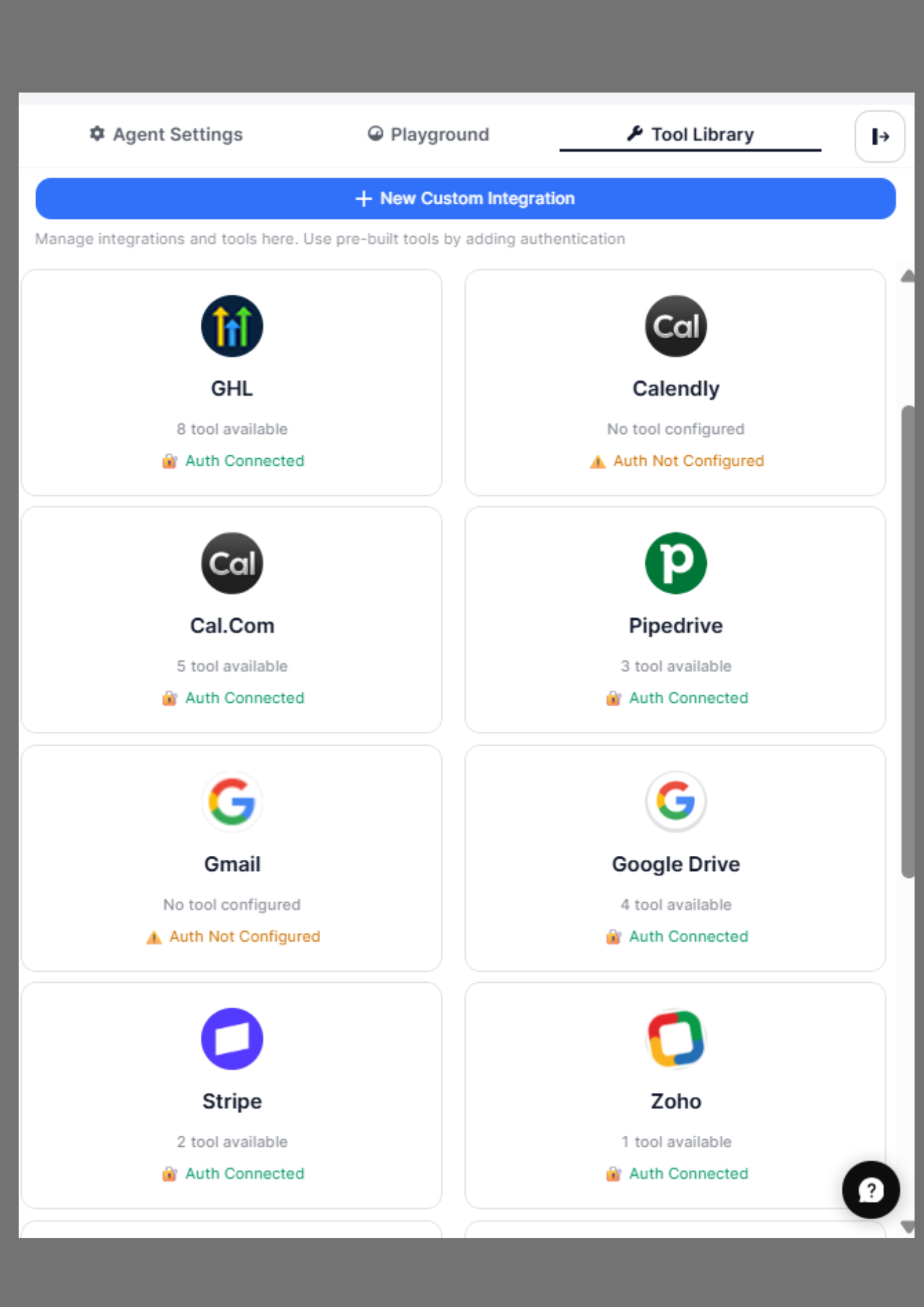 This App Marketplace provides a centralized interface where you can:
* Connect third-party apps
* Configure authentication
* Create and manage tool actions
* Define dynamic variables
* Test API integrations
* Enable actions for Voice AI agents
These integrations allow your AI agent to perform tasks such as booking appointments, retrieving data, sending notifications, and automating workflows.
**How Tool Execution Works**
```text theme={null}
User → AI Agent → Tool Action → External API → Response → AI Agent → User
```
## Accessing Tool Library
To access this section:
1. Open the **Agent Builder**
2. Click **Tool Library** option
3. Browse available integrations or add custom tools
This section allows you to view connected apps, configure authentication, create actions, and manage integrations for your AI agent.
You will see a list of pre-built integrations, such as:
* Cal. com
* Shopify
* Recharge
* HubSpot
* Stripe
* Zoho
* Pipedrive
Each app displays its authentication status and available actions.
**Default Integrations vs Custom Tools**
**Use Default Integrations when:**
• The app is already available ([**Cal.com**](http://Cal.com), **Shopify, HubSpot**, etc.)
• No custom API configuration needed
**Use Custom Tools when:**
• Your app is not listed
• You want to connect internal systems
• You need custom API workflows
## Connecting an App
To connect an app:
1. Select the desired app (e.g., Cal. com)
2. Click **Configure Authentication**
3. Choose an authentication method
4. Enter the required credentials
5. Click **Submit**
Once connected, the app’s actions become available for your AI agent.
This App Marketplace provides a centralized interface where you can:
* Connect third-party apps
* Configure authentication
* Create and manage tool actions
* Define dynamic variables
* Test API integrations
* Enable actions for Voice AI agents
These integrations allow your AI agent to perform tasks such as booking appointments, retrieving data, sending notifications, and automating workflows.
**How Tool Execution Works**
```text theme={null}
User → AI Agent → Tool Action → External API → Response → AI Agent → User
```
## Accessing Tool Library
To access this section:
1. Open the **Agent Builder**
2. Click **Tool Library** option
3. Browse available integrations or add custom tools
This section allows you to view connected apps, configure authentication, create actions, and manage integrations for your AI agent.
You will see a list of pre-built integrations, such as:
* Cal. com
* Shopify
* Recharge
* HubSpot
* Stripe
* Zoho
* Pipedrive
Each app displays its authentication status and available actions.
**Default Integrations vs Custom Tools**
**Use Default Integrations when:**
• The app is already available ([**Cal.com**](http://Cal.com), **Shopify, HubSpot**, etc.)
• No custom API configuration needed
**Use Custom Tools when:**
• Your app is not listed
• You want to connect internal systems
• You need custom API workflows
## Connecting an App
To connect an app:
1. Select the desired app (e.g., Cal. com)
2. Click **Configure Authentication**
3. Choose an authentication method
4. Enter the required credentials
5. Click **Submit**
Once connected, the app’s actions become available for your AI agent.