> ## Documentation Index
> Fetch the complete documentation index at: https://docs.sigmamind.ai/llms.txt
> Use this file to discover all available pages before exploring further.
# How to Configure Authentication
## Supported Authentication Types
**SigmaMind AI** provides multiple authentication methods to securely connect external applications. You can select the required authentication type based on the API requirements of the app you are integrating.
### Available Authentication Types
The following authentication types are supported:
* **Bearer Token** – Uses a token generated by the external app (from its API or developer settings) to authenticate requests.
* **API Key** – Uses a key included in headers or query parameters
* **Basic Auth** – Uses a username and password combination
* **No Auth** – Used when no authentication is required
#### **How to Configure Authentication**
Follow these general steps to configure authentication:
1. Open the **Tool Library** section
2. Select the app you want to configure
3. Click **Configure Authentication**
4. Select the required **Auth Type** from the dropdown
5. Enter the required authentication details
6. Click **Submit Authentication**
### Bearer Token
Bearer Token is the most commonly used authentication method for APIs such as [Cal.com](http://Cal.com).
.png?fit=max&auto=format&n=c-F9Y7NxUCrvJK6l&q=85&s=d52935d6ece11eed8a9251aceb711b91) **Configuration Steps:**
1. Select **Bearer Token** from the Auth Type dropdown
2. Enter the token in the **Token** field
3. Click **Submit Authentication**
**Example Header Sent Automatically:**
Authorization: Bearer your\_token
The AI agent will automatically include this token in every API request.
### API Key
Use this method when the API provides an API key for authentication.
**Configuration Steps:**
1. Select **Bearer Token** from the Auth Type dropdown
2. Enter the token in the **Token** field
3. Click **Submit Authentication**
**Example Header Sent Automatically:**
Authorization: Bearer your\_token
The AI agent will automatically include this token in every API request.
### API Key
Use this method when the API provides an API key for authentication.
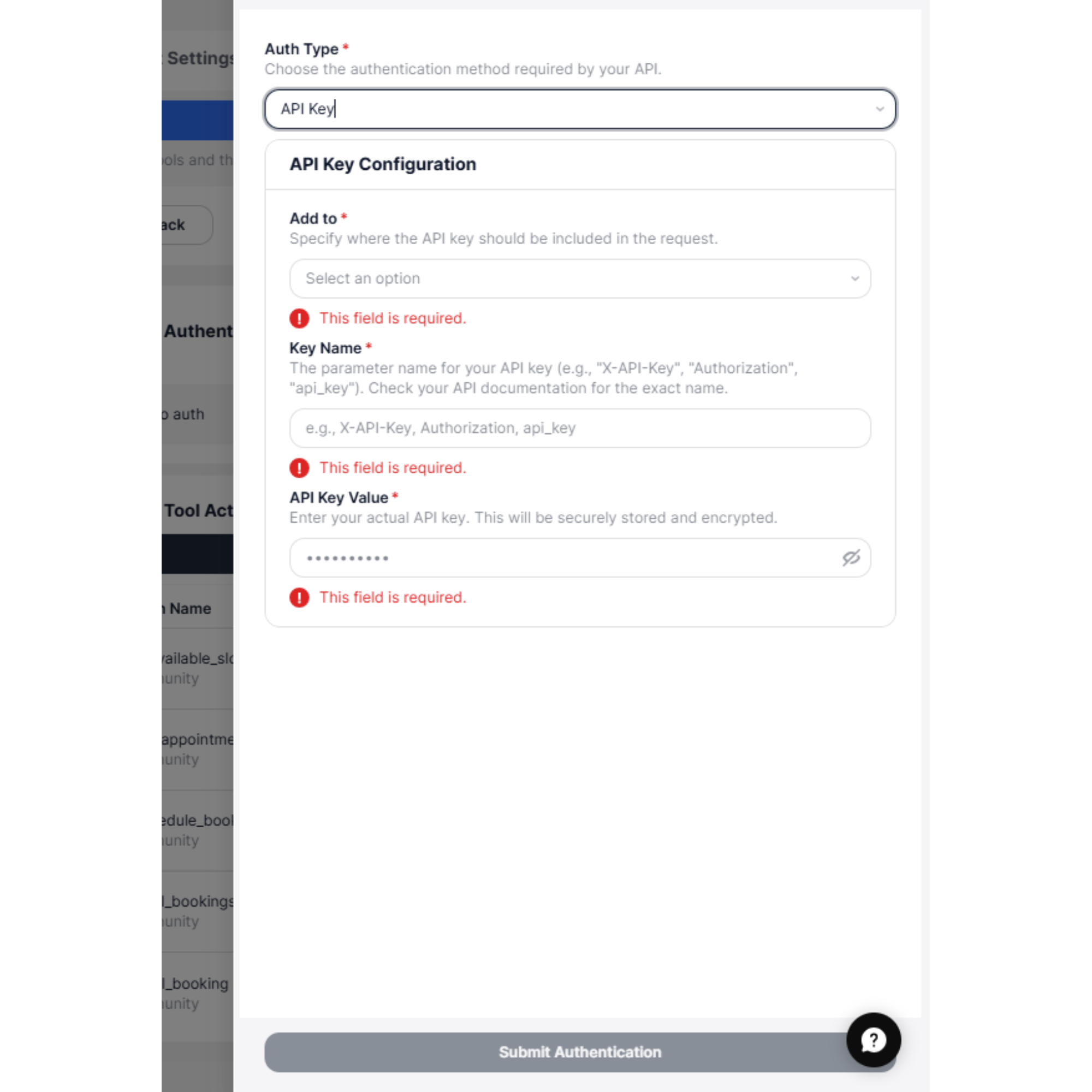 **Configuration Fields:**
* **Add to** – Select where the API key should be included:
* Header
* Query Parameter
* **Key Name** – The parameter name defined by the API (e.g., `x-api-key`, `Authorization`, `api_key`)
* **API Key Value** – Your actual API key provided by the service
**Example (Header):**
x-api-key: your\_api\_key
**Example (Query Parameter):**
[https://api.example.com/events?apikey=](https://api.example.com/events?apikey=\{yourapikey})
After clicking **Submit Authentication**, SigmaMind AI securely stores the API key and automatically includes it in all tool action requests.
### Basic Auth
Use Basic Auth when the API requires a username and password combination.
**Configuration Fields:**
* **Add to** – Select where the API key should be included:
* Header
* Query Parameter
* **Key Name** – The parameter name defined by the API (e.g., `x-api-key`, `Authorization`, `api_key`)
* **API Key Value** – Your actual API key provided by the service
**Example (Header):**
x-api-key: your\_api\_key
**Example (Query Parameter):**
[https://api.example.com/events?apikey=](https://api.example.com/events?apikey=\{yourapikey})
After clicking **Submit Authentication**, SigmaMind AI securely stores the API key and automatically includes it in all tool action requests.
### Basic Auth
Use Basic Auth when the API requires a username and password combination.
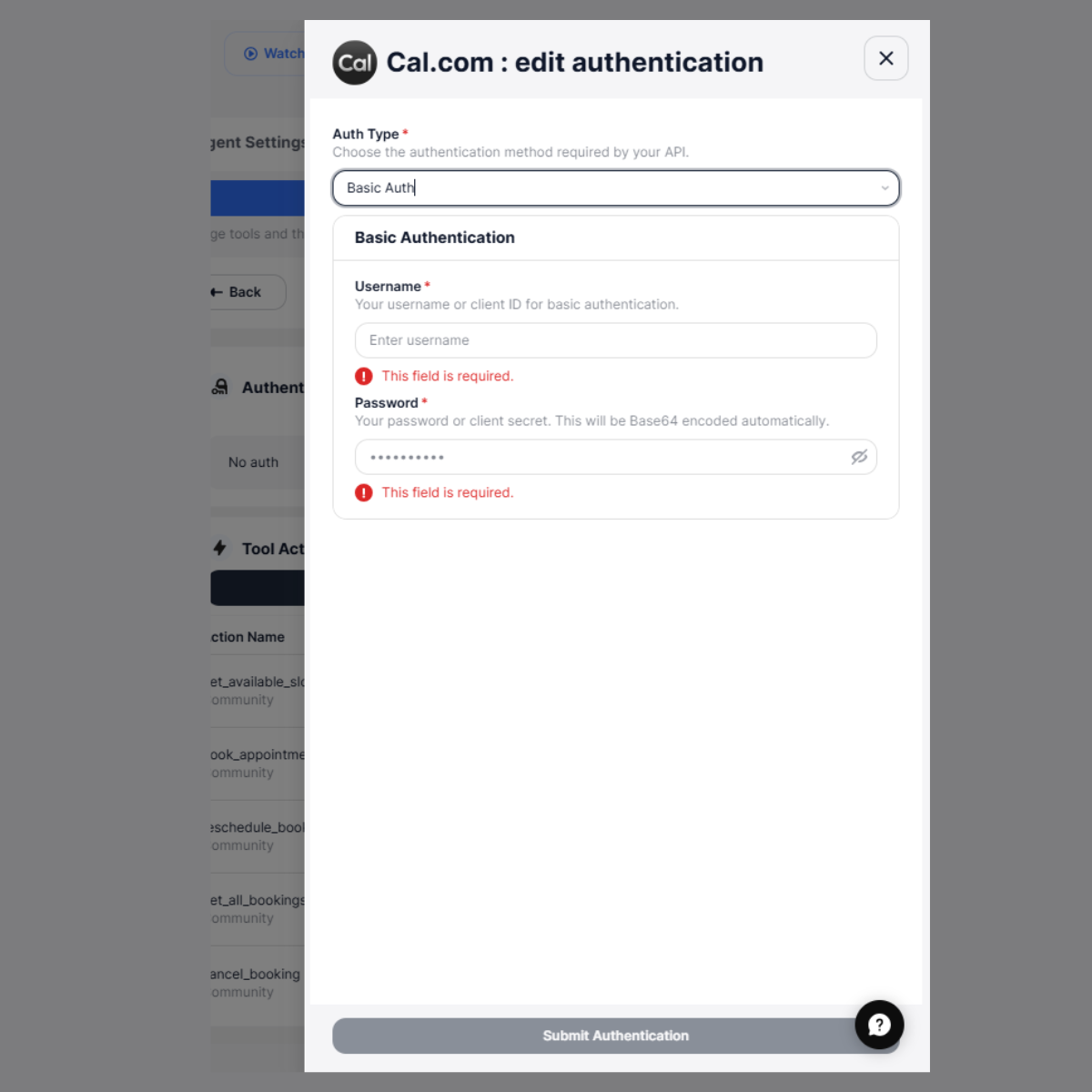 **Configuration Fields:**
* **Username** – Your account username or client ID
* **Password** – Your password or client secret
**Example Header Generated Automatically:**
Authorization: Basic base64\_encoded\_username\_password
Example:
Authorization: Basic YWRtaW46cGFzc3dvcmQ=
After clicking **Submit Authentication**, SigmaMind AI securely stores your credentials and automatically applies authentication to all API calls.
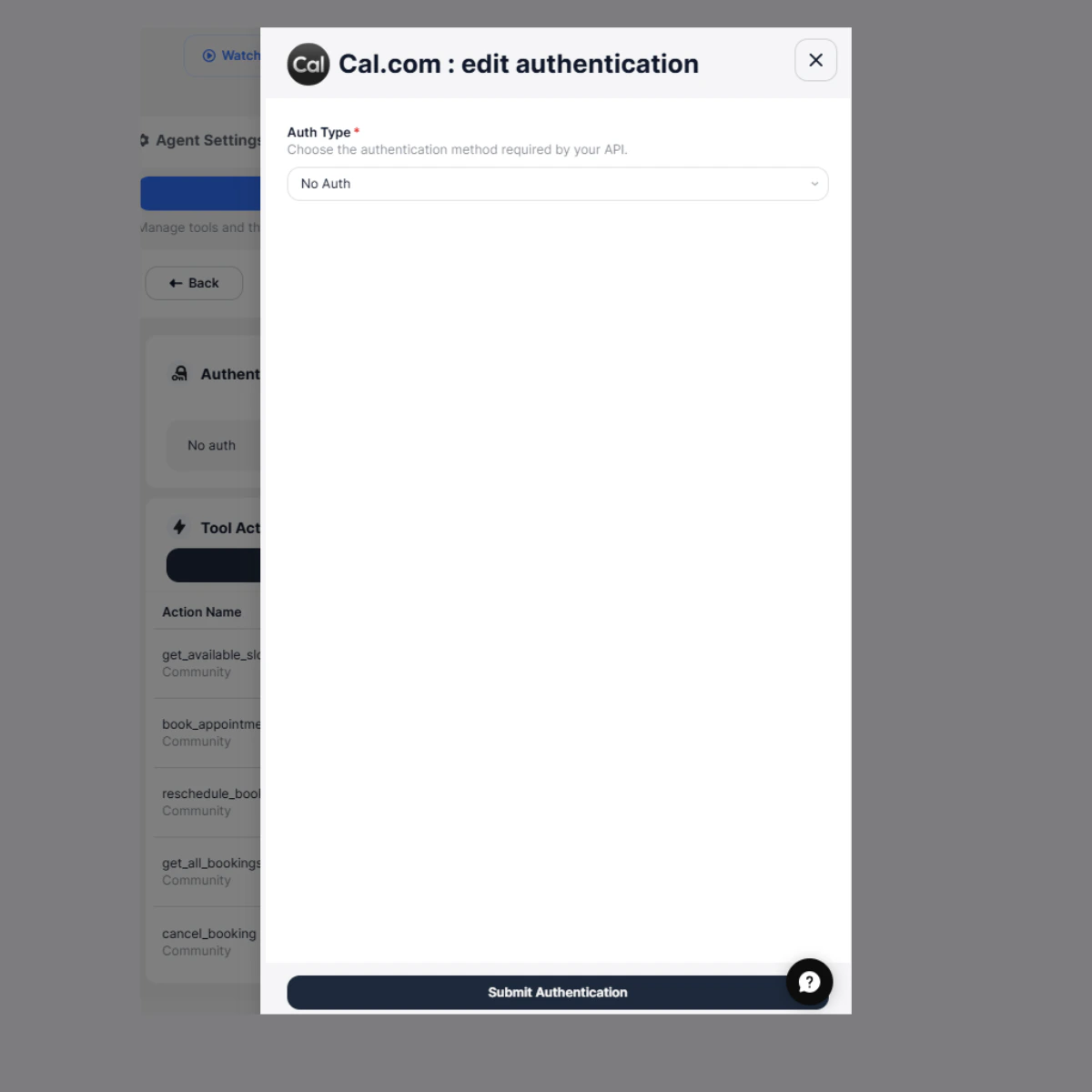
### No Auth
Use this option when:
* The API does not require authentication, or
* Authentication is handled in headers manually inside tool actions
**Configuration Fields:**
* **Username** – Your account username or client ID
* **Password** – Your password or client secret
**Example Header Generated Automatically:**
Authorization: Basic base64\_encoded\_username\_password
Example:
Authorization: Basic YWRtaW46cGFzc3dvcmQ=
After clicking **Submit Authentication**, SigmaMind AI securely stores your credentials and automatically applies authentication to all API calls.
### No Auth
Use this option when:
* The API does not require authentication, or
* Authentication is handled in headers manually inside tool actions
 ***
### How Authentication Works
Once authentication is submitted:
* Credentials are securely stored
* Authentication headers are automatically included
* Tool actions can access the connected app
Your Voice AI agent can execute API actions securely
### Tool Execution Example
Example: Booking Appointment
User: Book an appointment tomorrow at 10 AM
**What happens internally:**
```text theme={null}
User request → AI detects booking intent → AI extracts date and time → AI selects book_appointment tool → AI replaces input variables in API request → API request sent to external service → External service processes booking → API returns confirmation response → AI receives response → AI generates natural language reply → User receives booking confirmation
```
**Agent Response:**
```text theme={null}
Your appointment has been successfully booked.
```
Some apps include pre-configured actions. For example, Cal. com provides:
* Get available slots
* Book appointment
* Fetch event types
These actions can be directly enabled and used by the Voice AI agent.
### 2. Using the API
If you prefer programmatic control, you can use the [**Integration Auth API**](https://docs.sigmamind.ai/api-reference/integration-auth/create-integration-auth) to configure authentication.
### Field Descriptions
* **authType** → Specifies the authentication method to use (`API_KEY`, `BEARER`, `BASIC`, `NONE`)
* **token** → Required when using Bearer Token authentication
* **username** → Required for Basic Auth (your API username or client ID)
* **password** → Required for Basic Auth (your password or client secret)
* **apiKey** → Required when using API Key authentication
* **key** → The header or query parameter name (e.g., `x-api-key`)
* **value** → The actual API key
* **position** → Specifies where the API key should be included (`header` or `query`)
* **headers** → Optional custom headers that will be included in every request
```sh Create Integration Auth theme={null}
curl --request POST \
--url https://api.sigmamind.ai/v1/integrations/{integrationId}/auth \
--header 'Content-Type: application/json' \
--header 'X-API-Key: ' \
--data '
{
"authType": "API_KEY",
"token": "eyJhbGciOiJSUzI1NiIsInR5cCI6IkpXVCJ9...",
"username": "api_user@example.com",
"password": "s3cretP@ssword",
"apiKey": {
"key": "X-API-KEY",
"value": "",
"position": "header"
},
"headers": [
{
"key": "X-Request-Source",
"value": "sigmamind"
}
]
}
'
```
You can also add new tool to existing apps using the Add Tool option. For detailed instructions, see Add a New Integration
***
### How Authentication Works
Once authentication is submitted:
* Credentials are securely stored
* Authentication headers are automatically included
* Tool actions can access the connected app
Your Voice AI agent can execute API actions securely
### Tool Execution Example
Example: Booking Appointment
User: Book an appointment tomorrow at 10 AM
**What happens internally:**
```text theme={null}
User request → AI detects booking intent → AI extracts date and time → AI selects book_appointment tool → AI replaces input variables in API request → API request sent to external service → External service processes booking → API returns confirmation response → AI receives response → AI generates natural language reply → User receives booking confirmation
```
**Agent Response:**
```text theme={null}
Your appointment has been successfully booked.
```
Some apps include pre-configured actions. For example, Cal. com provides:
* Get available slots
* Book appointment
* Fetch event types
These actions can be directly enabled and used by the Voice AI agent.
### 2. Using the API
If you prefer programmatic control, you can use the [**Integration Auth API**](https://docs.sigmamind.ai/api-reference/integration-auth/create-integration-auth) to configure authentication.
### Field Descriptions
* **authType** → Specifies the authentication method to use (`API_KEY`, `BEARER`, `BASIC`, `NONE`)
* **token** → Required when using Bearer Token authentication
* **username** → Required for Basic Auth (your API username or client ID)
* **password** → Required for Basic Auth (your password or client secret)
* **apiKey** → Required when using API Key authentication
* **key** → The header or query parameter name (e.g., `x-api-key`)
* **value** → The actual API key
* **position** → Specifies where the API key should be included (`header` or `query`)
* **headers** → Optional custom headers that will be included in every request
```sh Create Integration Auth theme={null}
curl --request POST \
--url https://api.sigmamind.ai/v1/integrations/{integrationId}/auth \
--header 'Content-Type: application/json' \
--header 'X-API-Key: ' \
--data '
{
"authType": "API_KEY",
"token": "eyJhbGciOiJSUzI1NiIsInR5cCI6IkpXVCJ9...",
"username": "api_user@example.com",
"password": "s3cretP@ssword",
"apiKey": {
"key": "X-API-KEY",
"value": "",
"position": "header"
},
"headers": [
{
"key": "X-Request-Source",
"value": "sigmamind"
}
]
}
'
```
You can also add new tool to existing apps using the Add Tool option. For detailed instructions, see Add a New Integration