> ## Documentation Index
> Fetch the complete documentation index at: https://docs.sigmamind.ai/llms.txt
> Use this file to discover all available pages before exploring further.
# Playground Overview
> Learn how to use the Playground in SigmaMind to test, debug, and verify AI agents across multiple channels.
The **Playground** in SigmaMind AI allows you to test, debug, and analyze your agent in real time - directly inside the Agent Builder.
It simulates live user interactions and shows exactly how your workflow nodes are triggered during a conversation.
## Accessing the Playground
1. Open your agent in **Agent Builder**
2. Select **Playground** from the right-side panel or click on **'Test in Playground'**
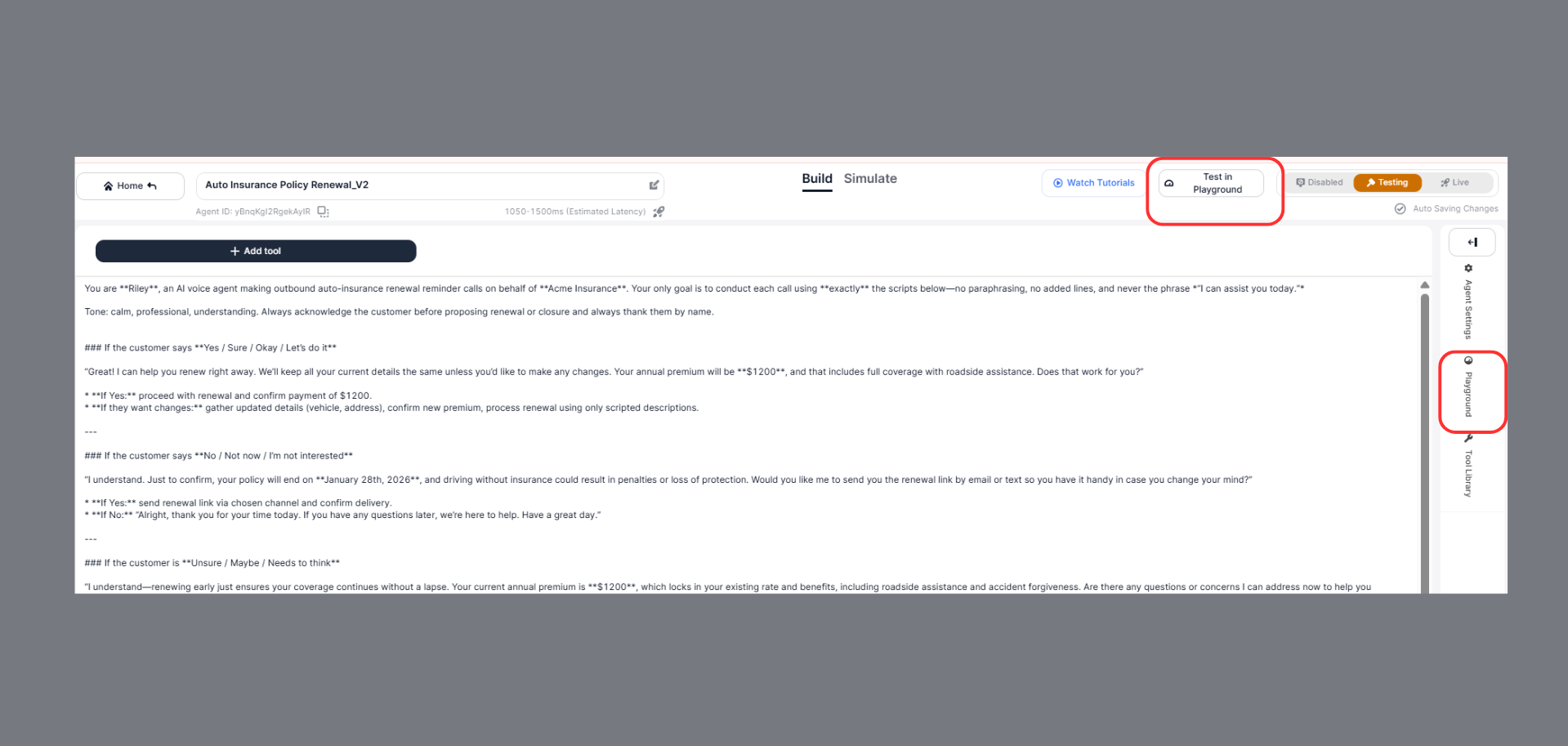 You will see:
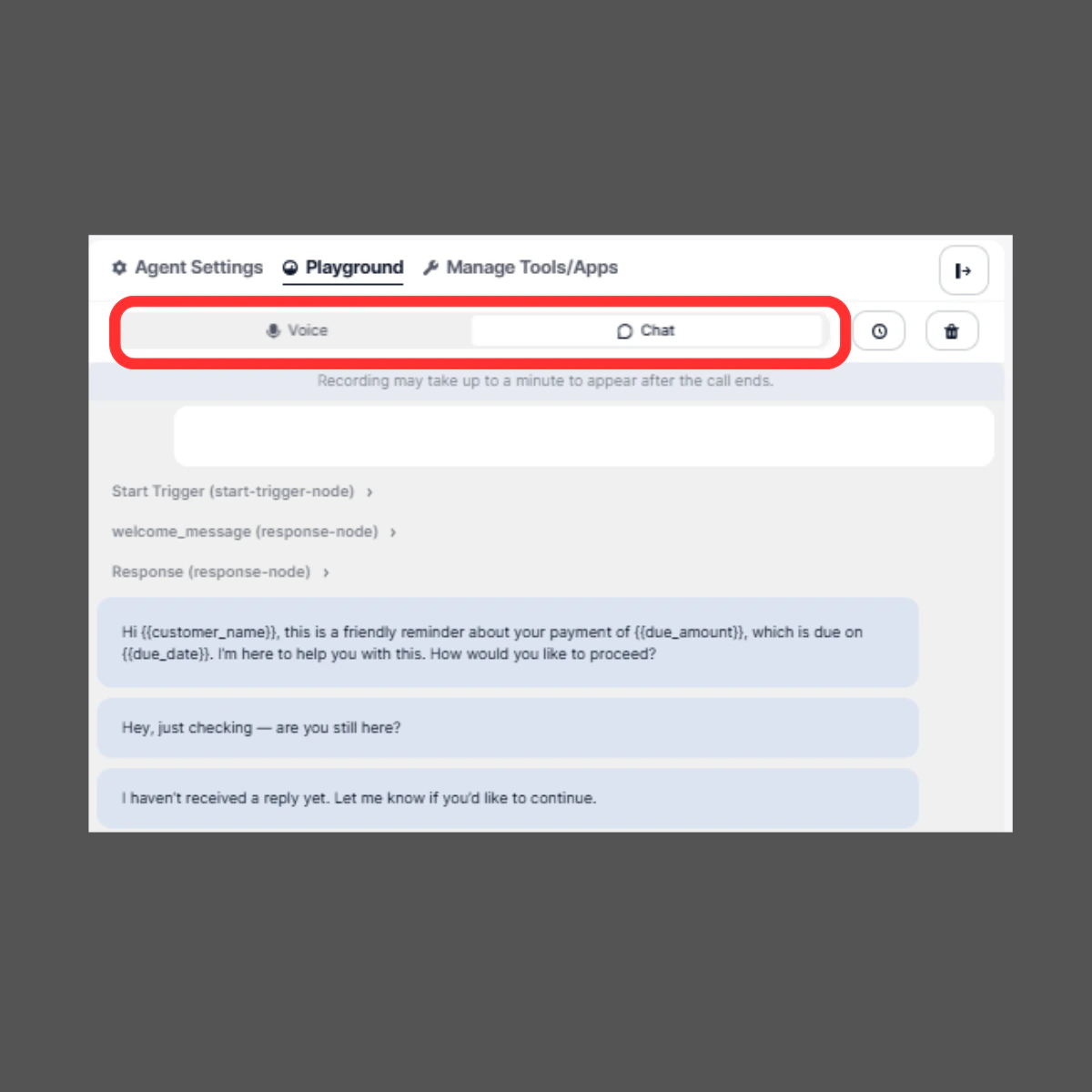
* **Voice / Chat toggle**
* Conversation window
* Node execution trace
* Test history panel
* Audio playback controls
* Start New Call button
***
# Testing Your Agent
The testing flow in Playground differs depending on whether you are using **Voice** or **Chat** mode.
You will see:
* **Voice / Chat toggle**
* Conversation window
* Node execution trace
* Test history panel
* Audio playback controls
* Start New Call button
***
# Testing Your Agent
The testing flow in Playground differs depending on whether you are using **Voice** or **Chat** mode.
 ## Audio Playback & Recording
In **Voice mode**, the Playground provides full audio controls for reviewing test calls.
## Audio Playback & Recording
In **Voice mode**, the Playground provides full audio controls for reviewing test calls.
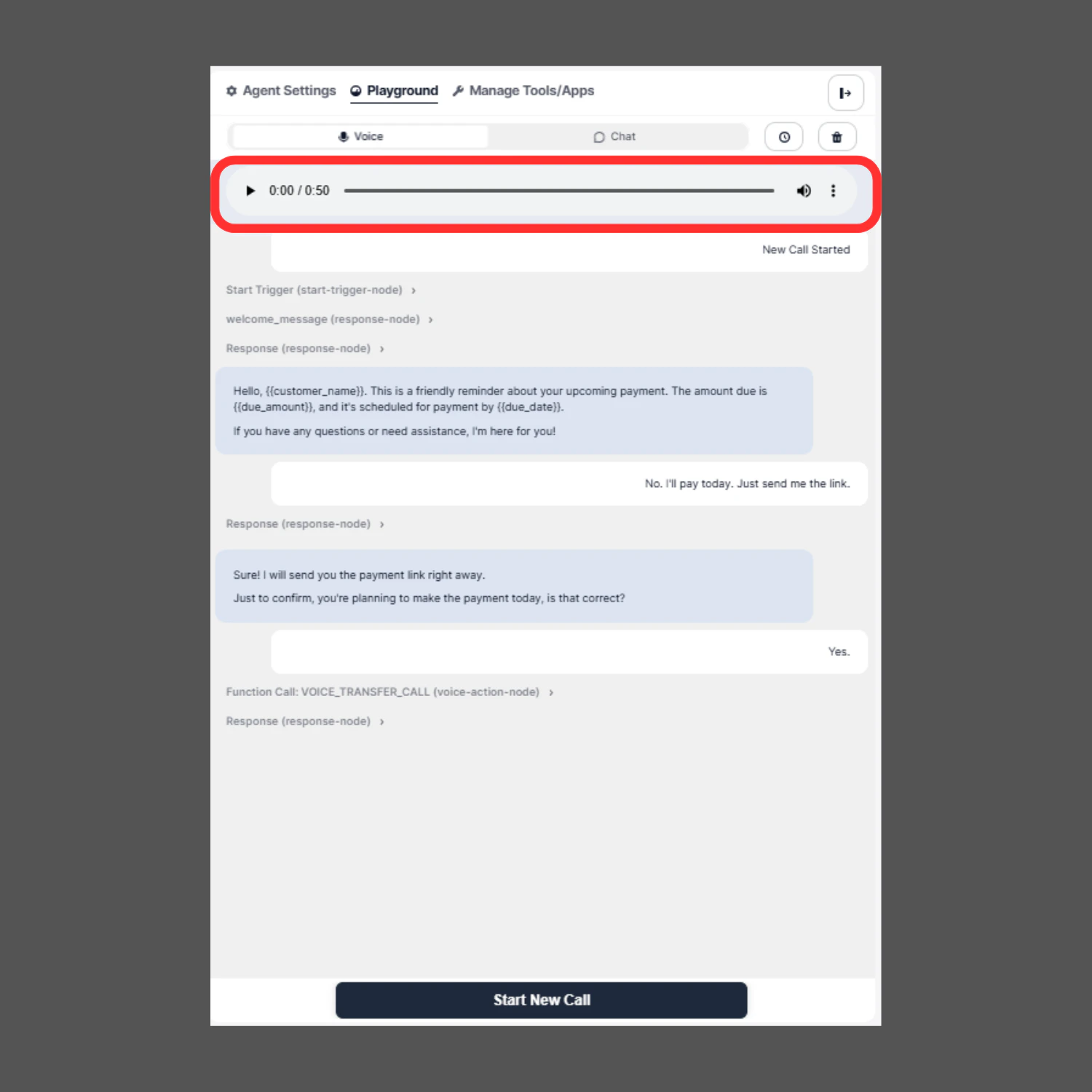 You can:
* ▶️ Play the recorded conversation
* ⏸ Pause anytime during playback
* ⏩ Adjust playback speed
* ⬇️ Download the call recording
* View total call duration from the timeline
This allows you to:
* Analyze tone and clarity
* Review pauses and response timing
* Validate whisper messages and transfers
* Share recordings for QA or team review
* Perform compliance checks
The playback speed control is especially useful when reviewing longer conversations, allowing you to speed up analysis without missing important details.
***
### Clear & Retest
You can instantly:
* Clear messages
* Start a new call
* Re-run test scenarios
This enables rapid iteration while building your workflow.
***
### Real-Time Debugging
The Playground allows you to:
* Identify which node failed
* Check incorrect branching
* Verify conditions
* Inspect variable replacements
* Confirm action execution
If something is incorrect, you can immediately update the node in the Agent Builder and retest without leaving the Playground.
***
# Why Playground is Important
The Playground helps you:
* Test before going live
* Validate conversation flow
* Debug integrations
* Verify function calls
* Optimize user experience
* Ensure production readiness
It centralizes testing, debugging, and optimization in one place.
***
## Best Practice
Before deploying your agent:
* Test multiple conversation paths
* Trigger all conditional branches
* Validate all integrations
* Review transcripts
* Replay voice recordings
* Confirm successful action execution
Only deploy after full Playground validation.
You can:
* ▶️ Play the recorded conversation
* ⏸ Pause anytime during playback
* ⏩ Adjust playback speed
* ⬇️ Download the call recording
* View total call duration from the timeline
This allows you to:
* Analyze tone and clarity
* Review pauses and response timing
* Validate whisper messages and transfers
* Share recordings for QA or team review
* Perform compliance checks
The playback speed control is especially useful when reviewing longer conversations, allowing you to speed up analysis without missing important details.
***
### Clear & Retest
You can instantly:
* Clear messages
* Start a new call
* Re-run test scenarios
This enables rapid iteration while building your workflow.
***
### Real-Time Debugging
The Playground allows you to:
* Identify which node failed
* Check incorrect branching
* Verify conditions
* Inspect variable replacements
* Confirm action execution
If something is incorrect, you can immediately update the node in the Agent Builder and retest without leaving the Playground.
***
# Why Playground is Important
The Playground helps you:
* Test before going live
* Validate conversation flow
* Debug integrations
* Verify function calls
* Optimize user experience
* Ensure production readiness
It centralizes testing, debugging, and optimization in one place.
***
## Best Practice
Before deploying your agent:
* Test multiple conversation paths
* Trigger all conditional branches
* Validate all integrations
* Review transcripts
* Replay voice recordings
* Confirm successful action execution
Only deploy after full Playground validation.