> ## Documentation Index
> Fetch the complete documentation index at: https://docs.sigmamind.ai/llms.txt
> Use this file to discover all available pages before exploring further.
# Connect via SIP Trunking with Telnyx
> Guide to integrate Telnyx phone numbers with SigmaMind using SIP trunking.
If you own phone numbers in **Telnyx**, you can connect them to **SigmaMind** using Elastic SIP Trunking.
This guide will walk you through creating a SIP trunk in Telnyx and linking it with **SigmaMind**.
## Steps to Integrate
1. **Log in to Telnyx Portal** → [Telnyx SIP Trunking](https://portal.telnyx.com/#/voice/connections).
2. **Create a New Connection**
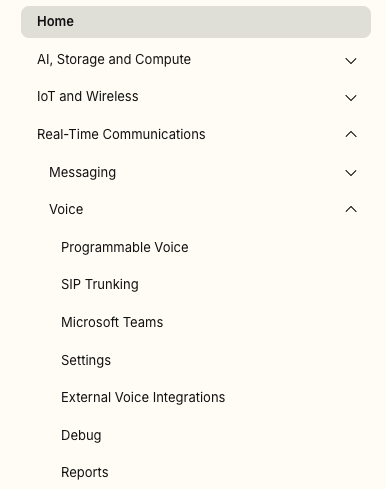
* Go to **Real-Time Communications -> Voice -> SIP Trunking**.
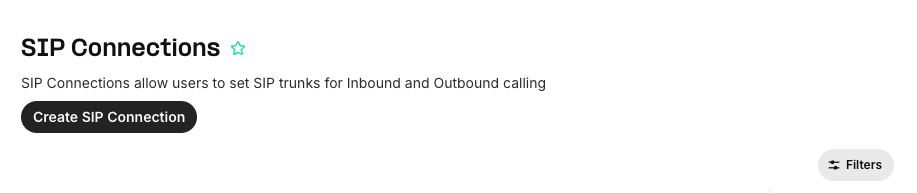
 * Click on **Create SIP Connection**.
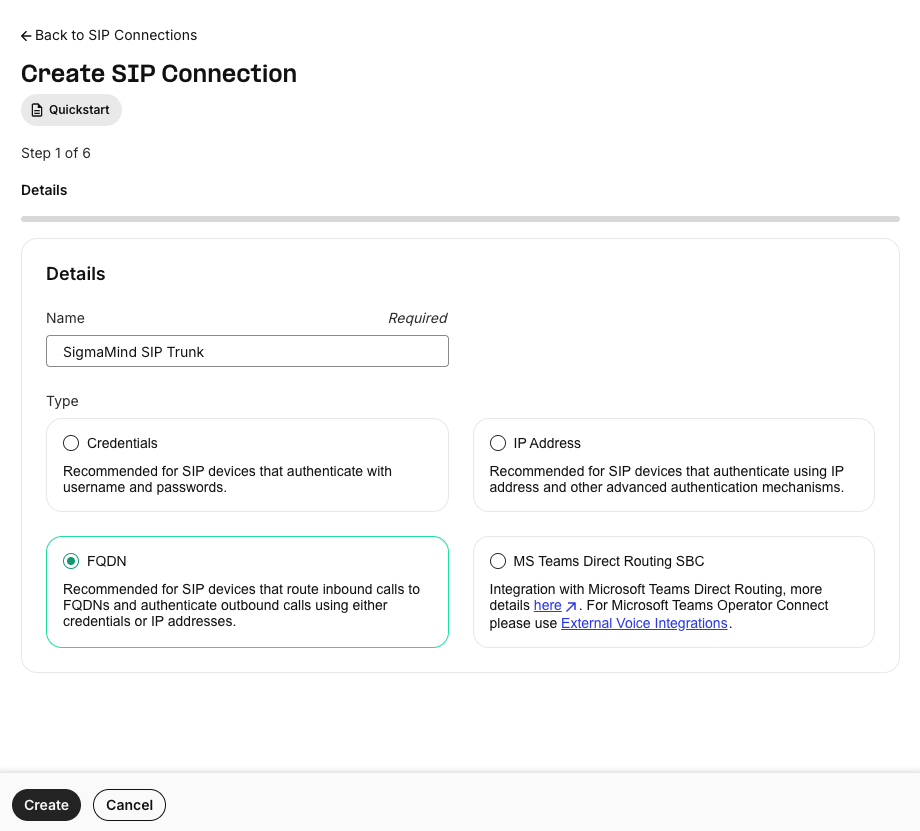
 * Select **FQDN** as the connection type.
* Name it (e.g., *SigmaMind SIP Trunk*).
* Select **FQDN** as the connection type.
* Name it (e.g., *SigmaMind SIP Trunk*).
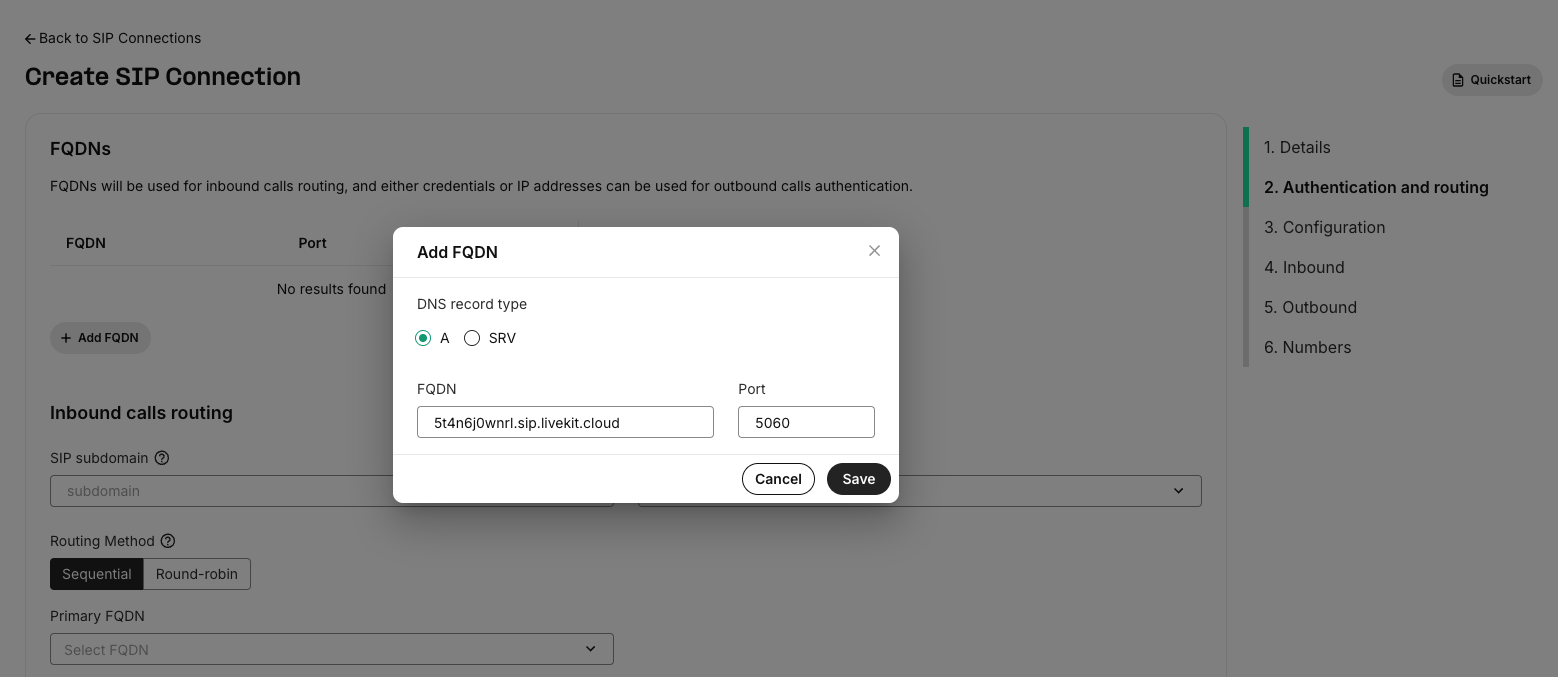
 3. **Add FQDN**
* In the **FQDN** field, enter:
```
5t4n6j0wnrl.sip.livekit.cloud
```
* Set the **Port** to `5060`.
* Choose the **Transport Protocol** (UDP, TCP, or TLS).
* Enable **SIP over TLS** if using TLS.
3. **Add FQDN**
* In the **FQDN** field, enter:
```
5t4n6j0wnrl.sip.livekit.cloud
```
* Set the **Port** to `5060`.
* Choose the **Transport Protocol** (UDP, TCP, or TLS).
* Enable **SIP over TLS** if using TLS.
 4. **Assign Numbers**
* Attach your purchased Telnyx number(s) to this connection.
5. **Termination URI**
* Use the **Termination URI** provided by Telnyx.
6. **Transport & Encryption**
* Allowed Transports: UDP, TCP, TLS.
* Media Encryption: Enable **SRTP**.
7. **Save and Test**
* Save your configuration.
* Place a test call to confirm SIP trunking works.
## Verification
* Ensure the number is visible in your **SigmaMind Dashboard**.
* Assign an **Inbound Agent** to receive calls on this number.
Telnyx offers advanced SIP features such as **mutual TLS** and **static IP auth**.
Since SigmaMind does not currently support static IP whitelisting, use **SIP URI with SRTP** for connectivity.
4. **Assign Numbers**
* Attach your purchased Telnyx number(s) to this connection.
5. **Termination URI**
* Use the **Termination URI** provided by Telnyx.
6. **Transport & Encryption**
* Allowed Transports: UDP, TCP, TLS.
* Media Encryption: Enable **SRTP**.
7. **Save and Test**
* Save your configuration.
* Place a test call to confirm SIP trunking works.
## Verification
* Ensure the number is visible in your **SigmaMind Dashboard**.
* Assign an **Inbound Agent** to receive calls on this number.
Telnyx offers advanced SIP features such as **mutual TLS** and **static IP auth**.
Since SigmaMind does not currently support static IP whitelisting, use **SIP URI with SRTP** for connectivity.