> ## Documentation Index
> Fetch the complete documentation index at: https://docs.sigmamind.ai/llms.txt
> Use this file to discover all available pages before exploring further.
# Chat logs
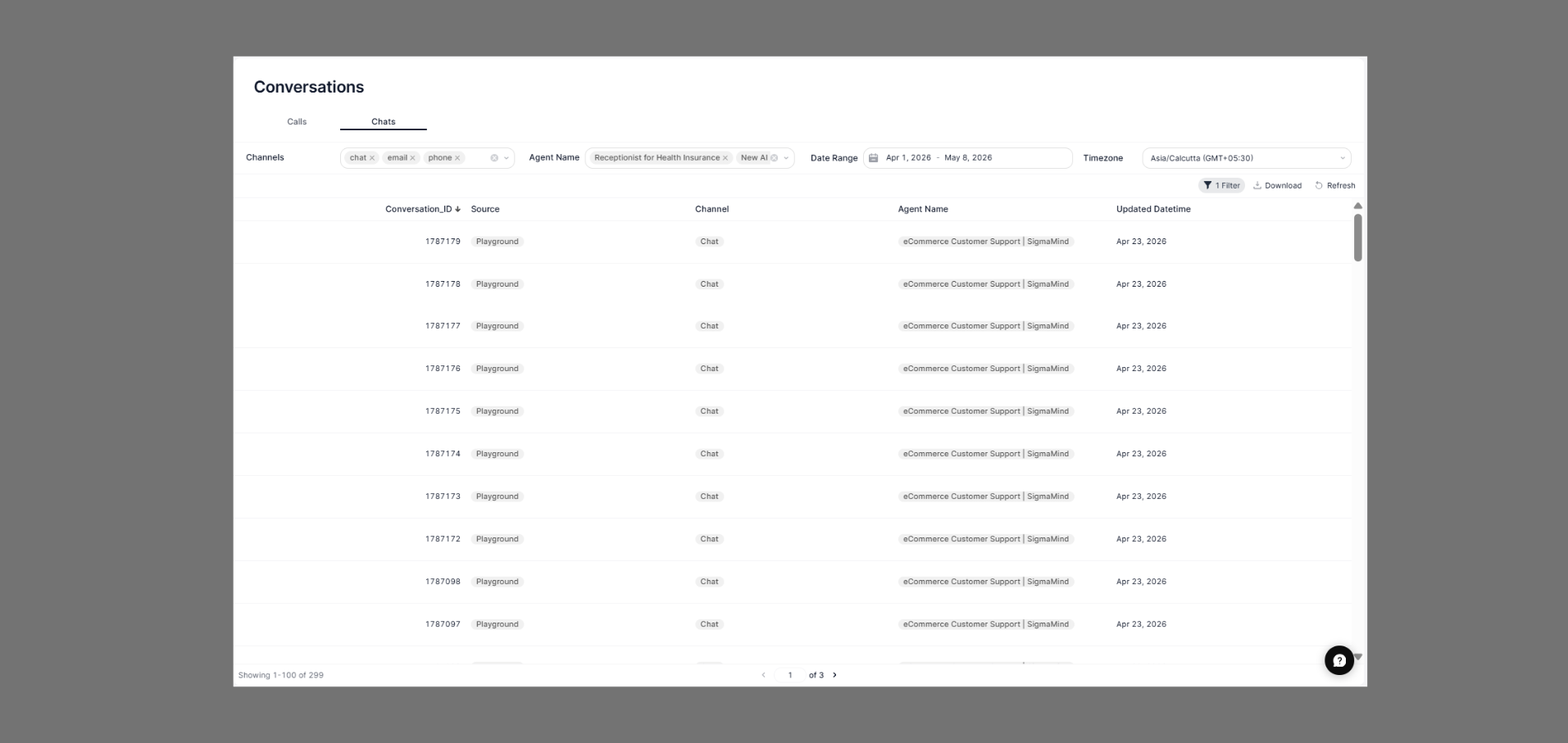
The \*\*Chat \*\*under Conversations displays all text-based interactions handled by your AI agents. Use this page to browse conversations across multiple channels, filter by agent or date, and review individual chat sessions.
 ## How to Navigate
1. Go to the Home Dashboard.
2. From the left side panel, click on **Conversations**.
3. Open the **Chats** tab at the top of the page.
## Common Use Cases
* Monitor agent chat performance.
* Review customer conversation history.
* Track active and completed conversations.
* Analyze communication activity across channels.
* Audit customer support interactions for quality assurance.
## Status Indicators
* **Updated Datetime** → Displays the latest activity timestamp for the conversation.
* **Channel** → Indicate the communication channel used for the conversation.
* **Agent Name** → Shows which AI agent or support workflow handled the interaction.
***
## Filters
Use the filter bar at the top to narrow down your chat list:
| Filter | Description |
| -------------- | ---------------------------------------------------------------------------------- |
| **Channels** | Filter by one or more channel types — `chat`, `email`, or `phone` |
| **Agent Name** | Filter by one or more agents (e.g., *Receptionist for Health Insurance*, *New AI*) |
| **Date Range** | Set a custom start and end date (e.g., Apr 1, 2026 – May 8, 2026) |
| **Timezone** | Choose your preferred timezone for all timestamps (e.g., Asia/Calcutta GMT+05:30) |
Click **1 Filter** to view or clear any active filters. Use **Download** to export the current view as a CSV. Click **Refresh** to reload the latest data.
***
## Chats Table
Each row represents a single chat conversation. The table includes the following columns:
| Column | Description |
| -------------------- | ----------------------------------------------------------------------------------- |
| **Conversation\_ID** | Unique numeric identifier for the conversation |
| **Source** | Origin of the conversation (e.g., *Playground*) |
| **Channel** | The channel through which the conversation took place — `Chat`, `Email`, or `Phone` |
| **Agent Name** | The AI agent that handled the conversation |
| **Updated Datetime** | Date when the conversation record was last updated |
***
## Channels
Text conversations initiated through a chat widget, web embed, or the SigmaMind Playground.
Conversations that originated from or were handled via email threads.
Use the **Agent Name** and **Date Range** filters together to quickly find what you're looking for.
***
## FAQs
*Playground* indicates the conversation was initiated from the SigmaMind Playground testing environment, not a live production deployment.
Click on any row in the Chats table to open the full conversation transcript and details.
Yes — use the **Channels** filter at the top to select one or more channels (`chat`, `email`, `phone`). Deselect channels to exclude them from the results.
If you see many conversations with the same **Updated Datetime**, it typically means a batch of test conversations were created together in the Playground during that session.
## How to Navigate
1. Go to the Home Dashboard.
2. From the left side panel, click on **Conversations**.
3. Open the **Chats** tab at the top of the page.
## Common Use Cases
* Monitor agent chat performance.
* Review customer conversation history.
* Track active and completed conversations.
* Analyze communication activity across channels.
* Audit customer support interactions for quality assurance.
## Status Indicators
* **Updated Datetime** → Displays the latest activity timestamp for the conversation.
* **Channel** → Indicate the communication channel used for the conversation.
* **Agent Name** → Shows which AI agent or support workflow handled the interaction.
***
## Filters
Use the filter bar at the top to narrow down your chat list:
| Filter | Description |
| -------------- | ---------------------------------------------------------------------------------- |
| **Channels** | Filter by one or more channel types — `chat`, `email`, or `phone` |
| **Agent Name** | Filter by one or more agents (e.g., *Receptionist for Health Insurance*, *New AI*) |
| **Date Range** | Set a custom start and end date (e.g., Apr 1, 2026 – May 8, 2026) |
| **Timezone** | Choose your preferred timezone for all timestamps (e.g., Asia/Calcutta GMT+05:30) |
Click **1 Filter** to view or clear any active filters. Use **Download** to export the current view as a CSV. Click **Refresh** to reload the latest data.
***
## Chats Table
Each row represents a single chat conversation. The table includes the following columns:
| Column | Description |
| -------------------- | ----------------------------------------------------------------------------------- |
| **Conversation\_ID** | Unique numeric identifier for the conversation |
| **Source** | Origin of the conversation (e.g., *Playground*) |
| **Channel** | The channel through which the conversation took place — `Chat`, `Email`, or `Phone` |
| **Agent Name** | The AI agent that handled the conversation |
| **Updated Datetime** | Date when the conversation record was last updated |
***
## Channels
Text conversations initiated through a chat widget, web embed, or the SigmaMind Playground.
Conversations that originated from or were handled via email threads.
Use the **Agent Name** and **Date Range** filters together to quickly find what you're looking for.
***
## FAQs
*Playground* indicates the conversation was initiated from the SigmaMind Playground testing environment, not a live production deployment.
Click on any row in the Chats table to open the full conversation transcript and details.
Yes — use the **Channels** filter at the top to select one or more channels (`chat`, `email`, `phone`). Deselect channels to exclude them from the results.
If you see many conversations with the same **Updated Datetime**, it typically means a batch of test conversations were created together in the Playground during that session.