> ## Documentation Index
> Fetch the complete documentation index at: https://docs.sigmamind.ai/llms.txt
> Use this file to discover all available pages before exploring further.
# Monitor Campaign Calls
> Learn how to track, manage, and review the progress of outbound call campaigns in SigmaMind.
After creating a campaign, you can track its progress and results in real-time from the **Campaigns for Outbound Calls** dashboard.
This section provides live updates and final statistics for every campaign.
***
## Step 1: Campaign Status
Each campaign displays a **Status badge** showing its current state:
* **scheduled** – A start date and time are set. The campaign will begin automatically.
* **in\_progress** – Calls are actively being placed according to concurrency.
* **completed** – All calls have finished and the campaign is closed.
***
## Step 2: Key Metrics on the Dashboard
For every campaign, the dashboard displays:
* **Total Calls** – Number of outbound calls in the campaign.
* **Campaign Name** - Name of the campaign
* **# Completed** – Calls that reached a final outcome.
* **# Picked** – Calls successfully answered by recipients.
* **# Voicemail** – Calls that ended in voicemail/answering machine.
* **Outbound Phone Number (sipPhoneNumber)** – The SIP caller ID used.
* **Last Modified** - Date and time of the last update
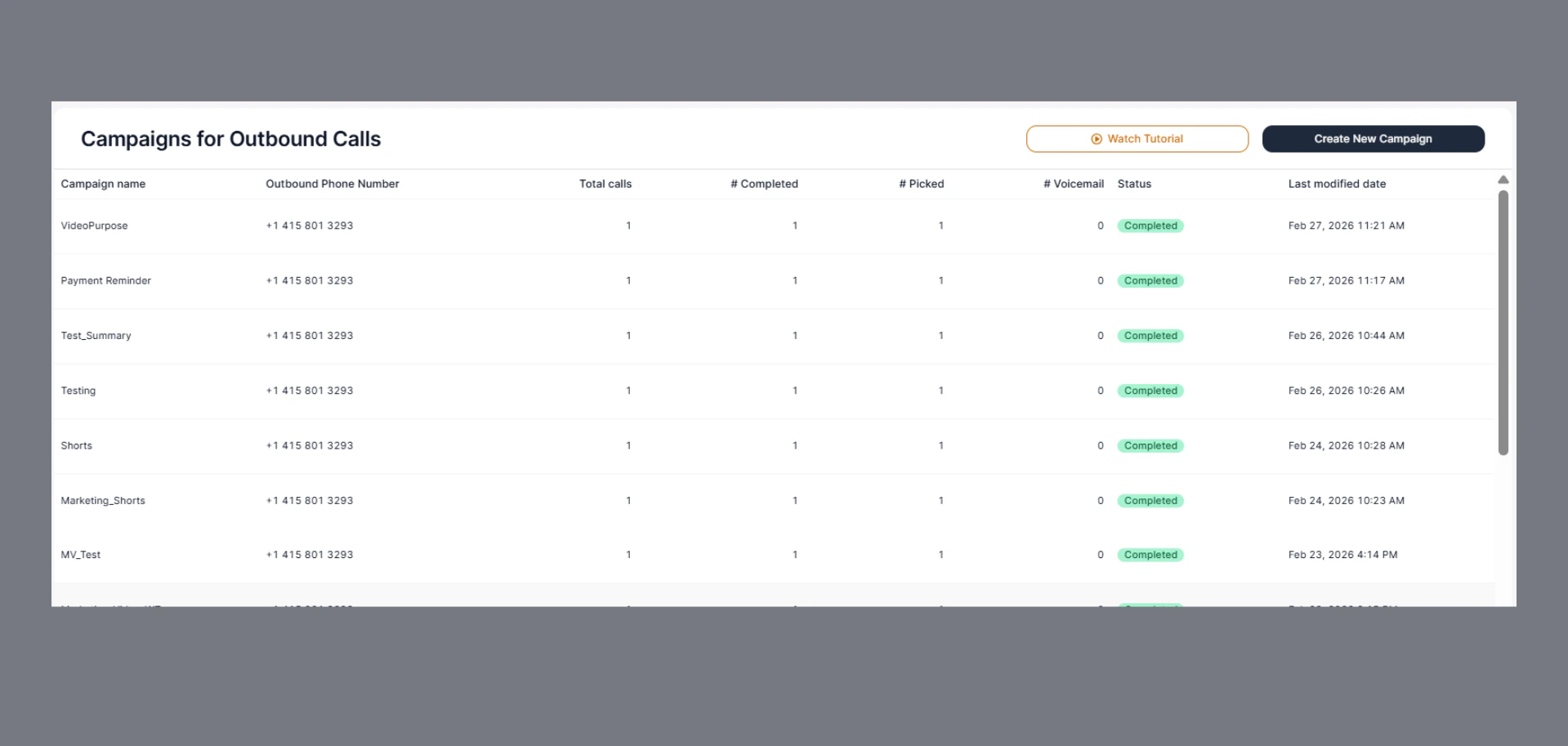 These figures **update in real time** as calls progress.
***
## Step 3: Open Detailed Campaign View
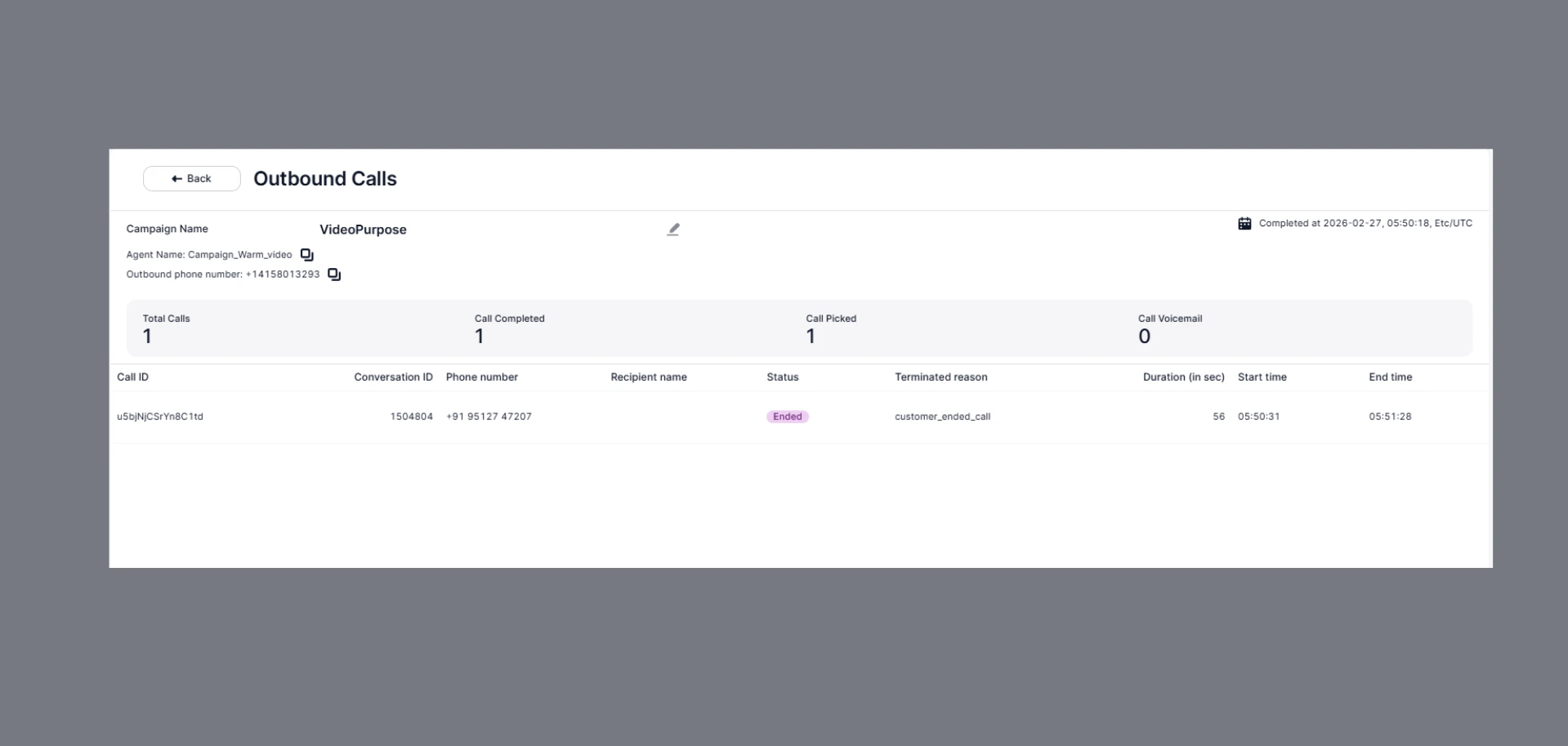
Click a **Campaign Name** to open detailed call records, including:
* Recipient’s number
* Start and end timestamps
* Call outcome (`answered`, `voicemail`, `failed`, etc.)
* Termination reason
* Call duration
These figures **update in real time** as calls progress.
***
## Step 3: Open Detailed Campaign View
Click a **Campaign Name** to open detailed call records, including:
* Recipient’s number
* Start and end timestamps
* Call outcome (`answered`, `voicemail`, `failed`, etc.)
* Termination reason
* Call duration
 ### Viewing a Call in Detail
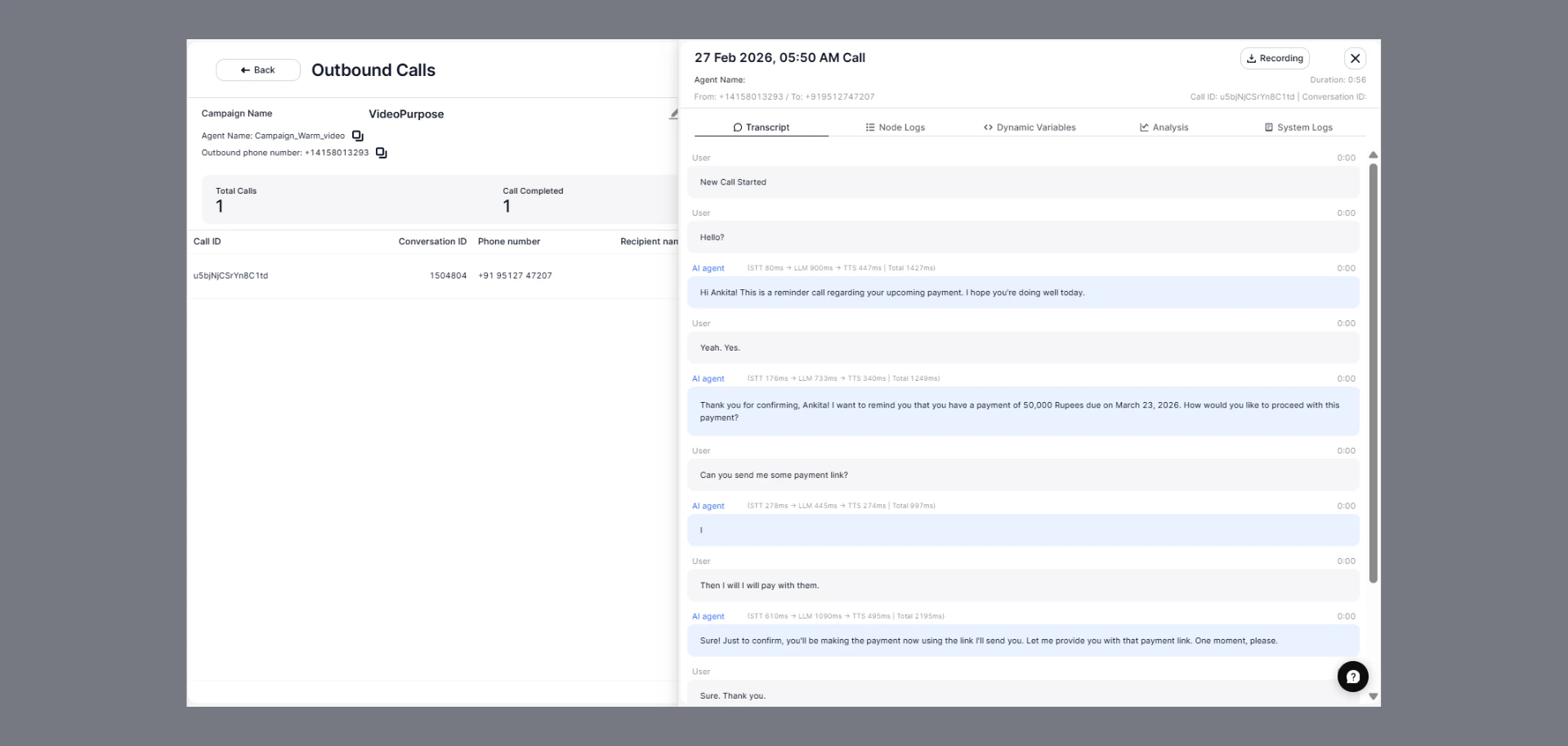
Click any **Call ID** to open a side panel with full details of that call, including:
* **Call date, time, and duration**
* **From / To numbers** – Agent's outbound number and recipient's number
* **Recording** – Download or playback the call audio
The panel has 5 tabs for deeper inspection:
| Tab | What you'll find |
| :-------------------- | :------------------------------------------------------------------------ |
| **Transcript** | Full conversation between the AI agent and the recipient, with timestamps |
| **Node Logs** | Step-by-step flow of nodes the agent executed during the call |
| **Dynamic Variables** | Variables used or updated during the call |
| **Analysis** | Call performance summary and insights |
| **System Logs** | Technical logs including STT, LLM, and TTS latency per message |
### Viewing a Call in Detail
Click any **Call ID** to open a side panel with full details of that call, including:
* **Call date, time, and duration**
* **From / To numbers** – Agent's outbound number and recipient's number
* **Recording** – Download or playback the call audio
The panel has 5 tabs for deeper inspection:
| Tab | What you'll find |
| :-------------------- | :------------------------------------------------------------------------ |
| **Transcript** | Full conversation between the AI agent and the recipient, with timestamps |
| **Node Logs** | Step-by-step flow of nodes the agent executed during the call |
| **Dynamic Variables** | Variables used or updated during the call |
| **Analysis** | Call performance summary and insights |
| **System Logs** | Technical logs including STT, LLM, and TTS latency per message |
 ## Example Use Cases
* Marketing managers tracking conversion campaigns.
* Customer service teams monitoring service update campaigns.
* Healthcare organizations verifying appointment reminders.
## Example Use Cases
* Marketing managers tracking conversion campaigns.
* Customer service teams monitoring service update campaigns.
* Healthcare organizations verifying appointment reminders.