> ## Documentation Index
> Fetch the complete documentation index at: https://docs.sigmamind.ai/llms.txt
> Use this file to discover all available pages before exploring further.
# Speech Settings
> Customize your AI agent’s voice, model, and background ambience.
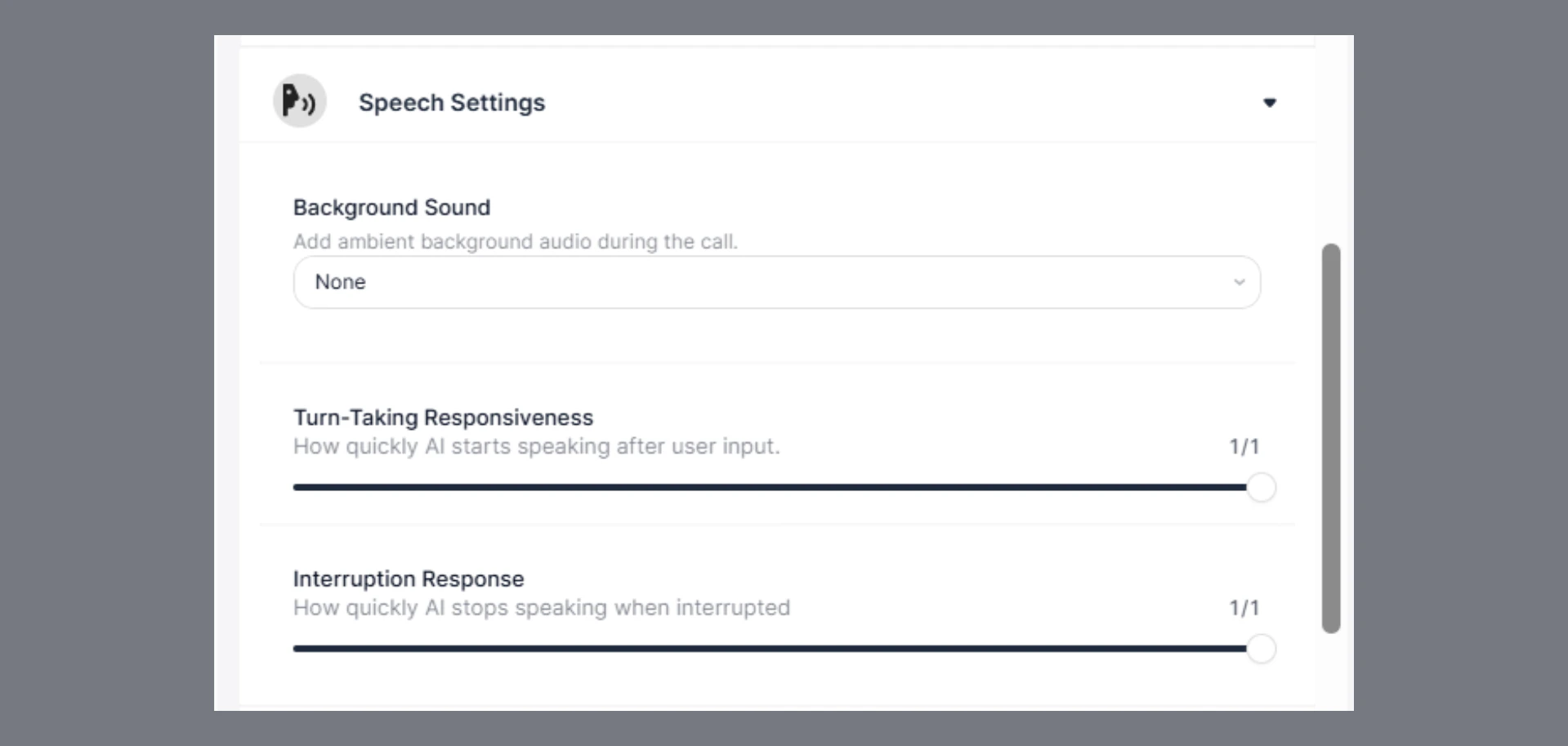
The **Speech Settings** section allows you to control how your AI agent sounds and behaves during voice calls. These settings help create a more natural and controlled conversation experience.
## Available Settings
### 1. Background Sound
This setting lets you add ambient audio during a call to make conversations feel more realistic.
**Available Options:**
* **None (Default)**\
No background sound is played.
* **Office Ambient**\
Adds subtle office background noise (e.g., distant chatter, workspace sounds).
* **Keyboard Typing**\
Adds light typing sounds to simulate an active working environment.
**How to Configure:**
* Open your agent in the Agent Builder
* From the right-side panel, click on **Agent Settings**
* Go to **Speech Settings**
* Locate **Background Sound**
* Click the dropdown
* Select one of the available options
**When to Use What:**
* Use **None** → For clean, distraction-free conversations
* Use **Office Ambient** → To simulate a professional environment
* Use **Keyboard Typing** → To create a “live agent working” feel
***
### 2. Turn-Taking Responsiveness
Controls how quickly the AI starts speaking after the user finishes their input.
**Range:**
* **0 (Slower Response)** → Slight delay before the agent responds
* **1 (Instant Response)** → Agent responds immediately
**Default Value:**
* **1 (Fast response)**
**Behavior Guide:**
* Lower values → More natural pauses, less interruption risk
* Higher values → Faster replies, more responsive feel
***
### 3. Interruption Response
Controls how quickly the AI stops speaking when the user interrupts.
**Range:**
* **0 (Low Responsiveness)** → Agent continues speaking longer before stopping
* **1 (High Responsiveness)** → Agent stops immediately when interrupted
**Default Value:**
* **1 (Highly responsive)**
**Behavior Guide:**
* Lower values → Better for structured or scripted conversations
* Higher values → Better for dynamic, back-and-forth conversations
***
## Best Practices
* Use fast **Turn-Taking Responsiveness** for real-time conversational agents
* Reduce responsiveness slightly if conversations feel too abrupt
* Keep **Interruption Response** high for natural dialogue flow
* Lower interruption responsiveness for presentations or guided flows
* Use background sound sparingly to avoid distraction
 ## Available Settings
### 1. Background Sound
This setting lets you add ambient audio during a call to make conversations feel more realistic.
**Available Options:**
* **None (Default)**\
No background sound is played.
* **Office Ambient**\
Adds subtle office background noise (e.g., distant chatter, workspace sounds).
* **Keyboard Typing**\
Adds light typing sounds to simulate an active working environment.
**How to Configure:**
* Open your agent in the Agent Builder
* From the right-side panel, click on **Agent Settings**
* Go to **Speech Settings**
* Locate **Background Sound**
* Click the dropdown
* Select one of the available options
**When to Use What:**
* Use **None** → For clean, distraction-free conversations
* Use **Office Ambient** → To simulate a professional environment
* Use **Keyboard Typing** → To create a “live agent working” feel
***
### 2. Turn-Taking Responsiveness
Controls how quickly the AI starts speaking after the user finishes their input.
**Range:**
* **0 (Slower Response)** → Slight delay before the agent responds
* **1 (Instant Response)** → Agent responds immediately
**Default Value:**
* **1 (Fast response)**
**Behavior Guide:**
* Lower values → More natural pauses, less interruption risk
* Higher values → Faster replies, more responsive feel
***
### 3. Interruption Response
Controls how quickly the AI stops speaking when the user interrupts.
**Range:**
* **0 (Low Responsiveness)** → Agent continues speaking longer before stopping
* **1 (High Responsiveness)** → Agent stops immediately when interrupted
**Default Value:**
* **1 (Highly responsive)**
**Behavior Guide:**
* Lower values → Better for structured or scripted conversations
* Higher values → Better for dynamic, back-and-forth conversations
***
## Best Practices
* Use fast **Turn-Taking Responsiveness** for real-time conversational agents
* Reduce responsiveness slightly if conversations feel too abrupt
* Keep **Interruption Response** high for natural dialogue flow
* Lower interruption responsiveness for presentations or guided flows
* Use background sound sparingly to avoid distraction
## Available Settings
### 1. Background Sound
This setting lets you add ambient audio during a call to make conversations feel more realistic.
**Available Options:**
* **None (Default)**\
No background sound is played.
* **Office Ambient**\
Adds subtle office background noise (e.g., distant chatter, workspace sounds).
* **Keyboard Typing**\
Adds light typing sounds to simulate an active working environment.
**How to Configure:**
* Open your agent in the Agent Builder
* From the right-side panel, click on **Agent Settings**
* Go to **Speech Settings**
* Locate **Background Sound**
* Click the dropdown
* Select one of the available options
**When to Use What:**
* Use **None** → For clean, distraction-free conversations
* Use **Office Ambient** → To simulate a professional environment
* Use **Keyboard Typing** → To create a “live agent working” feel
***
### 2. Turn-Taking Responsiveness
Controls how quickly the AI starts speaking after the user finishes their input.
**Range:**
* **0 (Slower Response)** → Slight delay before the agent responds
* **1 (Instant Response)** → Agent responds immediately
**Default Value:**
* **1 (Fast response)**
**Behavior Guide:**
* Lower values → More natural pauses, less interruption risk
* Higher values → Faster replies, more responsive feel
***
### 3. Interruption Response
Controls how quickly the AI stops speaking when the user interrupts.
**Range:**
* **0 (Low Responsiveness)** → Agent continues speaking longer before stopping
* **1 (High Responsiveness)** → Agent stops immediately when interrupted
**Default Value:**
* **1 (Highly responsive)**
**Behavior Guide:**
* Lower values → Better for structured or scripted conversations
* Higher values → Better for dynamic, back-and-forth conversations
***
## Best Practices
* Use fast **Turn-Taking Responsiveness** for real-time conversational agents
* Reduce responsiveness slightly if conversations feel too abrupt
* Keep **Interruption Response** high for natural dialogue flow
* Lower interruption responsiveness for presentations or guided flows
* Use background sound sparingly to avoid distraction