> ## Documentation Index
> Fetch the complete documentation index at: https://docs.sigmamind.ai/llms.txt
> Use this file to discover all available pages before exploring further.
# Post Conversation Analysis
> Learn how to use Post-Conversation Analysis in SigmaMind AI to automatically extract insights from conversations.
Post-Conversation Analysis allows your agent to analyze conversations after they end and extract useful insights automatically. These insights convert conversations into structured data that can be stored, analyzed, or sent to other systems.
You can define multiple fields and instruct the AI to extract specific information from each conversation.
These Analysis convert conversations into **usable data** that can be:
* Stored
* Analyzed
Sent to external systems
👉 Post-Conversation Analysis is billed separately. Charges are based on the chat message pricing of the selected LLM model.
## Enable Post-Conversation Analysis
To enable and configure Post-Conversation Analysis:
1. Open your **Agent Builder**.
2. From the side panel, click **Agent Settings**.
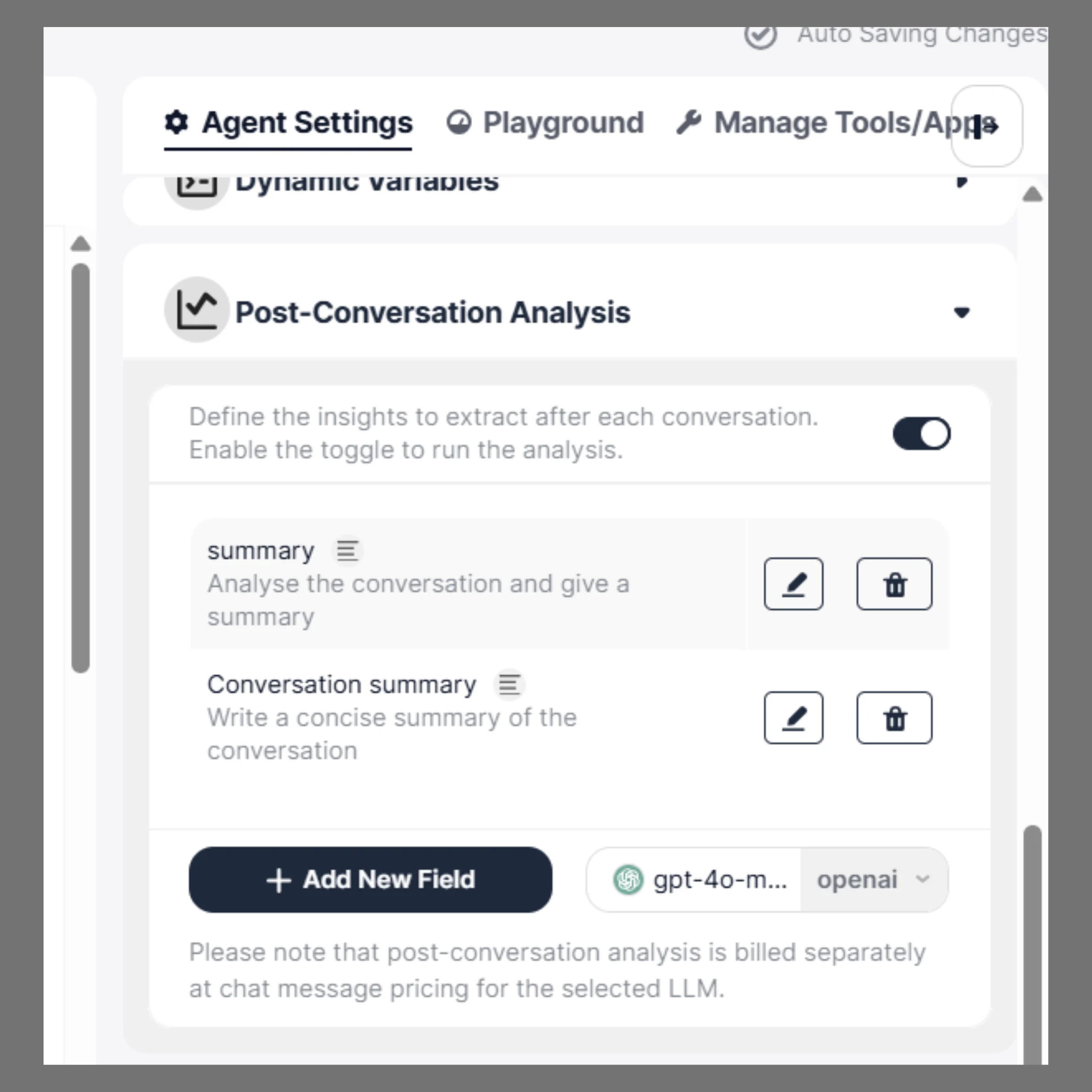
3. Expand the **Post-Conversation Analysis** section.
4. Toggle the switch **ON** to enable the analysis
Once enabled, the selected model (for example **GPT-4o mini**) will analyze conversations after they end and extract the configured Analysis
***
## Add New Field
To extract specific information from conversations, you can create custom fields.
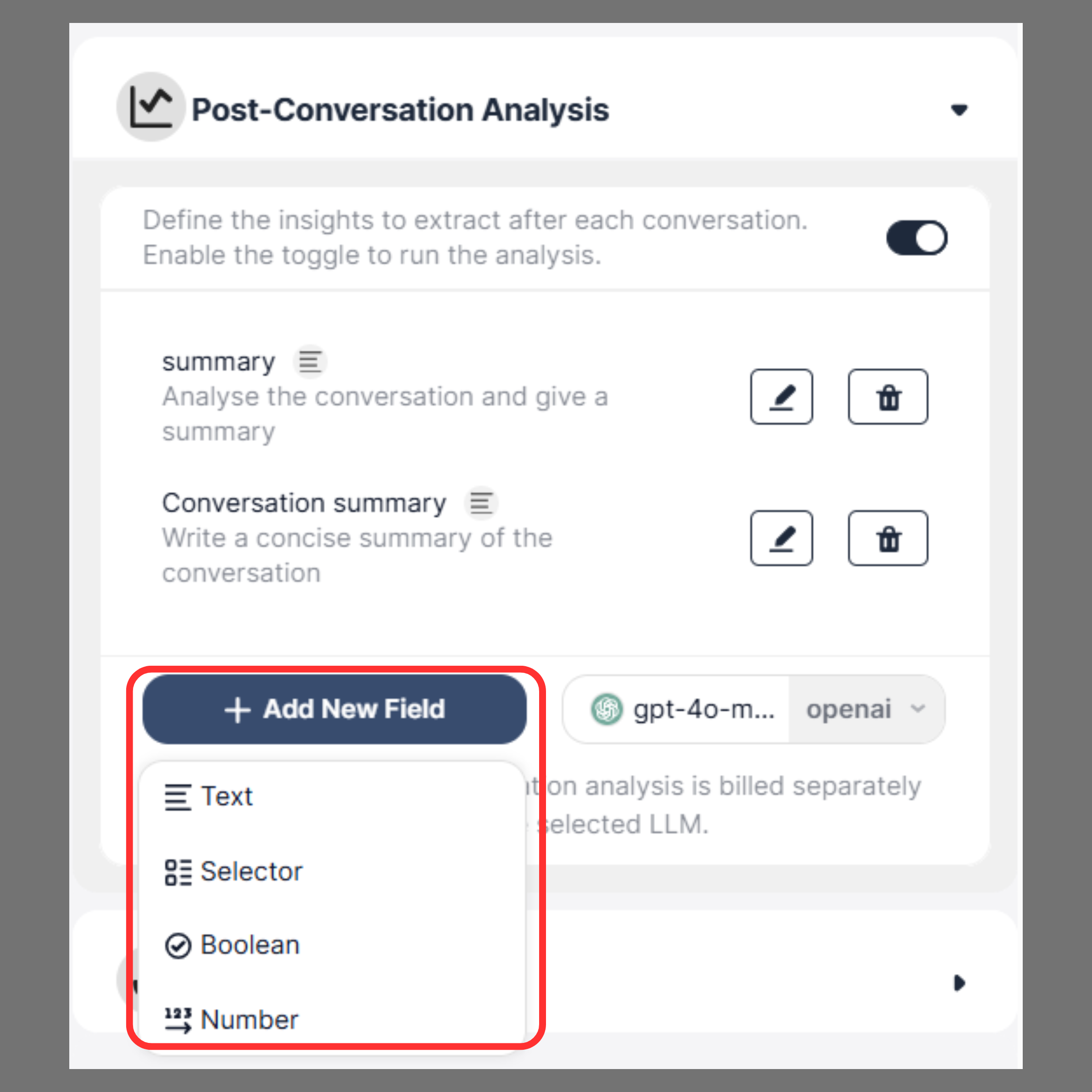
1. In the **Post-Conversation Analysis** section, click **Add New Field**.
2. Select the type of Field you want to create.
3. Enter an **Name of Analysis.**
4. Provide **Analysis Instructions** that tell the AI what to extract from the conversation.
5. Click **Submit**.
The AI will analyze each conversation and populate the field based on your instructions.
***
## Field Types
SigmaMind supports four types of fields.
### Text
The **Text** field is used when you want the AI to generate written output.
### Best For:
```text theme={null}
Conversation summaries
Main reason for the call
Key discussion points
```
**Example**
```text theme={null}
Analysis Name:
conversation summary
```
**Analysis Instructions:**
```text theme={null}
Write a concise summary of the conversation including the main topic and final outcome.
```
***
### Selector
The **Selector** field allows the AI to choose one value from predefined options.
This is useful for categorizing conversations into structured outcomes.
### Best For:
```text theme={null}
Call outcomes
Intent classification
Routing analysis
```
**Example**
```text theme={null}
Analysis Name:
call outcome
```
**Analysis Instructions**
```text theme={null}
Select the final outcome of the conversation from the predefined options.
```
***
### Boolean
The **Boolean** field returns a **true or false** value.
This is useful for determining whether a specific event occurred during the conversation.
### Best For:
```text theme={null}
Event tracking
Conversion tracking
```
**Example**
```text theme={null}
Analysis Name:
appointment booked
```
**Analysis Instructions**
```text theme={null}
Return true if an appointment was booked during the conversation, otherwise return false.
```
***
### Number
The **Number** field allows the AI to return a numeric value.
This is useful for scoring or counting information from the conversation.
### Best For:
```text theme={null}
Scoring
Counting
Ratings
```
**Example**
```text theme={null}
Analysis Name:
sentiment score
```
**Analysis Instructions**
```text theme={null}
Rate the overall customer sentiment from 1 to 10 where 1 is very negative and 10 is very positive.
```
**Choosing the Right Model**
You can select which LLM model to use for Post-Conversation Analysis.
### Recommended Models by Use Case
**For Simple Classification (Fast & Low Cost)**\
Use:
* GPT-4o mini
**Best for:**
* Boolean fields (true/false)
* Selector fields (categorization)
Basic tagging (intent, outcome)
**Performance:**
* ⚡ Fastest response time
* 💲 Lowest cost
* 📉 Lower depth of analysis
***
**For Balanced Performance (Most Common Use Cases)**\
Use:
* GPT-4o
**Best for:**
* Conversation summaries
* Key information extraction
* General analysis with good accuracy
**Performance:**
* ⚖️ Balanced latency and quality
* 💲 Moderate cost
* ✅ Recommended default for most users
***
**For Advanced Analysis (High Accuracy)**\
Use:
* GPT-5 (or latest high-quality model available)
Best for:
* Complex reasoning
* Detailed summaries
* Multi-step analysis
* High-stakes workflows (sales insights, compliance, etc.)
**Performance:**
* 🧠 Highest quality output
* 🐢 Higher latency (slower responses)
* 💲 Higher cost
***
### Trade-offs
* **GPT-4o mini** → Lowest cost, fastest, but less detailed
* **GPT-4o** → Balanced cost and quality (recommended default)
* **GPT-5** → Highest quality, but higher cost and latency
***
### Recommendation
* Start with **GPT-4o** for most use cases
* Use **GPT-4o mini** for simple structured fields
* Upgrade to **GPT-5** only when higher accuracy is required
#### **Managing Fields**
After creating a field, you can:
* Edit the field to update the instructions
* Delete the field if it is no longer required
* Add multiple fields to capture different insights from conversations
You can also choose which model should be used for the analysis.
***
## Sending Extracted Data
The Analysisextracted through Post-Conversation Analysis can be sent to external systems using **SigmaMind Webhooks**.
Using webhooks, you can automatically send the extracted data to:
* CRM systems
* Google Sheets
* Databases
* Automation platforms such as n8n or Zapier
* Custom applications
This helps automate workflows and store conversation insights for further analysis.
### Where to View Analysis
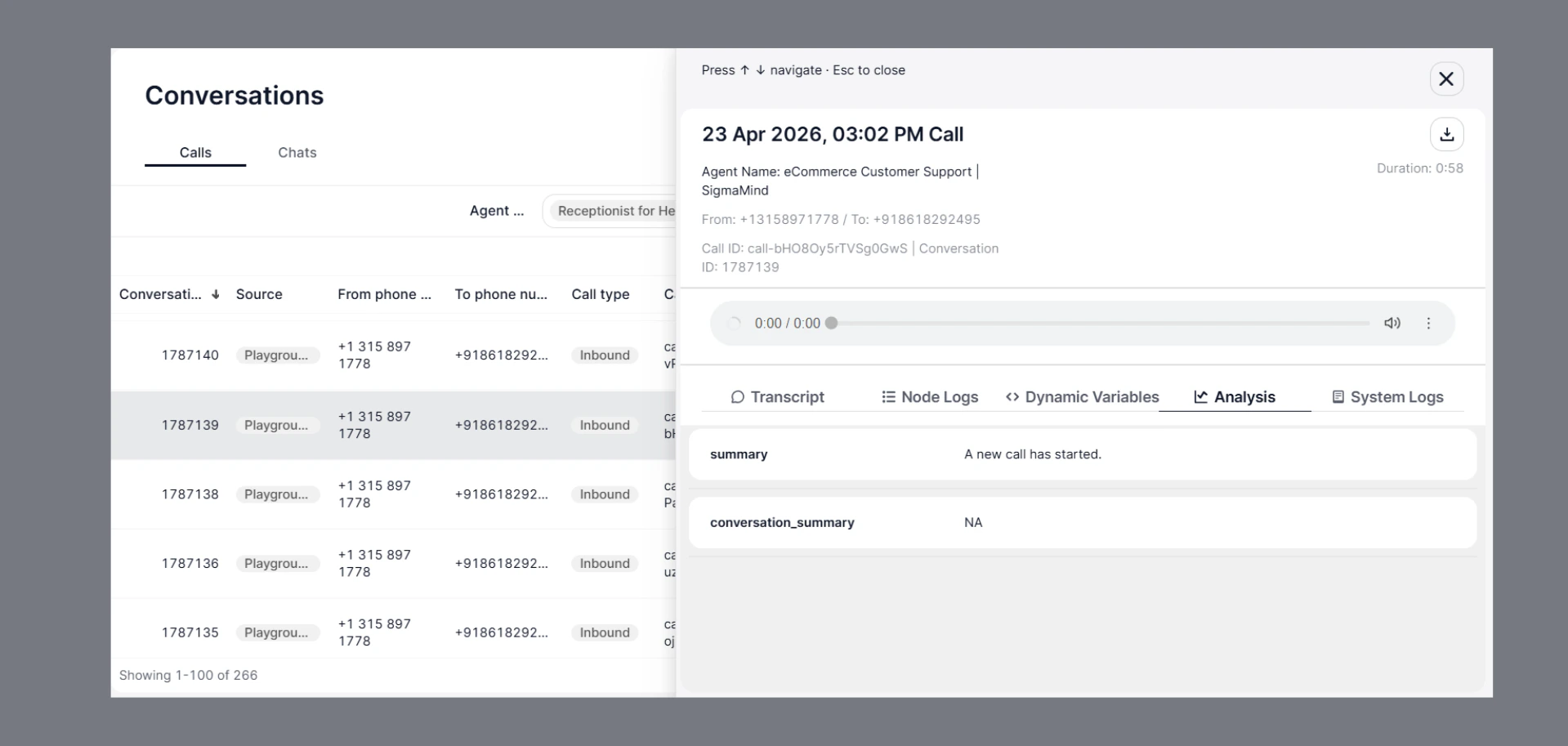
After a conversation ends, you can view extracted insights in:
* Go to **Conversations**
* Open any **Call or Chat**
* Navigate to the **Analysis** tab
* Alongside:
* Transcript
* Node Logs
* Dynamic Variables
#### 👉 This helps you:
* Verify output
* Debug instructions
* Improve accuracy
 Once enabled, the selected model (for example **GPT-4o mini**) will analyze conversations after they end and extract the configured Analysis
***
## Add New Field
To extract specific information from conversations, you can create custom fields.
Once enabled, the selected model (for example **GPT-4o mini**) will analyze conversations after they end and extract the configured Analysis
***
## Add New Field
To extract specific information from conversations, you can create custom fields.
 1. In the **Post-Conversation Analysis** section, click **Add New Field**.
2. Select the type of Field you want to create.
3. Enter an **Name of Analysis.**
4. Provide **Analysis Instructions** that tell the AI what to extract from the conversation.
5. Click **Submit**.
The AI will analyze each conversation and populate the field based on your instructions.
***
## Field Types
SigmaMind supports four types of fields.
### Text
The **Text** field is used when you want the AI to generate written output.
### Best For:
```text theme={null}
Conversation summaries
Main reason for the call
Key discussion points
```
**Example**
```text theme={null}
Analysis Name:
conversation summary
```
**Analysis Instructions:**
```text theme={null}
Write a concise summary of the conversation including the main topic and final outcome.
```
***
### Selector
The **Selector** field allows the AI to choose one value from predefined options.
This is useful for categorizing conversations into structured outcomes.
### Best For:
```text theme={null}
Call outcomes
Intent classification
Routing analysis
```
**Example**
```text theme={null}
Analysis Name:
call outcome
```
**Analysis Instructions**
```text theme={null}
Select the final outcome of the conversation from the predefined options.
```
***
### Boolean
The **Boolean** field returns a **true or false** value.
This is useful for determining whether a specific event occurred during the conversation.
### Best For:
```text theme={null}
Event tracking
Conversion tracking
```
**Example**
```text theme={null}
Analysis Name:
appointment booked
```
**Analysis Instructions**
```text theme={null}
Return true if an appointment was booked during the conversation, otherwise return false.
```
***
### Number
The **Number** field allows the AI to return a numeric value.
This is useful for scoring or counting information from the conversation.
### Best For:
```text theme={null}
Scoring
Counting
Ratings
```
**Example**
```text theme={null}
Analysis Name:
sentiment score
```
**Analysis Instructions**
```text theme={null}
Rate the overall customer sentiment from 1 to 10 where 1 is very negative and 10 is very positive.
```
**Choosing the Right Model**
You can select which LLM model to use for Post-Conversation Analysis.
### Recommended Models by Use Case
**For Simple Classification (Fast & Low Cost)**\
Use:
* GPT-4o mini
**Best for:**
* Boolean fields (true/false)
* Selector fields (categorization)
Basic tagging (intent, outcome)
**Performance:**
* ⚡ Fastest response time
* 💲 Lowest cost
* 📉 Lower depth of analysis
***
**For Balanced Performance (Most Common Use Cases)**\
Use:
* GPT-4o
**Best for:**
* Conversation summaries
* Key information extraction
* General analysis with good accuracy
**Performance:**
* ⚖️ Balanced latency and quality
* 💲 Moderate cost
* ✅ Recommended default for most users
***
**For Advanced Analysis (High Accuracy)**\
Use:
* GPT-5 (or latest high-quality model available)
Best for:
* Complex reasoning
* Detailed summaries
* Multi-step analysis
* High-stakes workflows (sales insights, compliance, etc.)
**Performance:**
* 🧠 Highest quality output
* 🐢 Higher latency (slower responses)
* 💲 Higher cost
***
### Trade-offs
* **GPT-4o mini** → Lowest cost, fastest, but less detailed
* **GPT-4o** → Balanced cost and quality (recommended default)
* **GPT-5** → Highest quality, but higher cost and latency
***
### Recommendation
* Start with **GPT-4o** for most use cases
* Use **GPT-4o mini** for simple structured fields
* Upgrade to **GPT-5** only when higher accuracy is required
#### **Managing Fields**
After creating a field, you can:
* Edit the field to update the instructions
* Delete the field if it is no longer required
* Add multiple fields to capture different insights from conversations
You can also choose which model should be used for the analysis.
***
## Sending Extracted Data
The Analysisextracted through Post-Conversation Analysis can be sent to external systems using **SigmaMind Webhooks**.
Using webhooks, you can automatically send the extracted data to:
* CRM systems
* Google Sheets
* Databases
* Automation platforms such as n8n or Zapier
* Custom applications
This helps automate workflows and store conversation insights for further analysis.
### Where to View Analysis
After a conversation ends, you can view extracted insights in:
* Go to **Conversations**
* Open any **Call or Chat**
* Navigate to the **Analysis** tab
* Alongside:
* Transcript
* Node Logs
* Dynamic Variables
1. In the **Post-Conversation Analysis** section, click **Add New Field**.
2. Select the type of Field you want to create.
3. Enter an **Name of Analysis.**
4. Provide **Analysis Instructions** that tell the AI what to extract from the conversation.
5. Click **Submit**.
The AI will analyze each conversation and populate the field based on your instructions.
***
## Field Types
SigmaMind supports four types of fields.
### Text
The **Text** field is used when you want the AI to generate written output.
### Best For:
```text theme={null}
Conversation summaries
Main reason for the call
Key discussion points
```
**Example**
```text theme={null}
Analysis Name:
conversation summary
```
**Analysis Instructions:**
```text theme={null}
Write a concise summary of the conversation including the main topic and final outcome.
```
***
### Selector
The **Selector** field allows the AI to choose one value from predefined options.
This is useful for categorizing conversations into structured outcomes.
### Best For:
```text theme={null}
Call outcomes
Intent classification
Routing analysis
```
**Example**
```text theme={null}
Analysis Name:
call outcome
```
**Analysis Instructions**
```text theme={null}
Select the final outcome of the conversation from the predefined options.
```
***
### Boolean
The **Boolean** field returns a **true or false** value.
This is useful for determining whether a specific event occurred during the conversation.
### Best For:
```text theme={null}
Event tracking
Conversion tracking
```
**Example**
```text theme={null}
Analysis Name:
appointment booked
```
**Analysis Instructions**
```text theme={null}
Return true if an appointment was booked during the conversation, otherwise return false.
```
***
### Number
The **Number** field allows the AI to return a numeric value.
This is useful for scoring or counting information from the conversation.
### Best For:
```text theme={null}
Scoring
Counting
Ratings
```
**Example**
```text theme={null}
Analysis Name:
sentiment score
```
**Analysis Instructions**
```text theme={null}
Rate the overall customer sentiment from 1 to 10 where 1 is very negative and 10 is very positive.
```
**Choosing the Right Model**
You can select which LLM model to use for Post-Conversation Analysis.
### Recommended Models by Use Case
**For Simple Classification (Fast & Low Cost)**\
Use:
* GPT-4o mini
**Best for:**
* Boolean fields (true/false)
* Selector fields (categorization)
Basic tagging (intent, outcome)
**Performance:**
* ⚡ Fastest response time
* 💲 Lowest cost
* 📉 Lower depth of analysis
***
**For Balanced Performance (Most Common Use Cases)**\
Use:
* GPT-4o
**Best for:**
* Conversation summaries
* Key information extraction
* General analysis with good accuracy
**Performance:**
* ⚖️ Balanced latency and quality
* 💲 Moderate cost
* ✅ Recommended default for most users
***
**For Advanced Analysis (High Accuracy)**\
Use:
* GPT-5 (or latest high-quality model available)
Best for:
* Complex reasoning
* Detailed summaries
* Multi-step analysis
* High-stakes workflows (sales insights, compliance, etc.)
**Performance:**
* 🧠 Highest quality output
* 🐢 Higher latency (slower responses)
* 💲 Higher cost
***
### Trade-offs
* **GPT-4o mini** → Lowest cost, fastest, but less detailed
* **GPT-4o** → Balanced cost and quality (recommended default)
* **GPT-5** → Highest quality, but higher cost and latency
***
### Recommendation
* Start with **GPT-4o** for most use cases
* Use **GPT-4o mini** for simple structured fields
* Upgrade to **GPT-5** only when higher accuracy is required
#### **Managing Fields**
After creating a field, you can:
* Edit the field to update the instructions
* Delete the field if it is no longer required
* Add multiple fields to capture different insights from conversations
You can also choose which model should be used for the analysis.
***
## Sending Extracted Data
The Analysisextracted through Post-Conversation Analysis can be sent to external systems using **SigmaMind Webhooks**.
Using webhooks, you can automatically send the extracted data to:
* CRM systems
* Google Sheets
* Databases
* Automation platforms such as n8n or Zapier
* Custom applications
This helps automate workflows and store conversation insights for further analysis.
### Where to View Analysis
After a conversation ends, you can view extracted insights in:
* Go to **Conversations**
* Open any **Call or Chat**
* Navigate to the **Analysis** tab
* Alongside:
* Transcript
* Node Logs
* Dynamic Variables
 #### 👉 This helps you:
* Verify output
* Debug instructions
* Improve accuracy
#### 👉 This helps you:
* Verify output
* Debug instructions
* Improve accuracy