> ## Documentation Index
> Fetch the complete documentation index at: https://docs.sigmamind.ai/llms.txt
> Use this file to discover all available pages before exploring further.
# Agent level Webhooks
> Learn how to use Webhooks in SigmaMind to receive real-time events from AI agents.
**Webhooks** in SigmaMind let you receive **real-time notifications** about events happening in your AI agents.\
Whenever an event is triggered (e.g., a conversation starts or ends), SigmaMind will send an HTTP `POST`request with a JSON payload to your configured webhook URL.
This allows you to fetch conversation info from your agents in your own applications, CRMs, or monitoring systems.
***
## How Webhooks Work
* Each **AI Agent** can have its own webhook.
* A **single webhook URL** can be reused across multiple agents.
* When the selected event occurs, SigmaMind sends a signed JSON payload to your webhook endpoint.
* Your system can then process this payload to perform actions like updating CRM records, triggering workflows, or logging analytics.
Think of webhooks as **push notifications** for your backend — you get updates instantly when something important happens in SigmaMind.
***
## Supported Webhook Events
The following events are currently supported:
* **conversation\_started** – Triggered when a new customer conversation begins.
* **conversation\_ended** – Triggered when a conversation is closed or completed.
* **conversation\_analysed** – Triggered when call analysis is completed.
***
## Creating Webhooks
You can create webhooks in **two ways**:
### 1. Using the Dashboard
You can configure webhooks from **Agent Settings**:
1. Open the **AI Agent** you want to connect.
2. Go to **Agent Settings → Webhooks**.
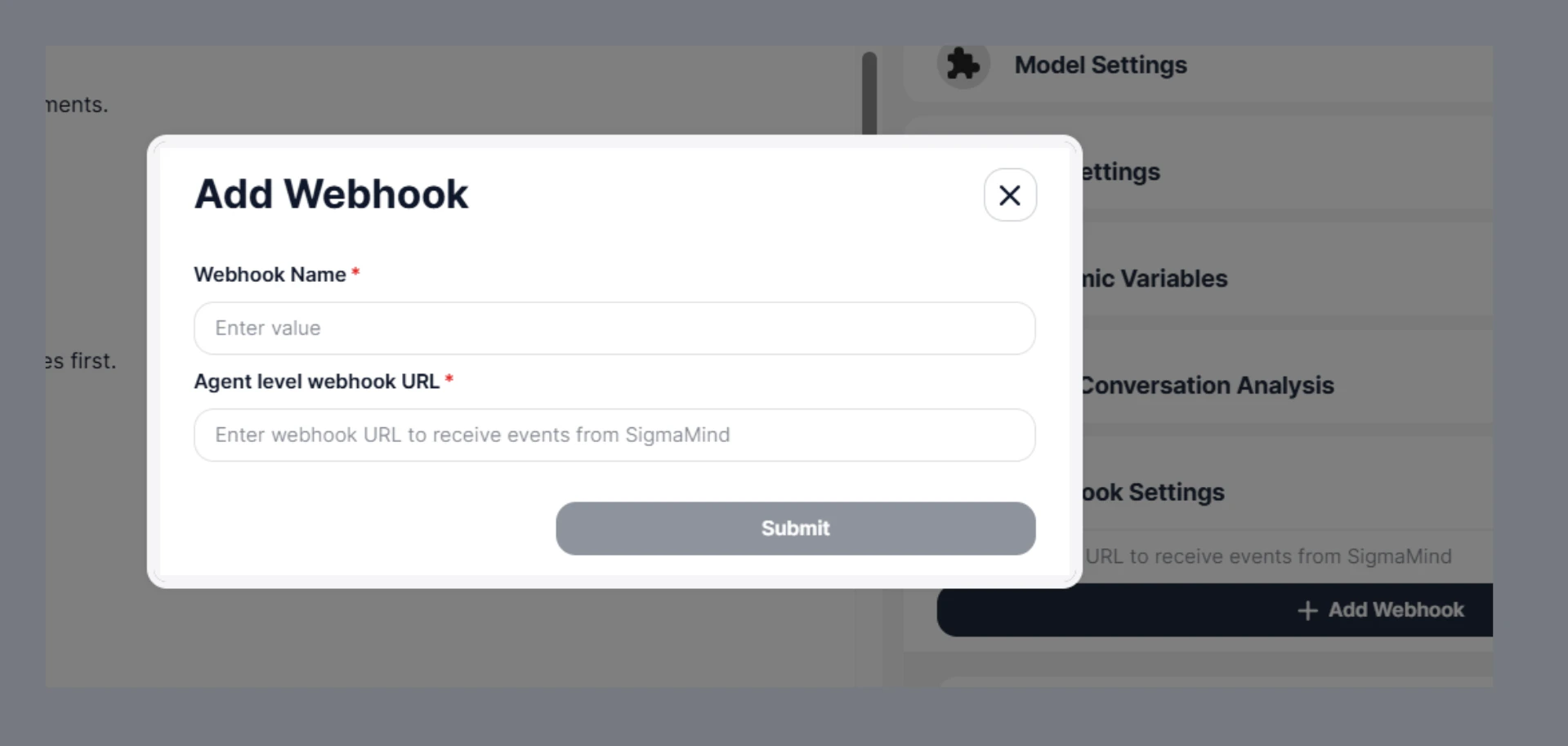
3. Click on **Add Webhook**
4. Provide the following details -
* **Webhook Name** - Set the name you want to give this webhook.
* **URL** - Enter a webhook URL. You'll find this from your system where you want to receive the events from SigmaMind.
* Hit **Submit** to add the Webhook.
 ***
### 2. Using the API
If you prefer programmatic control, you can use the [**Webhook API**](/api-reference/webhooks/create-webhook) to register webhooks.
* The `name` field is a human-readable identifier for your webhook.
* The `url` is the endpoint in your system that will receive webhook events.
* The `agentId` must correspond to an existing Agent in your SigmaMind account.
* The `events` parameter lists which Agent events will trigger the webhook.
```sh Create Webhook theme={null}
curl --location 'https://api.sigmamind.ai/v1/webhooks' \
--header 'Content-Type: application/json' \
--header 'X-API-KEY: key_C6HL3Goru7Q.TlI5kZOKPmDM03Gt39nRBEnxrL*******************' \
--data '{
"name": "Test Webhook 1",
"url": "https://your-server.com/webhooks/ai-agent",
"agentId": "D5D0p7TUs66TTAEAx",
"events": [
"conversation_started",
"conversation_ended"
]
}'
```
## Security and Verification
### 🔑 Secret Generation
* Each webhook is associated with a unique secret.
* This secret is generated securely using a cryptographically strong random generator.
* We store this secret encrypted at rest.
* You should securely store this secret on your side — it is required to verify incoming webhooks.
***
### 📦 What We Send
Every webhook request includes:
#### Headers
| Headers | Description |
| ----------------------- | ------------------------------------ |
| `x-webhook-signature` | HMAC SHA256 signature of the request |
| `x-webhook-timestamp` | Unix timestamp (in seconds) |
| `x-webhook-delivery-Id` | Unique delivery ID (for idempotency) |
| `x-webhook-id` | Webhook identifier |
#### Body
* JSON payload (exact content used for signature generation)
***
### 📄 Example Payload
Here’s an example of the webhook payload your endpoint will receive:
```json theme={null}
{
"id": "wh_BUbkx3PsbzQm5V10",
"event": "conversation_started",
"createdAt": "2026-05-04T10:05:37.800",
"data": {
"workspace": {
"workspace_id": "org_9y41TftLgBOuLi7e"
},
"agent": {
"name": "Test Agent",
"agent_id": "CYu0gJcTPZdy36T1",
"status": "Testing"
},
"phone_number": {},
"call": {
"call_id": "call_X8T94GBhe4mhFwct",
"call_type": "web",
"phone_number": null,
"status": "in_progress",
"start_time": "2026-05-04T08:05:37.845386Z",
"end_time": null,
"duration": 0,
"termination_reason": null,
"created_at": "2026-05-04T08:05:37.841",
"updated_at": "2026-05-04T08:05:37.968",
"recording_url": null,
"agent": {
"name": "Test Agent",
"agent_id": "CYu0gJcTPZdy36T1",
"status": "Testing"
}
},
"customer": {
"id": 17183296,
"name": "#Customer17183296_1777881938",
"email": null,
"phone": null,
"first_name": "#Customer17183296",
"last_name": "_1777881938"
},
"conversation": {
"id": 1810156,
"channel": "phone",
"status": "open",
"subject": "New conversation",
"via": "playground",
"email": null,
"phone": null,
"usage": null,
"helpdesk_source": "playground",
"store_name": null,
"voice_call_id": "room-playground-7VDMBztOdeHjEQQz",
"call_id": "call_X8T94GBhe4mhFwct",
"messages": [
{
"id": "5977628",
"role": "user",
"content": "New Call Started",
"channel": "phone",
"via": "playground",
"conversation_id": 1810156,
"helpdesk_source": "playground",
"intent": null,
"created_at": 1777881937,
"updated_at": null
}
],
"latest_message": {
"id": "5977628",
"role": "user",
"content": "New Call Started",
"channel": "phone",
"via": "playground",
"conversation_id": 1810156,
"helpdesk_source": "playground",
"intent": null,
"created_at": 1777881937,
"updated_at": null
},
"created_at": 1777881937,
"updated_at": 1777881937,
"closed_at": null,
"has_agent_response": false
},
"metadata": null,
"actions": {},
"dynamic_variables": {
"customer_phone_number": "",
"summary": null,
"fcustomer-name": null,
"calltransferredtolabtechnician": null,
"address": null,
"phone_number": "{{customer.phone}}",
"customer_name": "Aditya"
},
"usage": {},
"post_call_analysis": null
}
}
```
### 🔏 How Signature is Generated
We compute the signature using:
```sh theme={null}
signature = HMAC_SHA256(secret, timestamp + "." + payload)
```
and send it as:
```sh theme={null}
x-webhook-signature: sha256=
```
### ✅ How to Verify Webhook (Client Side)
To validate that the webhook is genuine:
#### Step 1: Extract values
* signature from header
* timestamp from header
* payload (raw request body)
***
#### Step 2: Recompute signature
```sh theme={null}
expectedSignature = HMAC_SHA256(secret, timestamp + "." + payload)
```
#### Step 3: Compare signatures
* Remove prefix sha256= from header signature
* Compare with your computed signature
* Use constant-time comparison to avoid timing attacks
#### Step 4: Validate timestamp (Replay Protection)
* Convert timestamp to current time
* Reject if difference > 5 minutes
Example:
```sh theme={null}
if (abs(current_time - timestamp) > 300 seconds) → reject
```
#### Step 5: Handle idempotency
* Use `x-webhook-delivery-id` to ensure the same event is not processed multiple times
Always use the raw request body (do not reformat JSON before verifying).\
Do not trust the request if signature validation fails.\
Keep your webhook secret secure (never expose in frontend code).
#### 💡 Examples
```sh Pseudo Code theme={null}
payload = timestamp + "." + rawBody
computed = HMAC_SHA256(secret, payload)
if (!constantTimeEquals(computed, receivedSignature)) {
reject request
}
```
```sh Java theme={null}
public String computeHmacSHA256(String secret, String payload) {
try {
Mac mac = Mac.getInstance("HmacSHA256");
mac.init(new SecretKeySpec(secret.getBytes(StandardCharsets.UTF_8), "HmacSHA256"));
byte[] raw = mac.doFinal(payload.getBytes(StandardCharsets.UTF_8));
return bytesToHex(raw);
}
catch (Exception ex) {
throw new GenericException("Failed to compute HMAC");
}
}
private String bytesToHex(byte[] bytes) {
StringBuilder sb = new StringBuilder(bytes.length * 2);
for (byte b : bytes) {
sb.append(String.format("%02x", b));
}
return sb.toString();
}
```
Always verify signatures before processing webhook data to prevent spoofing attacks.
### Summary
* Webhooks notify your system in real time about Agent events.
* You can create webhooks from the Dashboard or via the API.
* A single webhook URL can be used across multiple AI Agents.
* Supported events include conversation\_started, conversation\_analysed and conversation\_ended.
* Payloads are signed with a secret key for secure delivery.
### Where to View Analysis in Dashboard
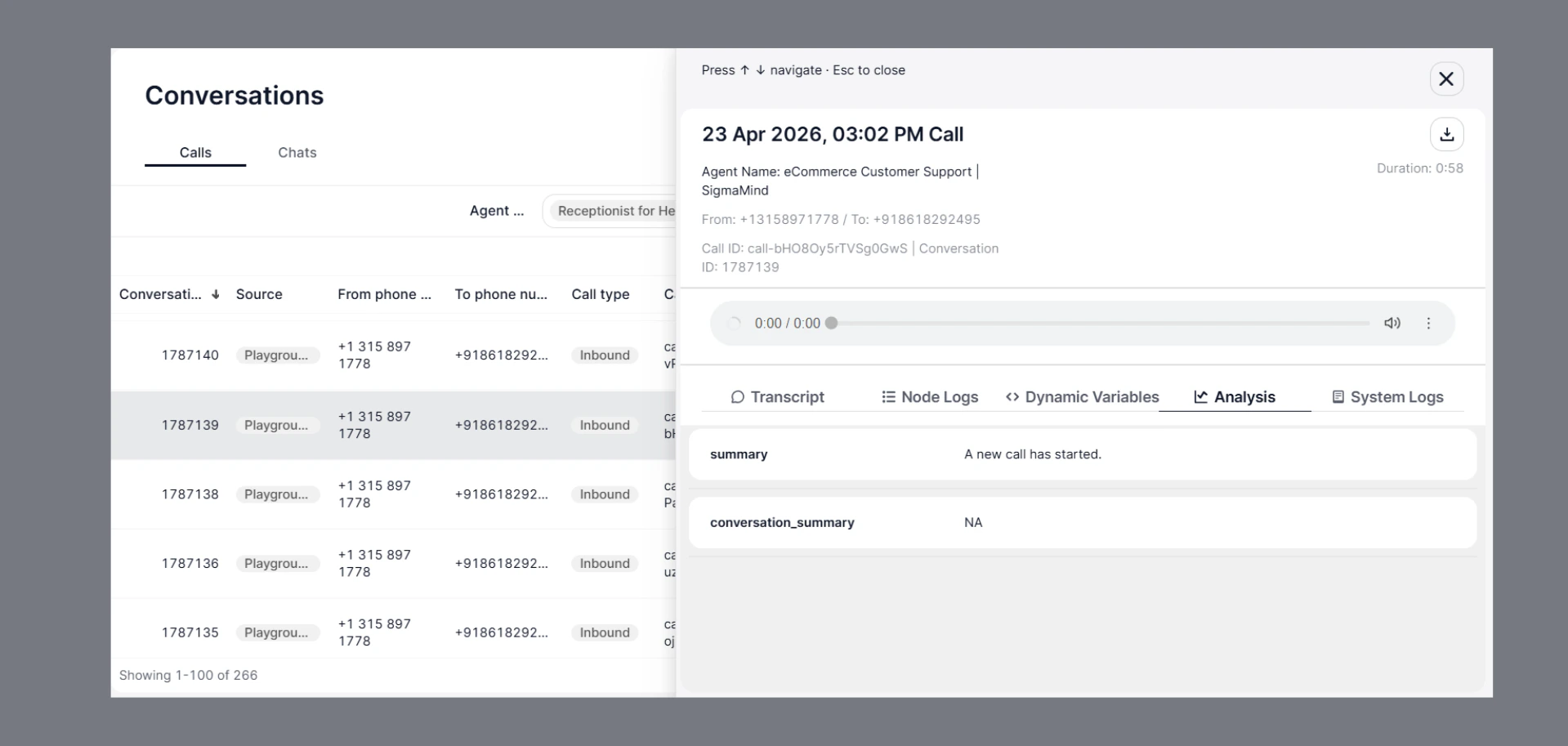
After a conversation is completed and analysis is triggered (`conversation_analysed` event), you can also view the same data directly in the SigmaMind dashboard.
***
### 2. Using the API
If you prefer programmatic control, you can use the [**Webhook API**](/api-reference/webhooks/create-webhook) to register webhooks.
* The `name` field is a human-readable identifier for your webhook.
* The `url` is the endpoint in your system that will receive webhook events.
* The `agentId` must correspond to an existing Agent in your SigmaMind account.
* The `events` parameter lists which Agent events will trigger the webhook.
```sh Create Webhook theme={null}
curl --location 'https://api.sigmamind.ai/v1/webhooks' \
--header 'Content-Type: application/json' \
--header 'X-API-KEY: key_C6HL3Goru7Q.TlI5kZOKPmDM03Gt39nRBEnxrL*******************' \
--data '{
"name": "Test Webhook 1",
"url": "https://your-server.com/webhooks/ai-agent",
"agentId": "D5D0p7TUs66TTAEAx",
"events": [
"conversation_started",
"conversation_ended"
]
}'
```
## Security and Verification
### 🔑 Secret Generation
* Each webhook is associated with a unique secret.
* This secret is generated securely using a cryptographically strong random generator.
* We store this secret encrypted at rest.
* You should securely store this secret on your side — it is required to verify incoming webhooks.
***
### 📦 What We Send
Every webhook request includes:
#### Headers
| Headers | Description |
| ----------------------- | ------------------------------------ |
| `x-webhook-signature` | HMAC SHA256 signature of the request |
| `x-webhook-timestamp` | Unix timestamp (in seconds) |
| `x-webhook-delivery-Id` | Unique delivery ID (for idempotency) |
| `x-webhook-id` | Webhook identifier |
#### Body
* JSON payload (exact content used for signature generation)
***
### 📄 Example Payload
Here’s an example of the webhook payload your endpoint will receive:
```json theme={null}
{
"id": "wh_BUbkx3PsbzQm5V10",
"event": "conversation_started",
"createdAt": "2026-05-04T10:05:37.800",
"data": {
"workspace": {
"workspace_id": "org_9y41TftLgBOuLi7e"
},
"agent": {
"name": "Test Agent",
"agent_id": "CYu0gJcTPZdy36T1",
"status": "Testing"
},
"phone_number": {},
"call": {
"call_id": "call_X8T94GBhe4mhFwct",
"call_type": "web",
"phone_number": null,
"status": "in_progress",
"start_time": "2026-05-04T08:05:37.845386Z",
"end_time": null,
"duration": 0,
"termination_reason": null,
"created_at": "2026-05-04T08:05:37.841",
"updated_at": "2026-05-04T08:05:37.968",
"recording_url": null,
"agent": {
"name": "Test Agent",
"agent_id": "CYu0gJcTPZdy36T1",
"status": "Testing"
}
},
"customer": {
"id": 17183296,
"name": "#Customer17183296_1777881938",
"email": null,
"phone": null,
"first_name": "#Customer17183296",
"last_name": "_1777881938"
},
"conversation": {
"id": 1810156,
"channel": "phone",
"status": "open",
"subject": "New conversation",
"via": "playground",
"email": null,
"phone": null,
"usage": null,
"helpdesk_source": "playground",
"store_name": null,
"voice_call_id": "room-playground-7VDMBztOdeHjEQQz",
"call_id": "call_X8T94GBhe4mhFwct",
"messages": [
{
"id": "5977628",
"role": "user",
"content": "New Call Started",
"channel": "phone",
"via": "playground",
"conversation_id": 1810156,
"helpdesk_source": "playground",
"intent": null,
"created_at": 1777881937,
"updated_at": null
}
],
"latest_message": {
"id": "5977628",
"role": "user",
"content": "New Call Started",
"channel": "phone",
"via": "playground",
"conversation_id": 1810156,
"helpdesk_source": "playground",
"intent": null,
"created_at": 1777881937,
"updated_at": null
},
"created_at": 1777881937,
"updated_at": 1777881937,
"closed_at": null,
"has_agent_response": false
},
"metadata": null,
"actions": {},
"dynamic_variables": {
"customer_phone_number": "",
"summary": null,
"fcustomer-name": null,
"calltransferredtolabtechnician": null,
"address": null,
"phone_number": "{{customer.phone}}",
"customer_name": "Aditya"
},
"usage": {},
"post_call_analysis": null
}
}
```
### 🔏 How Signature is Generated
We compute the signature using:
```sh theme={null}
signature = HMAC_SHA256(secret, timestamp + "." + payload)
```
and send it as:
```sh theme={null}
x-webhook-signature: sha256=
```
### ✅ How to Verify Webhook (Client Side)
To validate that the webhook is genuine:
#### Step 1: Extract values
* signature from header
* timestamp from header
* payload (raw request body)
***
#### Step 2: Recompute signature
```sh theme={null}
expectedSignature = HMAC_SHA256(secret, timestamp + "." + payload)
```
#### Step 3: Compare signatures
* Remove prefix sha256= from header signature
* Compare with your computed signature
* Use constant-time comparison to avoid timing attacks
#### Step 4: Validate timestamp (Replay Protection)
* Convert timestamp to current time
* Reject if difference > 5 minutes
Example:
```sh theme={null}
if (abs(current_time - timestamp) > 300 seconds) → reject
```
#### Step 5: Handle idempotency
* Use `x-webhook-delivery-id` to ensure the same event is not processed multiple times
Always use the raw request body (do not reformat JSON before verifying).\
Do not trust the request if signature validation fails.\
Keep your webhook secret secure (never expose in frontend code).
#### 💡 Examples
```sh Pseudo Code theme={null}
payload = timestamp + "." + rawBody
computed = HMAC_SHA256(secret, payload)
if (!constantTimeEquals(computed, receivedSignature)) {
reject request
}
```
```sh Java theme={null}
public String computeHmacSHA256(String secret, String payload) {
try {
Mac mac = Mac.getInstance("HmacSHA256");
mac.init(new SecretKeySpec(secret.getBytes(StandardCharsets.UTF_8), "HmacSHA256"));
byte[] raw = mac.doFinal(payload.getBytes(StandardCharsets.UTF_8));
return bytesToHex(raw);
}
catch (Exception ex) {
throw new GenericException("Failed to compute HMAC");
}
}
private String bytesToHex(byte[] bytes) {
StringBuilder sb = new StringBuilder(bytes.length * 2);
for (byte b : bytes) {
sb.append(String.format("%02x", b));
}
return sb.toString();
}
```
Always verify signatures before processing webhook data to prevent spoofing attacks.
### Summary
* Webhooks notify your system in real time about Agent events.
* You can create webhooks from the Dashboard or via the API.
* A single webhook URL can be used across multiple AI Agents.
* Supported events include conversation\_started, conversation\_analysed and conversation\_ended.
* Payloads are signed with a secret key for secure delivery.
### Where to View Analysis in Dashboard
After a conversation is completed and analysis is triggered (`conversation_analysed` event), you can also view the same data directly in the SigmaMind dashboard.
 ### Steps
1. Go to **Conversations**
2. Open any **Call or Chat**
3. Navigate to the **Analysis** tab
### What You’ll See
* All Post-Conversation Analysis fields
* Extracted insights (summary, outcome, scores, etc.)
* Structured data generated by the AI
***
### Why This Matters
* Helps you **verify webhook data**
* Useful for **debugging and testing**
* Ensures your analysis instructions are working correctly
Webhooks are the easiest way to integrate SigmaMind into your existing systems and automate workflows.
### Steps
1. Go to **Conversations**
2. Open any **Call or Chat**
3. Navigate to the **Analysis** tab
### What You’ll See
* All Post-Conversation Analysis fields
* Extracted insights (summary, outcome, scores, etc.)
* Structured data generated by the AI
***
### Why This Matters
* Helps you **verify webhook data**
* Useful for **debugging and testing**
* Ensures your analysis instructions are working correctly
Webhooks are the easiest way to integrate SigmaMind into your existing systems and automate workflows.