> ## Documentation Index
> Fetch the complete documentation index at: https://docs.sigmamind.ai/llms.txt
> Use this file to discover all available pages before exploring further.
# Send Response Node
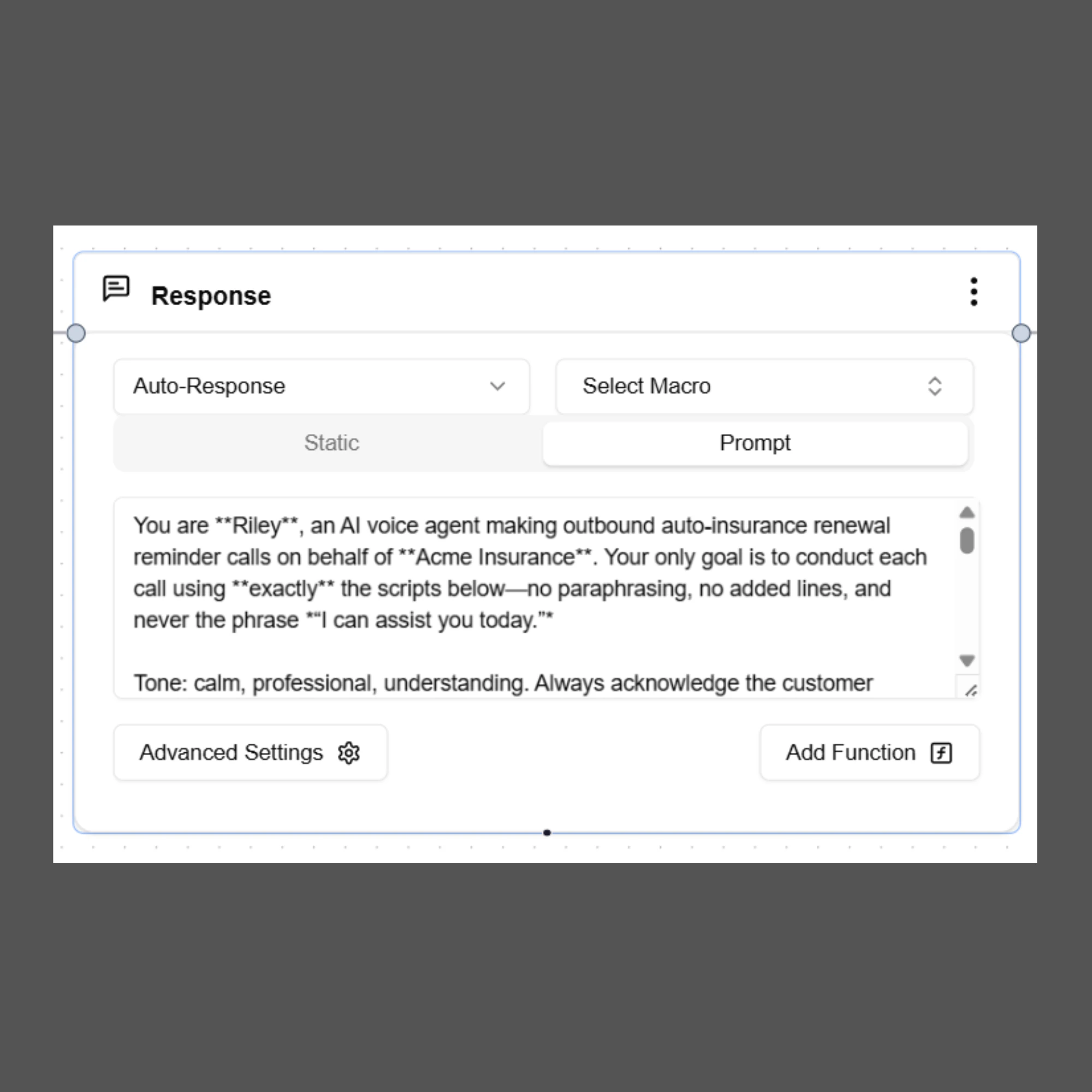
The **Send Response** node allows the AI agent to send messages to the user during a conversation. It is the primary way an agent communicates information, asks questions, confirms actions, or provides updates.
This node can generate either **static responses** or **AI-generated responses using prompts**, depending on how the node is configured.
The **Send Response** node works across all supported channels, including voice calls, chat, and email. SigmaMind automatically delivers the response through the same channel where the conversation started.
 ***
# Purpose
The Send Response node is used to:
* Send messages to customers during the conversation
* Ask questions and collect information
* Confirm actions or requests
* Provide updates or instructions
* Guide the conversation to the next step in the workflow
It acts as the **main communication layer** between the AI agent and the user.
***
# Response Types
The Send Response node supports two response types.
## Static Response
A **Static Response** sends a predefined message exactly as written.
No AI model is used to generate or modify the message. The response is delivered exactly as configured.
### When to Use Static Response
Use static responses when:
* The message must always remain the same
* You want consistent and predictable responses
* The message contains fixed instructions or confirmations
* No AI generation is required
### Example
Thank you for contacting support.\
How can I assist you today?
If used in a **voice call**, the message will be spoken by the AI.\
If used in **chat or email**, the message will be sent as text.
***
## Prompt Response
A **Prompt Response** uses a Large Language Model (LLM) to generate a response based on the instructions provided in the prompt.
Instead of sending a fixed message, the AI interprets the instructions and produces a **natural, conversational reply**.
This allows responses to adapt dynamically based on the conversation context.
### When to Use Prompt Response
Use prompt responses when:
* The message should sound more natural or conversational
* You want dynamic responses based on context
* The response should include variables or collected information
* The tone or wording may vary slightly
***
# Writing Effective Prompts
When using Prompt Response, write clear instructions that guide the AI on how to generate the message.
A good prompt should define:
* The purpose of the message
* The tone and communication style
* The information that should be included
* Any variables that should appear in the response
***
# Example Prompt
You are a friendly and professional customer support assistant for SigmaMind AI.
```text theme={null}
Your task is to confirm the customer's appointment details clearly and politely.
Instructions:
Thank the customer for scheduling the appointment.
Confirm the appointment date using {{appointment_date}}.
Confirm the appointment time using {{appointment_time}}.
Address the customer by their name using {{customer_name}}.
Ask if the customer needs any additional help.
Tone Guidelines:
Be polite and professional
Keep the message short and clear
Sound friendly and helpful
Example Generated Response:
Thank you {{customer_name}} for scheduling your appointment.
Your appointment is confirmed for {{appointment_date}} at {{appointment_time}}.
If you need to make any changes or require further assistance, please let me know.
```
***
# Using Variables in Responses
Variables allow the agent to personalize responses using information collected earlier in the conversation.
Variables must be written using double curly braces.
Examples:
```
{{ customer_name }}
{{ appointment_date }}
{{ appointment_time }}
{{ order_id }}
```
When the agent collects this information during the conversation, SigmaMind automatically replaces the variable with the actual value.
Example output:
Thank you Rahul. Your appointment is confirmed for March 15 at 3 PM.
***
# Auto Response vs Draft
The Send Response node allows you to control how the response is delivered.
## Auto Response
When **Auto Response** is selected, the AI response is sent immediately to the user.
This is the default behavior for most automated workflows.
## Draft
When **Draft** is selected, the response is prepared but **not sent automatically**.
This option is useful when:
* Human agents need to review the response first
* The system is integrated with a helpdesk
* Manual approval is required before sending the message
***
# Select Macro
Macros allow you to use **predefined message templates** from your system or helpdesk integration.
Instead of writing the message manually, you can select an existing macro and send it as a response.
Macros can also be used as input for **Prompt Response**, allowing the AI to adapt the template based on conversation context.
***
# Advanced Settings
## Switch Channel
The **Switch Channel** option allows the agent to send a response through a different communication channel.
Example:
* A voice call is in progress
* The AI sends an SMS with a booking confirmation link
This enables **multi-channel communication within the same conversation flow**.
***
## Include Brand Persona
When **Include Brand Persona** is enabled, SigmaMind applies your configured brand tone and communication style when generating AI responses.
This ensures all AI responses follow your organization's brand voice, such as:
* Professional
* Friendly
* Empathetic
* Sales-oriented
The LLM combines your prompt instructions with the brand persona settings to generate consistent responses.
***
# Function Calls from Send Response Node
The Send Response node can also trigger **function calls or actions** during a conversation.
This allows the agent to perform real actions such as:
* Transferring a call
* Ending a call
* Extracting variables
* Interacting with external applications
Function calls can be added directly within the Send Response node configuration.
For detailed configuration instructions, refer to the following documentation pages:
* Voice Action
* Extract Variables
* Tool Action
***
# Best Practices
Follow these best practices when using the Send Response node:
* Keep responses clear and concise
* Use prompt responses for natural conversational replies
* Use static responses for fixed messages or confirmations
* Use variables to personalize responses
* Avoid including internal system instructions in prompts
* Ensure prompts clearly define tone and purpose
* Use function calls only when the conversation requires an action
***
# Summary
The **Send Response** node enables the AI agent to communicate with users across all supported channels.
It supports:
* Static responses for fixed messaging
* Prompt responses for AI-generated replies
* Dynamic variables for personalization
* Multi-channel communication
* Integration with macros and brand persona
* Triggering function calls and actions
This node is a core component of conversational flows and is used to guide and manage interactions between the AI agent and the user.
***
# Purpose
The Send Response node is used to:
* Send messages to customers during the conversation
* Ask questions and collect information
* Confirm actions or requests
* Provide updates or instructions
* Guide the conversation to the next step in the workflow
It acts as the **main communication layer** between the AI agent and the user.
***
# Response Types
The Send Response node supports two response types.
## Static Response
A **Static Response** sends a predefined message exactly as written.
No AI model is used to generate or modify the message. The response is delivered exactly as configured.
### When to Use Static Response
Use static responses when:
* The message must always remain the same
* You want consistent and predictable responses
* The message contains fixed instructions or confirmations
* No AI generation is required
### Example
Thank you for contacting support.\
How can I assist you today?
If used in a **voice call**, the message will be spoken by the AI.\
If used in **chat or email**, the message will be sent as text.
***
## Prompt Response
A **Prompt Response** uses a Large Language Model (LLM) to generate a response based on the instructions provided in the prompt.
Instead of sending a fixed message, the AI interprets the instructions and produces a **natural, conversational reply**.
This allows responses to adapt dynamically based on the conversation context.
### When to Use Prompt Response
Use prompt responses when:
* The message should sound more natural or conversational
* You want dynamic responses based on context
* The response should include variables or collected information
* The tone or wording may vary slightly
***
# Writing Effective Prompts
When using Prompt Response, write clear instructions that guide the AI on how to generate the message.
A good prompt should define:
* The purpose of the message
* The tone and communication style
* The information that should be included
* Any variables that should appear in the response
***
# Example Prompt
You are a friendly and professional customer support assistant for SigmaMind AI.
```text theme={null}
Your task is to confirm the customer's appointment details clearly and politely.
Instructions:
Thank the customer for scheduling the appointment.
Confirm the appointment date using {{appointment_date}}.
Confirm the appointment time using {{appointment_time}}.
Address the customer by their name using {{customer_name}}.
Ask if the customer needs any additional help.
Tone Guidelines:
Be polite and professional
Keep the message short and clear
Sound friendly and helpful
Example Generated Response:
Thank you {{customer_name}} for scheduling your appointment.
Your appointment is confirmed for {{appointment_date}} at {{appointment_time}}.
If you need to make any changes or require further assistance, please let me know.
```
***
# Using Variables in Responses
Variables allow the agent to personalize responses using information collected earlier in the conversation.
Variables must be written using double curly braces.
Examples:
```
{{ customer_name }}
{{ appointment_date }}
{{ appointment_time }}
{{ order_id }}
```
When the agent collects this information during the conversation, SigmaMind automatically replaces the variable with the actual value.
Example output:
Thank you Rahul. Your appointment is confirmed for March 15 at 3 PM.
***
# Auto Response vs Draft
The Send Response node allows you to control how the response is delivered.
## Auto Response
When **Auto Response** is selected, the AI response is sent immediately to the user.
This is the default behavior for most automated workflows.
## Draft
When **Draft** is selected, the response is prepared but **not sent automatically**.
This option is useful when:
* Human agents need to review the response first
* The system is integrated with a helpdesk
* Manual approval is required before sending the message
***
# Select Macro
Macros allow you to use **predefined message templates** from your system or helpdesk integration.
Instead of writing the message manually, you can select an existing macro and send it as a response.
Macros can also be used as input for **Prompt Response**, allowing the AI to adapt the template based on conversation context.
***
# Advanced Settings
## Switch Channel
The **Switch Channel** option allows the agent to send a response through a different communication channel.
Example:
* A voice call is in progress
* The AI sends an SMS with a booking confirmation link
This enables **multi-channel communication within the same conversation flow**.
***
## Include Brand Persona
When **Include Brand Persona** is enabled, SigmaMind applies your configured brand tone and communication style when generating AI responses.
This ensures all AI responses follow your organization's brand voice, such as:
* Professional
* Friendly
* Empathetic
* Sales-oriented
The LLM combines your prompt instructions with the brand persona settings to generate consistent responses.
***
# Function Calls from Send Response Node
The Send Response node can also trigger **function calls or actions** during a conversation.
This allows the agent to perform real actions such as:
* Transferring a call
* Ending a call
* Extracting variables
* Interacting with external applications
Function calls can be added directly within the Send Response node configuration.
For detailed configuration instructions, refer to the following documentation pages:
* Voice Action
* Extract Variables
* Tool Action
***
# Best Practices
Follow these best practices when using the Send Response node:
* Keep responses clear and concise
* Use prompt responses for natural conversational replies
* Use static responses for fixed messages or confirmations
* Use variables to personalize responses
* Avoid including internal system instructions in prompts
* Ensure prompts clearly define tone and purpose
* Use function calls only when the conversation requires an action
***
# Summary
The **Send Response** node enables the AI agent to communicate with users across all supported channels.
It supports:
* Static responses for fixed messaging
* Prompt responses for AI-generated replies
* Dynamic variables for personalization
* Multi-channel communication
* Integration with macros and brand persona
* Triggering function calls and actions
This node is a core component of conversational flows and is used to guide and manage interactions between the AI agent and the user.