> ## Documentation Index
> Fetch the complete documentation index at: https://docs.sigmamind.ai/llms.txt
> Use this file to discover all available pages before exploring further.
# Voice Action
Voice Actions allow the agent to control the behavior of a phone call, such as transferring the call to a human agent or ending the call automatically.
In **Conversational Flow**, Voice Actions can be added in two ways:
1. **Select Voice Action from the left node panel** and add it to the workflow canvas
2. **Add the function inside a Response node** using **Add Function**
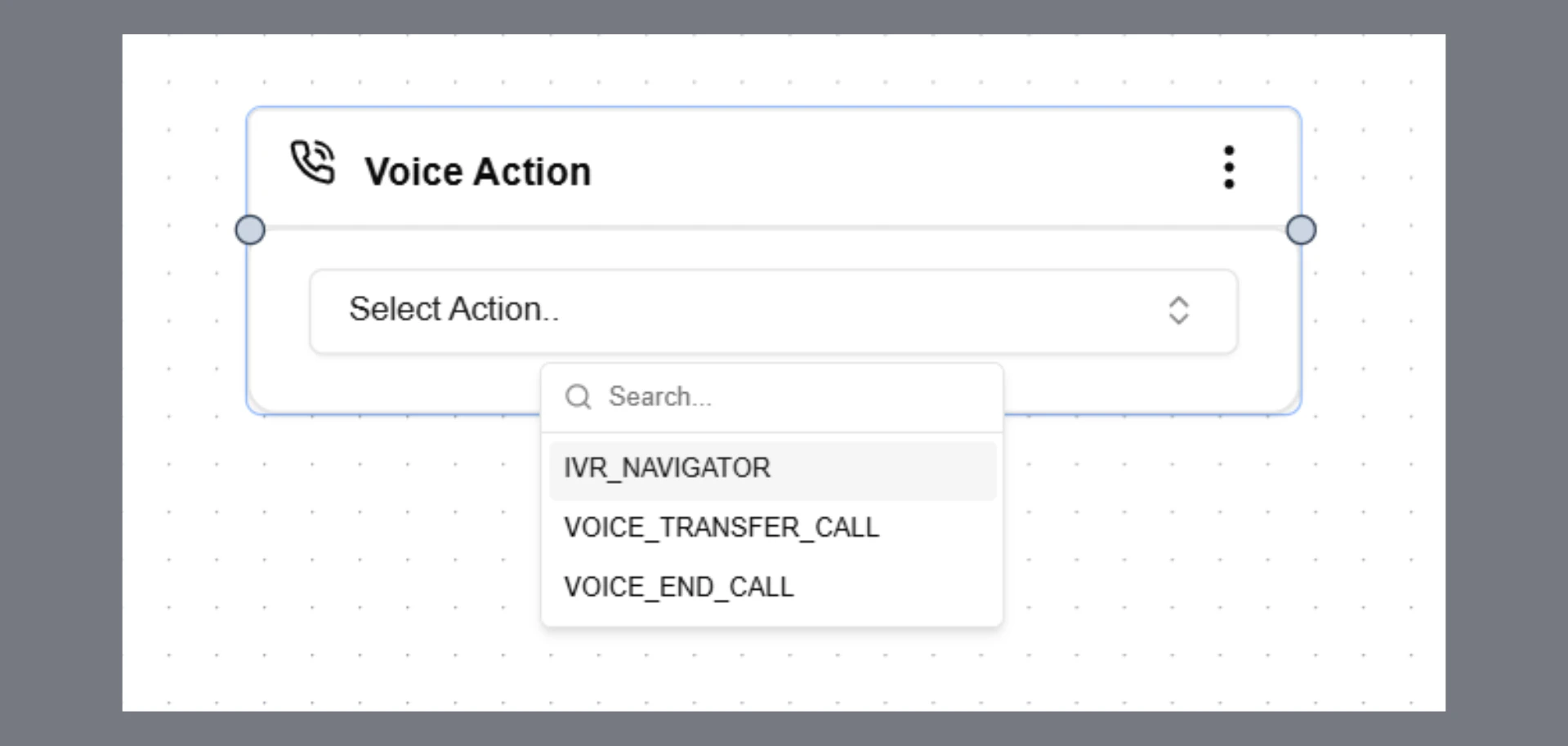 Available actions:
```text theme={null}
IVR_NAVIGATOR
VOICE_TRANSFER_CALL
VOICE_END_CALL
```
***
# IVR Navigator
Enable your AI agent to navigate IVR systems and make outbound calls like a human caller.
The agent sends keypad inputs (DTMF) when required, responds naturally when prompted for speech, and seamlessly continues the interaction if a human agent joins.
***
## How It Works
When an outbound call is placed, the receiving system may respond with:
* A traditional IVR menu
* A conversational AI system
* A live human agent
* Or a combination of all three
IVR Navigator enables the agent to handle these transitions within a single call.
The core decision the agent must make is:
### **Press vs. Say**
* If the IVR says, **"Press 1 for English."**\
→ The agent sends a keypad digit using IVR Navigator
* If the IVR says **"Say 1" or asks a question**\
→ The agent responds using normal speech
This distinction is critical for correct navigation.
***
## Supported IVR Types
**Press-type**\
"Press 1 for X, Press 2 for Y"\
→ IVR Navigator is triggered
**Say-type**\
"Say 1 for English" or open-ended prompts\
→ Handled via normal speech (no tool call)
**Conversational AI**\
Acts like a human and asks questions\
→ IVR Navigator is used only if numeric input is explicitly required
**Mixed (IVR + Human)**\
IVR transitions to a human and may return to keypad input\
→ IVR Navigator is triggered only for digit-based steps
***
## How to Configure
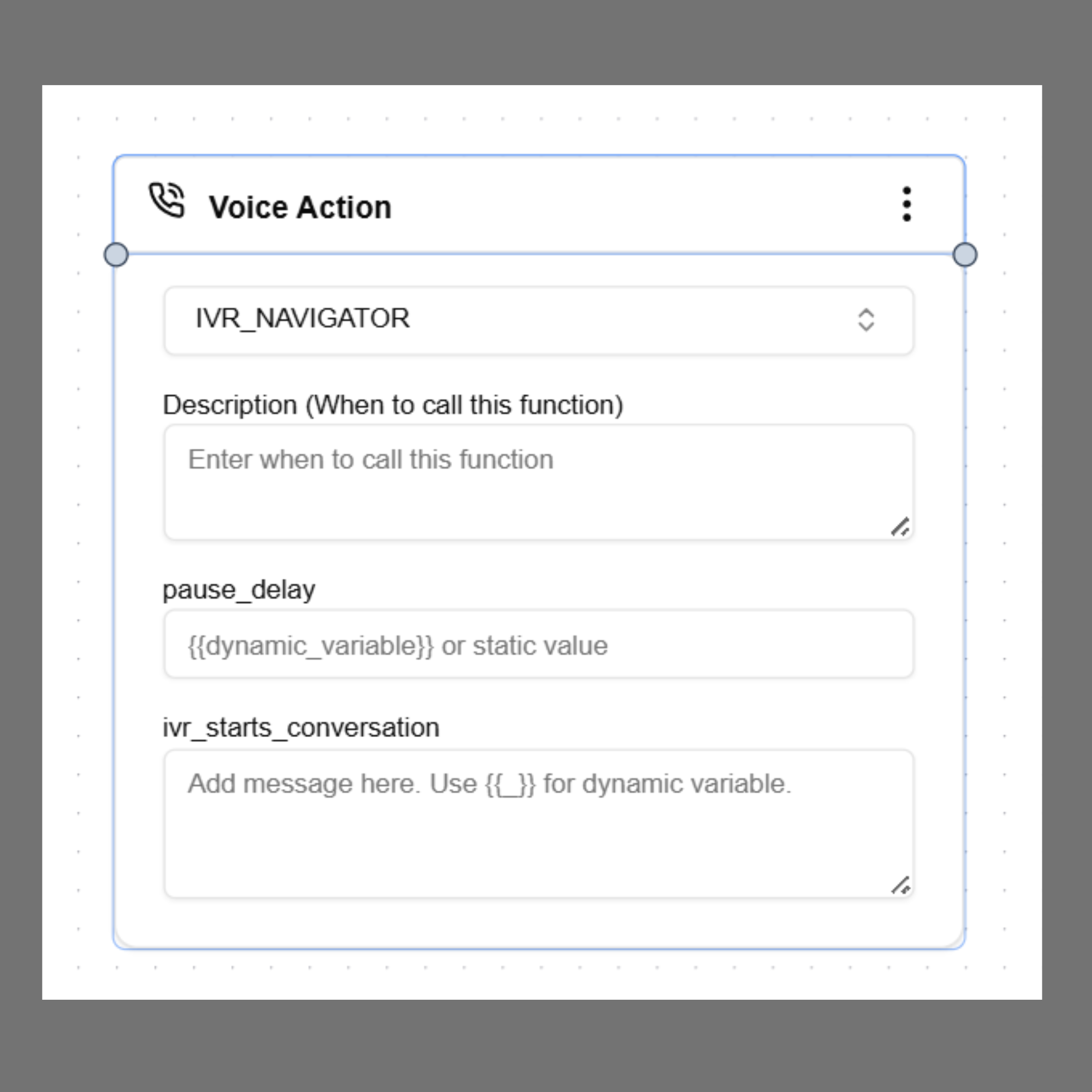
**Step 1:** In Agent Builder, select the **Voice Action** and add `ivr_navigator`**as** an action.
**Step 2:** Add a **Description** to define when the agent should trigger `ivr_navigator`.
**Recommended:**\
Always call this tool only when the IVR explicitly asks for numeric input (e.g., “press” or “enter” a digit/number).\
Do NOT call this method for spoken responses or unclear prompts.
**Step 3:** Set **IVR starts conversation? (Yes / No)**\
Specify whether the IVR system begins speaking at the start of the call.
* **Yes** → Use this when the call starts with an IVR greeting or menu.\
The agent will wait for the configured **Pause Delay** before processing, ensuring the full message is received.
* **No** → Use this when no initial IVR delay handling is needed.\
The agent will begin processing immediately.
**Step 4:** Set **pause\_delay** \
Defines how long (in milliseconds) the agent waits after IVR speech before taking action.
IVR systems often deliver menu options in fragments with short pauses. Without a delay, the agent may act too early.
**Recommended: 2000 ms**
Available actions:
```text theme={null}
IVR_NAVIGATOR
VOICE_TRANSFER_CALL
VOICE_END_CALL
```
***
# IVR Navigator
Enable your AI agent to navigate IVR systems and make outbound calls like a human caller.
The agent sends keypad inputs (DTMF) when required, responds naturally when prompted for speech, and seamlessly continues the interaction if a human agent joins.
***
## How It Works
When an outbound call is placed, the receiving system may respond with:
* A traditional IVR menu
* A conversational AI system
* A live human agent
* Or a combination of all three
IVR Navigator enables the agent to handle these transitions within a single call.
The core decision the agent must make is:
### **Press vs. Say**
* If the IVR says, **"Press 1 for English."**\
→ The agent sends a keypad digit using IVR Navigator
* If the IVR says **"Say 1" or asks a question**\
→ The agent responds using normal speech
This distinction is critical for correct navigation.
***
## Supported IVR Types
**Press-type**\
"Press 1 for X, Press 2 for Y"\
→ IVR Navigator is triggered
**Say-type**\
"Say 1 for English" or open-ended prompts\
→ Handled via normal speech (no tool call)
**Conversational AI**\
Acts like a human and asks questions\
→ IVR Navigator is used only if numeric input is explicitly required
**Mixed (IVR + Human)**\
IVR transitions to a human and may return to keypad input\
→ IVR Navigator is triggered only for digit-based steps
***
## How to Configure
**Step 1:** In Agent Builder, select the **Voice Action** and add `ivr_navigator`**as** an action.
**Step 2:** Add a **Description** to define when the agent should trigger `ivr_navigator`.
**Recommended:**\
Always call this tool only when the IVR explicitly asks for numeric input (e.g., “press” or “enter” a digit/number).\
Do NOT call this method for spoken responses or unclear prompts.
**Step 3:** Set **IVR starts conversation? (Yes / No)**\
Specify whether the IVR system begins speaking at the start of the call.
* **Yes** → Use this when the call starts with an IVR greeting or menu.\
The agent will wait for the configured **Pause Delay** before processing, ensuring the full message is received.
* **No** → Use this when no initial IVR delay handling is needed.\
The agent will begin processing immediately.
**Step 4:** Set **pause\_delay** \
Defines how long (in milliseconds) the agent waits after IVR speech before taking action.
IVR systems often deliver menu options in fragments with short pauses. Without a delay, the agent may act too early.
**Recommended: 2000 ms**
 ***
### Step 4: Write your agent system prompt
All navigation logic, goals, and behavioral constraints should be defined in the agent’s system prompt.
## Agent Prompt Guide
### Define the goal
Clearly specify what the agent must achieve.
**Example:**\
Navigate the IVR system, retrieve required information, complete necessary inputs, and connect to a human agent if needed.
***
### Provide a navigation path (recommended)
If the IVR structure is known, include the expected flow. This significantly improves reliability.
**Example:**
* Select language
* Select account type
* Select service category
* Proceed to the target function
***
### Pass caller data as dynamic variables
Provide structured data the agent may need during the call:
* Mobile number
* Reference or account number
* Policy or claim ID
* Verification details (e.g., last 4 digits of SSN)
***
### Set the agent persona
Without a defined persona, the agent may behave incorrectly (e.g., like a support agent).
**Recommended instruction:**
The agent should behave as a caller seeking assistance.\
It should not act as a support representative or provide solutions, explanations, or guidance.
***
## Behavioral Guidelines
To ensure reliable IVR navigation:
* Only act when input is explicitly requested
* Do not respond to informational (e.g., hold music, “please wait”)
* Do not guess or assume menu options
* Do not press fallback keys (e.g., 0 or 9) unless explicitly instructed
* Separate **digit input actions** from **spoken responses**
***
## Notes
* Digit inputs are **irreversible** once sent
* Incorrect timing can lead to failed navigation
* IVR systems may change over time—regular testing is recommended
**Example prompt:**
```text theme={null}
## IVR Interaction Rules
### 1. Informational / Transitional Prompts
If the prompt is informational (e.g., hold music, “please stay on the line”, “processing”, ringing):
- Return: `NA`
- Do not press any digits
- Do not speak
- Do not trigger IVR navigation
### 2. Input Mode Decision (Highest Priority)
Speech Input
- If the IVR says “say”, “speak”, “tell me”, or asks a question:
- Respond naturally as a caller
- Do NOT trigger IVR navigation
DTMF Input (Keypad)
- If the IVR says “press”, “enter”, or asks for numbers:
- Trigger IVR navigation with the required digits only
- Do NOT generate a spoken response
## Caller Role
- Act as a normal caller (not a support agent)
- Do not provide explanations, solutions, or guidance
## Goal
- Navigate AutoProtect IVR
- Retrieve claim status
- Provide required inputs correctly
- Connect to a human agent
## Input Data
- Claim Reference Number: `123456`
- ZIP Code: `560001`
- Last 4 Digits of SSN: `1234`
## Preferred Navigation Path
`English → Existing Policyholder → Claims → Existing Claim Status → Enter Details → Get Status → Representative`
## Navigation Constraints
- Only press digits explicitly mentioned
- Do not press `9` (repeat/back) unless instructed
- Do not press unrelated digits
- Do not change menu path
## After Transfer to Agent
- Briefly state you are checking claim status
- Answer questions concisely
- Do not provide extra details unless asked
```
## VOICE\_TRANSFER\_CALL
This action transfers an active call to another agent, team, or phone number.
This feature works only for **phone calls** and is **not supported for web calls**.
***
## When to Use
Use this action when:
* The user asks to speak with a human agent
* The request requires human assistance
* The conversation needs escalation
* The workflow needs to route the call to another department
***
## How to Configure
### Step 1: Select Action
Select the action from the dropdown:
```text theme={null}
voice_transfer_call
```
This enables the transfer configuration settings.
***
### Step 2: Transfer To
Define the phone number or variable where the call should be transferred.
Static example:
```text theme={null}
+919876543210
```
Dynamic example:
```text theme={null}
{{assigned_agent_number}}
```
The phone number must be in **E.164 international format** including the country code.
***
### Step 3: Transfer Types
SigmaMind supports two transfer types:
* **Cold Transfer**
* **Warm Transfer**
***
### Step 4: Write your agent system prompt
All navigation logic, goals, and behavioral constraints should be defined in the agent’s system prompt.
## Agent Prompt Guide
### Define the goal
Clearly specify what the agent must achieve.
**Example:**\
Navigate the IVR system, retrieve required information, complete necessary inputs, and connect to a human agent if needed.
***
### Provide a navigation path (recommended)
If the IVR structure is known, include the expected flow. This significantly improves reliability.
**Example:**
* Select language
* Select account type
* Select service category
* Proceed to the target function
***
### Pass caller data as dynamic variables
Provide structured data the agent may need during the call:
* Mobile number
* Reference or account number
* Policy or claim ID
* Verification details (e.g., last 4 digits of SSN)
***
### Set the agent persona
Without a defined persona, the agent may behave incorrectly (e.g., like a support agent).
**Recommended instruction:**
The agent should behave as a caller seeking assistance.\
It should not act as a support representative or provide solutions, explanations, or guidance.
***
## Behavioral Guidelines
To ensure reliable IVR navigation:
* Only act when input is explicitly requested
* Do not respond to informational (e.g., hold music, “please wait”)
* Do not guess or assume menu options
* Do not press fallback keys (e.g., 0 or 9) unless explicitly instructed
* Separate **digit input actions** from **spoken responses**
***
## Notes
* Digit inputs are **irreversible** once sent
* Incorrect timing can lead to failed navigation
* IVR systems may change over time—regular testing is recommended
**Example prompt:**
```text theme={null}
## IVR Interaction Rules
### 1. Informational / Transitional Prompts
If the prompt is informational (e.g., hold music, “please stay on the line”, “processing”, ringing):
- Return: `NA`
- Do not press any digits
- Do not speak
- Do not trigger IVR navigation
### 2. Input Mode Decision (Highest Priority)
Speech Input
- If the IVR says “say”, “speak”, “tell me”, or asks a question:
- Respond naturally as a caller
- Do NOT trigger IVR navigation
DTMF Input (Keypad)
- If the IVR says “press”, “enter”, or asks for numbers:
- Trigger IVR navigation with the required digits only
- Do NOT generate a spoken response
## Caller Role
- Act as a normal caller (not a support agent)
- Do not provide explanations, solutions, or guidance
## Goal
- Navigate AutoProtect IVR
- Retrieve claim status
- Provide required inputs correctly
- Connect to a human agent
## Input Data
- Claim Reference Number: `123456`
- ZIP Code: `560001`
- Last 4 Digits of SSN: `1234`
## Preferred Navigation Path
`English → Existing Policyholder → Claims → Existing Claim Status → Enter Details → Get Status → Representative`
## Navigation Constraints
- Only press digits explicitly mentioned
- Do not press `9` (repeat/back) unless instructed
- Do not press unrelated digits
- Do not change menu path
## After Transfer to Agent
- Briefly state you are checking claim status
- Answer questions concisely
- Do not provide extra details unless asked
```
## VOICE\_TRANSFER\_CALL
This action transfers an active call to another agent, team, or phone number.
This feature works only for **phone calls** and is **not supported for web calls**.
***
## When to Use
Use this action when:
* The user asks to speak with a human agent
* The request requires human assistance
* The conversation needs escalation
* The workflow needs to route the call to another department
***
## How to Configure
### Step 1: Select Action
Select the action from the dropdown:
```text theme={null}
voice_transfer_call
```
This enables the transfer configuration settings.
***
### Step 2: Transfer To
Define the phone number or variable where the call should be transferred.
Static example:
```text theme={null}
+919876543210
```
Dynamic example:
```text theme={null}
{{assigned_agent_number}}
```
The phone number must be in **E.164 international format** including the country code.
***
### Step 3: Transfer Types
SigmaMind supports two transfer types:
* **Cold Transfer**
* **Warm Transfer**
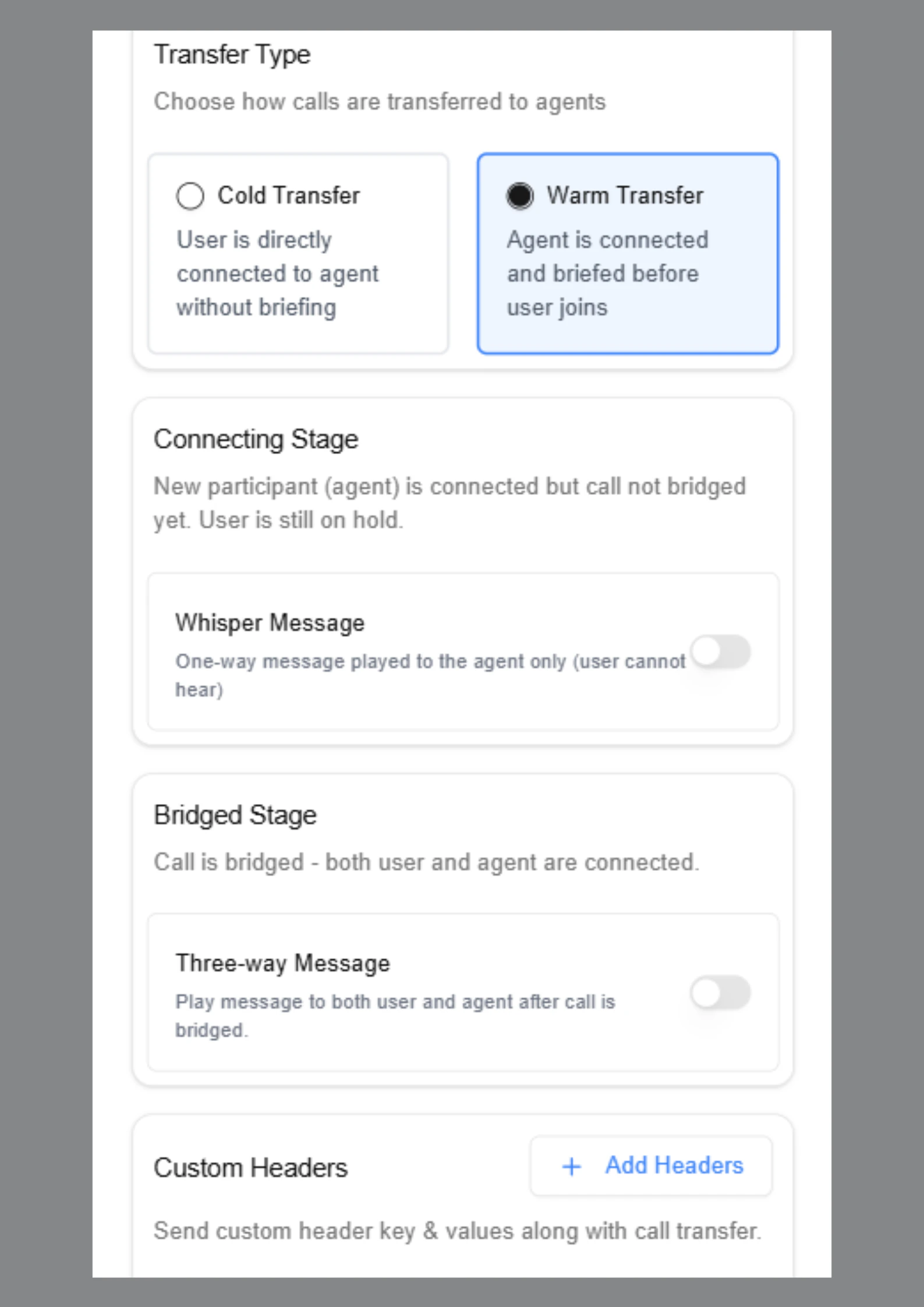 ***
## Cold Transfer
Cold transfer immediately connects the caller to the destination number.
Behavior:
* AI transfers the call and exits the conversation
* No context is shared with the receiving agent
* Caller hears ringing and connects directly
Use when:
* Context is not required
* Simple routing is needed
* Fast escalation is required
***
## Warm Transfer
Warm transfer connects the receiving agent first, shares context, and then bridges the caller.
This ensures a smoother handoff experience.
Warm transfer includes two stages:
* **Connecting Stage**
* **Bridged Stage**
***
### Stage 1: Connecting Stage
The receiving agent is connected while the caller remains on hold.
#### Whisper Message
A **Whisper Message** is played only to the receiving agent.
The caller cannot hear this message.
You can configure this as:
* **Static message**
* **Prompt-generated message**
Example:
```text theme={null}
You are being connected to {{customer_name}} regarding policy {{policy_id}}.
```
***
### Stage 2: Bridged Stage
In this stage, both the caller and the human agent are connected.
You can optionally enable a **Three-way Message** that is played to both participants.
Example:
```text theme={null}
Thank you for waiting {{customer_name}}. You are now connected to our support specialist.
```
***
### Custom Headers (Optional)
Custom headers allow structured metadata to be sent during the transfer.
Example:
```text theme={null}
X-Intent: billing_issue
X-Language: hi
X-Customer-Type: existing
X-Ticket-ID: 12345
```
These headers can be accessed by backend systems, CRM tools, or call center software.
***
## Execution Flow
```text theme={null}
Customer requests transfer
→ Specialist connected
→ Whisper message played
→ Caller connected
→ Three-way message played
→ Specialist continues conversation
```
***
## VOICE\_END\_CALL
The **VOICE\_END\_CALL** action allows the AI agent to end the call automatically when the conversation is complete.
***
## Cold Transfer
Cold transfer immediately connects the caller to the destination number.
Behavior:
* AI transfers the call and exits the conversation
* No context is shared with the receiving agent
* Caller hears ringing and connects directly
Use when:
* Context is not required
* Simple routing is needed
* Fast escalation is required
***
## Warm Transfer
Warm transfer connects the receiving agent first, shares context, and then bridges the caller.
This ensures a smoother handoff experience.
Warm transfer includes two stages:
* **Connecting Stage**
* **Bridged Stage**
***
### Stage 1: Connecting Stage
The receiving agent is connected while the caller remains on hold.
#### Whisper Message
A **Whisper Message** is played only to the receiving agent.
The caller cannot hear this message.
You can configure this as:
* **Static message**
* **Prompt-generated message**
Example:
```text theme={null}
You are being connected to {{customer_name}} regarding policy {{policy_id}}.
```
***
### Stage 2: Bridged Stage
In this stage, both the caller and the human agent are connected.
You can optionally enable a **Three-way Message** that is played to both participants.
Example:
```text theme={null}
Thank you for waiting {{customer_name}}. You are now connected to our support specialist.
```
***
### Custom Headers (Optional)
Custom headers allow structured metadata to be sent during the transfer.
Example:
```text theme={null}
X-Intent: billing_issue
X-Language: hi
X-Customer-Type: existing
X-Ticket-ID: 12345
```
These headers can be accessed by backend systems, CRM tools, or call center software.
***
## Execution Flow
```text theme={null}
Customer requests transfer
→ Specialist connected
→ Whisper message played
→ Caller connected
→ Three-way message played
→ Specialist continues conversation
```
***
## VOICE\_END\_CALL
The **VOICE\_END\_CALL** action allows the AI agent to end the call automatically when the conversation is complete.
 ***
## When to Use
Use this action when:
* The conversation is complete
* The user's request has been resolved
* The user says goodbye
* The user asks to end the call
Example instruction:
```text theme={null}
Call "voice_end_call" when the user confirms the conversation is complete.
```
***
## When to Use
Use this action when:
* The conversation is complete
* The user's request has been resolved
* The user says goodbye
* The user asks to end the call
Example instruction:
```text theme={null}
Call "voice_end_call" when the user confirms the conversation is complete.
```