> ## Documentation Index
> Fetch the complete documentation index at: https://docs.sigmamind.ai/llms.txt
> Use this file to discover all available pages before exploring further.
# Extract Variables
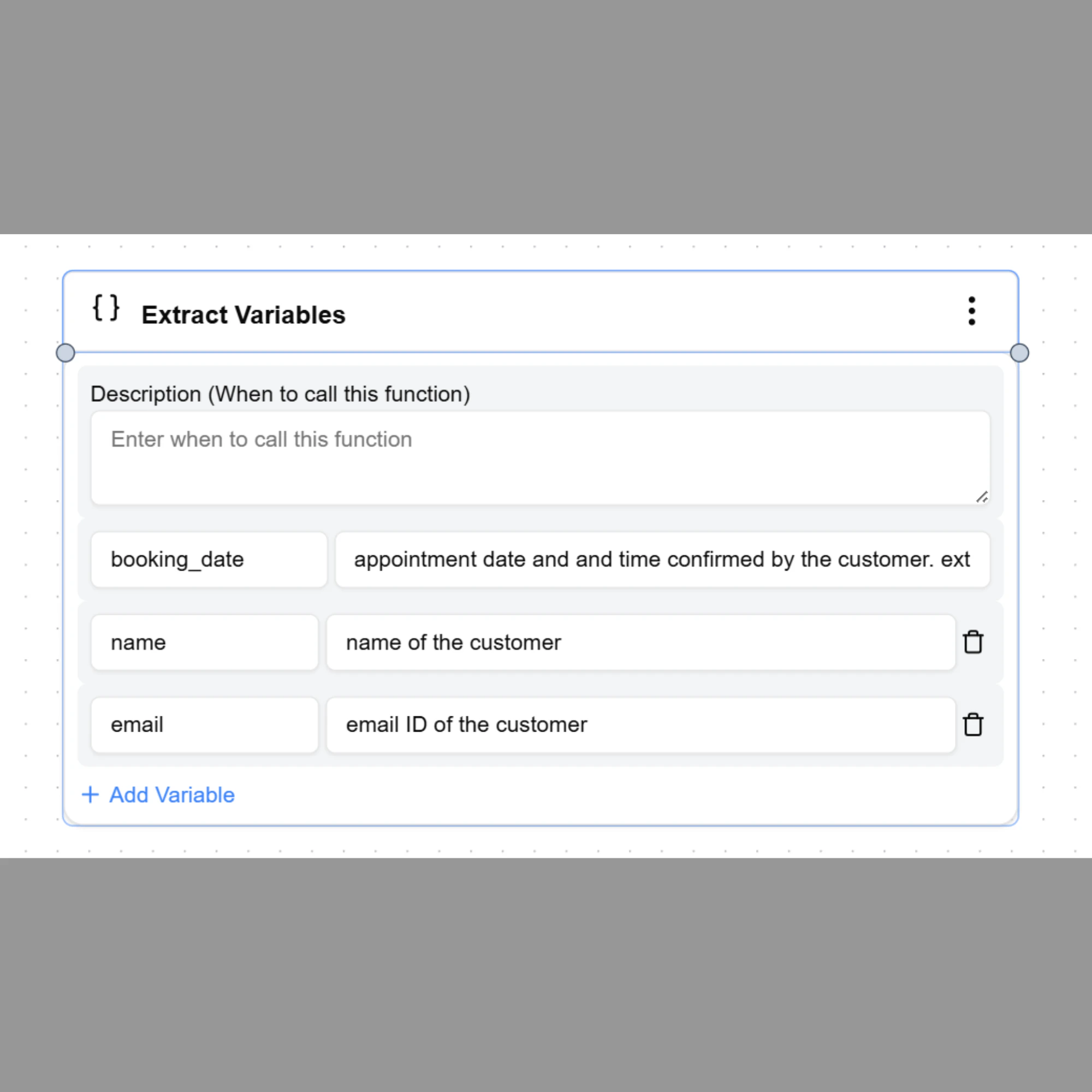
The **Extract Variables** node allows the agent to capture important information from a conversation and store it as variables that can be reused later in the workflow.
These variables can be used in responses, integrations, tool actions, or helpdesk operations.
Extracting structured data from user input is a common capability in AI workflow systems, where natural language is converted into reusable parameters for automation and integrations.
***
# When to Use
Use **Extract Variables** when the agent needs to capture information during an ongoing conversation.
Common examples include:
* Customer name
* Phone number
* Email address
* Appointment date
* Order ID
* Service request
These values can later be used in other nodes such as **Tool Action**, **Helpdesk Action**, or **Response** nodes.
***
# How to Add the Node
In Conversational Flow, you can add **Extract Variables** in two ways:
**Option 1 — From the Node Panel**
1. Select **Extract Variables** from the left node panel
2. The node appears on the workflow canvas
3. Configure the variables to extract
**Option 2 — From a Response Node**
1. Open the **Response** node
2. Select **Add Function**
3. Select **Extract Variables**
4. Configure the variables
Both methods perform the same function.
***
# Defining Variables
Variables must always be written using **double curly braces**.
Example format:
```text theme={null}
{{variable_name}}
```
Example variables:
```text theme={null}
{{customer_name}}
{{phone_number}}
{{appointment_date}}
{{order_id}}
```
During the conversation, the AI agent automatically detects and extracts these values from the user's message.
***
# Example Workflow
Example scenario:
User message:
```text theme={null}
Hi, my name is Rahul Sharma and I want to book an appointment tomorrow.
```
Extracted variables:
```text theme={null}
{{customer_name}} → Rahul Sharma
{{appointment_date}} → Tomorrow
```
These values can now be used in later workflow steps.
***
# Using Extracted Variables
Once extracted, variables can be used in different nodes across the workflow.
Example usage in a response:
```text theme={null}
Thanks {{customer_name}}. Your appointment is scheduled for {{appointment_date}}.
```
Example usage in a tool action:
```text theme={null}
book_appointment
customer_name: {{customer_name}}
date: {{appointment_date}}
```
***
# Best Practices
* Use clear variable names such as `customer_name` or `appointment_date`
* Extract only the information required for the workflow
* Reuse variables across multiple nodes to avoid asking the same question again
* Keep variable names consistent across the agent
 ***
# When to Use
Use **Extract Variables** when the agent needs to capture information during an ongoing conversation.
Common examples include:
* Customer name
* Phone number
* Email address
* Appointment date
* Order ID
* Service request
These values can later be used in other nodes such as **Tool Action**, **Helpdesk Action**, or **Response** nodes.
***
# How to Add the Node
In Conversational Flow, you can add **Extract Variables** in two ways:
**Option 1 — From the Node Panel**
1. Select **Extract Variables** from the left node panel
2. The node appears on the workflow canvas
3. Configure the variables to extract
**Option 2 — From a Response Node**
1. Open the **Response** node
2. Select **Add Function**
3. Select **Extract Variables**
4. Configure the variables
Both methods perform the same function.
***
# Defining Variables
Variables must always be written using **double curly braces**.
Example format:
```text theme={null}
{{variable_name}}
```
Example variables:
```text theme={null}
{{customer_name}}
{{phone_number}}
{{appointment_date}}
{{order_id}}
```
During the conversation, the AI agent automatically detects and extracts these values from the user's message.
***
# Example Workflow
Example scenario:
User message:
```text theme={null}
Hi, my name is Rahul Sharma and I want to book an appointment tomorrow.
```
Extracted variables:
```text theme={null}
{{customer_name}} → Rahul Sharma
{{appointment_date}} → Tomorrow
```
These values can now be used in later workflow steps.
***
# Using Extracted Variables
Once extracted, variables can be used in different nodes across the workflow.
Example usage in a response:
```text theme={null}
Thanks {{customer_name}}. Your appointment is scheduled for {{appointment_date}}.
```
Example usage in a tool action:
```text theme={null}
book_appointment
customer_name: {{customer_name}}
date: {{appointment_date}}
```
***
# Best Practices
* Use clear variable names such as `customer_name` or `appointment_date`
* Extract only the information required for the workflow
* Reuse variables across multiple nodes to avoid asking the same question again
* Keep variable names consistent across the agent
***
# When to Use
Use **Extract Variables** when the agent needs to capture information during an ongoing conversation.
Common examples include:
* Customer name
* Phone number
* Email address
* Appointment date
* Order ID
* Service request
These values can later be used in other nodes such as **Tool Action**, **Helpdesk Action**, or **Response** nodes.
***
# How to Add the Node
In Conversational Flow, you can add **Extract Variables** in two ways:
**Option 1 — From the Node Panel**
1. Select **Extract Variables** from the left node panel
2. The node appears on the workflow canvas
3. Configure the variables to extract
**Option 2 — From a Response Node**
1. Open the **Response** node
2. Select **Add Function**
3. Select **Extract Variables**
4. Configure the variables
Both methods perform the same function.
***
# Defining Variables
Variables must always be written using **double curly braces**.
Example format:
```text theme={null}
{{variable_name}}
```
Example variables:
```text theme={null}
{{customer_name}}
{{phone_number}}
{{appointment_date}}
{{order_id}}
```
During the conversation, the AI agent automatically detects and extracts these values from the user's message.
***
# Example Workflow
Example scenario:
User message:
```text theme={null}
Hi, my name is Rahul Sharma and I want to book an appointment tomorrow.
```
Extracted variables:
```text theme={null}
{{customer_name}} → Rahul Sharma
{{appointment_date}} → Tomorrow
```
These values can now be used in later workflow steps.
***
# Using Extracted Variables
Once extracted, variables can be used in different nodes across the workflow.
Example usage in a response:
```text theme={null}
Thanks {{customer_name}}. Your appointment is scheduled for {{appointment_date}}.
```
Example usage in a tool action:
```text theme={null}
book_appointment
customer_name: {{customer_name}}
date: {{appointment_date}}
```
***
# Best Practices
* Use clear variable names such as `customer_name` or `appointment_date`
* Extract only the information required for the workflow
* Reuse variables across multiple nodes to avoid asking the same question again
* Keep variable names consistent across the agent