> ## Documentation Index
> Fetch the complete documentation index at: https://docs.sigmamind.ai/llms.txt
> Use this file to discover all available pages before exploring further.
# Manage Members
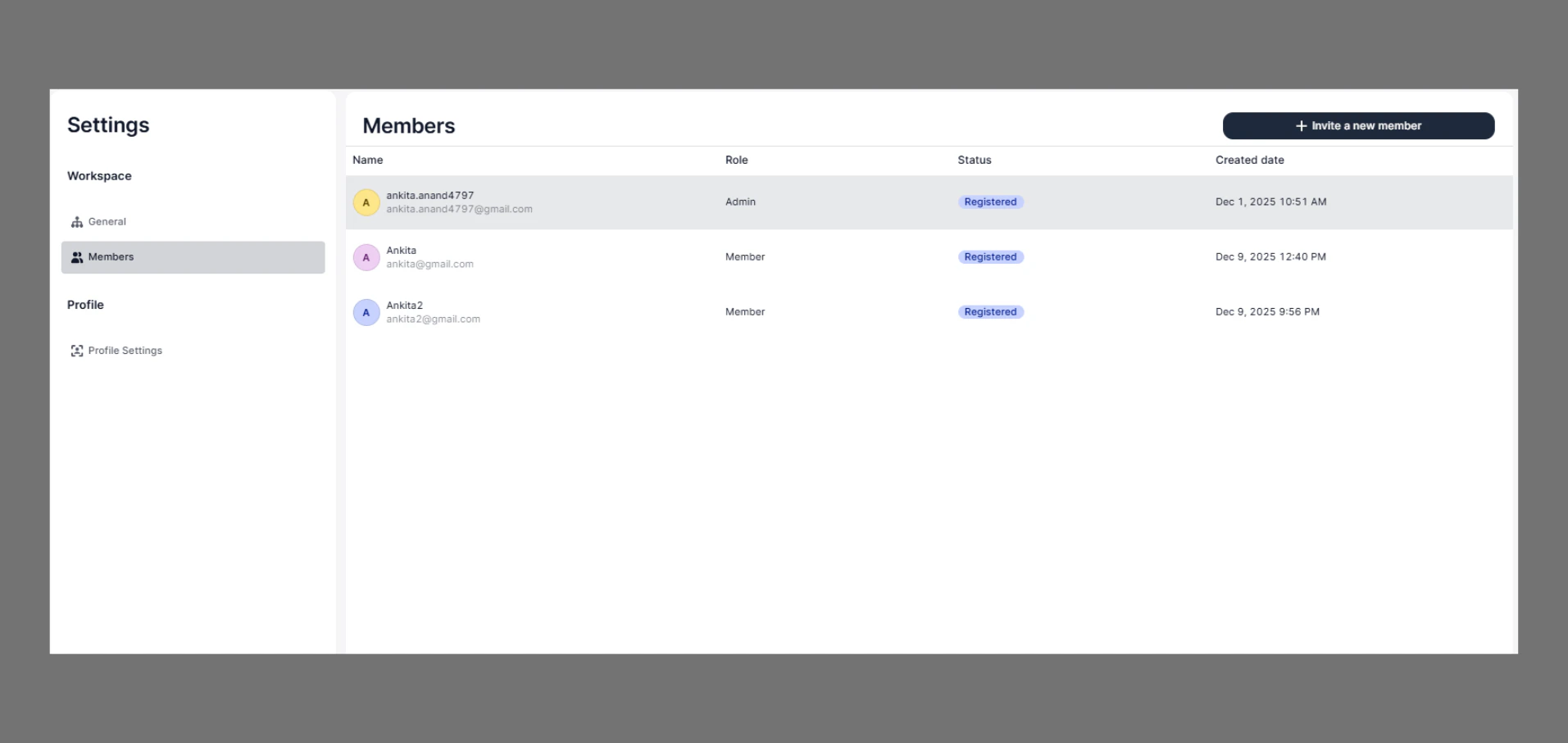
The **Members** page allows workspace administrators to manage team access and collaboration within the platform. From this section, admins can view all existing members, invite new users to the workspace, and remove members when needed.
 ### Navigate
Go to:\
**Settings → Members**
#### You Can View
* Member Name
* Email ID
* Role
* Status
* Created Date
***
## Invite a Team Member
## Steps
1. Go to the **Dashboard**
2. Click on **Settings**
3. Click on **Members**
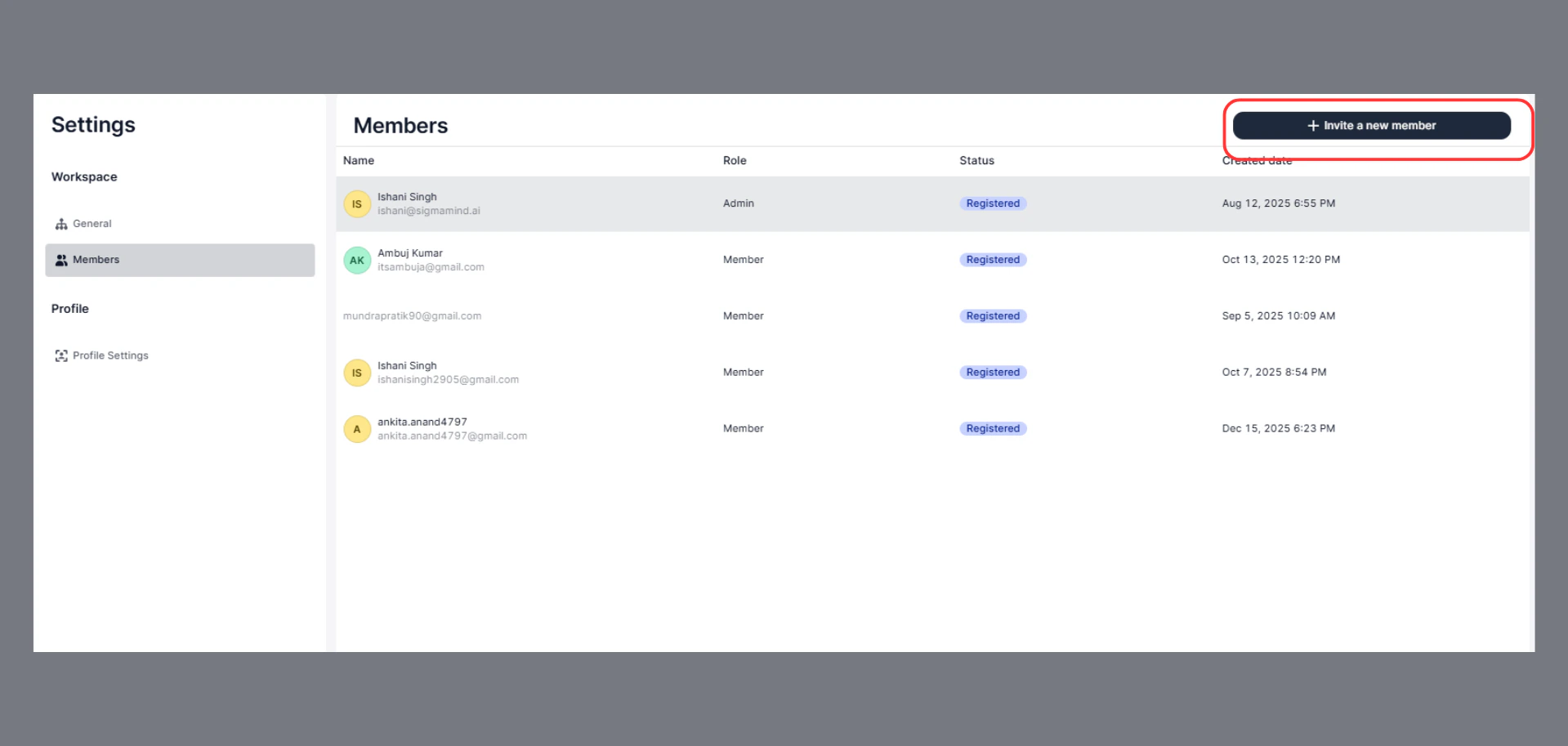
4. Click **“Invite a new member”**
### Navigate
Go to:\
**Settings → Members**
#### You Can View
* Member Name
* Email ID
* Role
* Status
* Created Date
***
## Invite a Team Member
## Steps
1. Go to the **Dashboard**
2. Click on **Settings**
3. Click on **Members**
4. Click **“Invite a new member”**
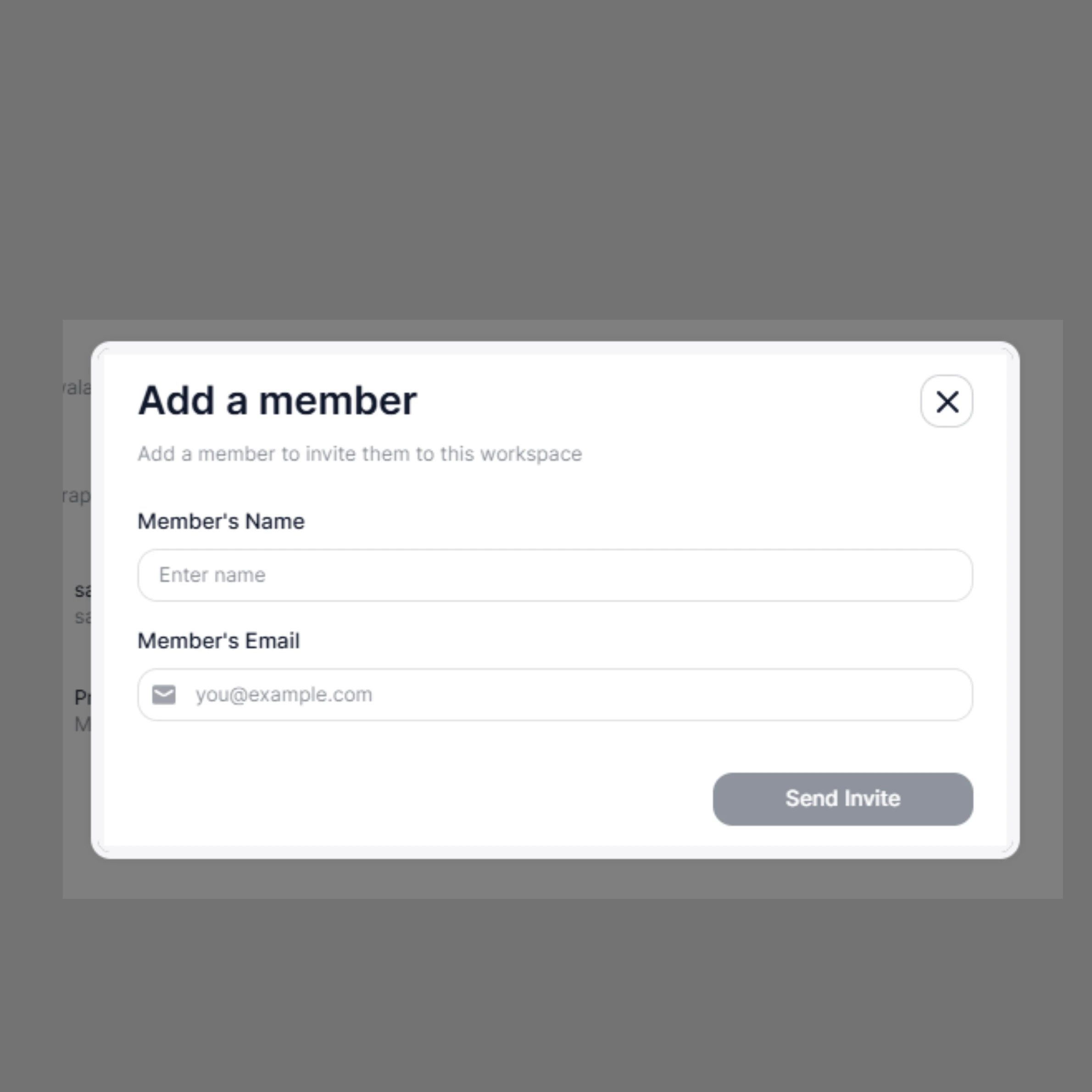
 1. Enter:
* **Member’s Name**
* **Member’s Email ID**
2. Click **“Send Invite”**
1. Enter:
* **Member’s Name**
* **Member’s Email ID**
2. Click **“Send Invite”**
 ***
## What Happens Next
* The invited user receives an email invitation
* After accepting, they are added to the workspace
* The member appears in the **Members list**
***
# Delete (Remove) a Member
## Steps
1. Go to **Settings**
2. Click on **Members**
3. Find the member you want to remove
4. Click the **three-dot menu (⋯)** on the right side
5. Click **“Delete”**
6. Confirm the action
***
## What Happens Next
* The invited user receives an email invitation
* After accepting, they are added to the workspace
* The member appears in the **Members list**
***
# Delete (Remove) a Member
## Steps
1. Go to **Settings**
2. Click on **Members**
3. Find the member you want to remove
4. Click the **three-dot menu (⋯)** on the right side
5. Click **“Delete”**
6. Confirm the action