> ## Documentation Index
> Fetch the complete documentation index at: https://docs.sigmamind.ai/llms.txt
> Use this file to discover all available pages before exploring further.
# Add Integation Tool
The **Add Integration Tool** lets your AI agent call external apps and APIs during a live conversation. Use it to look up customer records, update CRM contacts, create bookings, trigger webhooks, or perform any real-world action exposed by a connected integration — all without interrupting the call.
 ***
## When to Use
Configure this tool when your agent needs to:
* Look up a customer's record in HubSpot, Salesforce, or your own CRM
* Retrieve a policy status, account balance, or order history in real time
* Update a contact's information based on what the customer says
* Create a support ticket, booking, or record mid-conversation
* Trigger any external API action based on conversation context
***
## Prerequisites
Before adding an integration tool to your agent, your integration must already be connected and authenticated.
> See [How to add an Integration](/documentation/tools/add-a-custom-tool) and [How to Configure Authentication](/documentation/tools/authentication) for setup steps.
Once the integration is connected and shows **Auth connected**, you can add its tools to any agent.
***
## Steps to Add via Agent Builder
Adding an integration tool is a **3-step wizard** inside the Agent Builder.
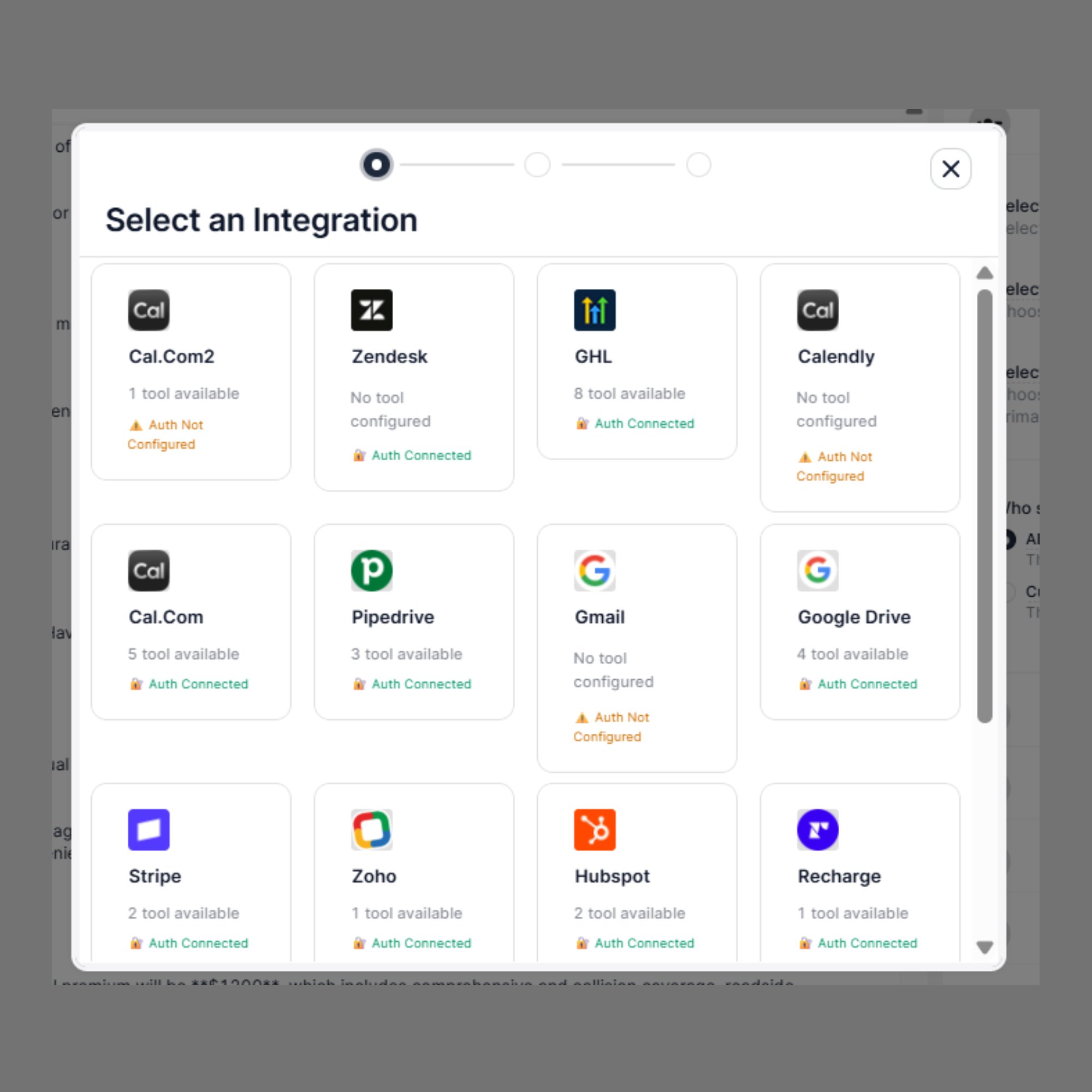
### Step 1: Select the Tool
1. Open the **Agent Builder**
2. Click **+ Add Tool**
3. Select **Add Integration Tool**
4. Choose your connected integration from the list (e.g., HubSpot)
5. The wizard shows all available tool actions for that integration
Each tool action displays:
* The **action name** (e.g., `get_customer_list`, `update_customer_info`)
* The **HTTP method** badge (e.g., `GET`, `PATCH`, `POST`)
* The **endpoint URL** the action calls
Click the tool action you want to add to the agent. If your integration has multiple tools, you can add them one at a time.
**Example — HubSpot tools:**
| Action | Method | Endpoint |
| ---------------------- | ------- | --------------------------------------------------------------- |
| `get_customer_list` | `GET` | `https://api.hubapi.com/contacts/v1/lists/all/contacts/all` |
| `update_customer_info` | `PATCH` | `https://api.hubapi.com/crm/v3/objects/contacts/{{contact_id}}` |
***
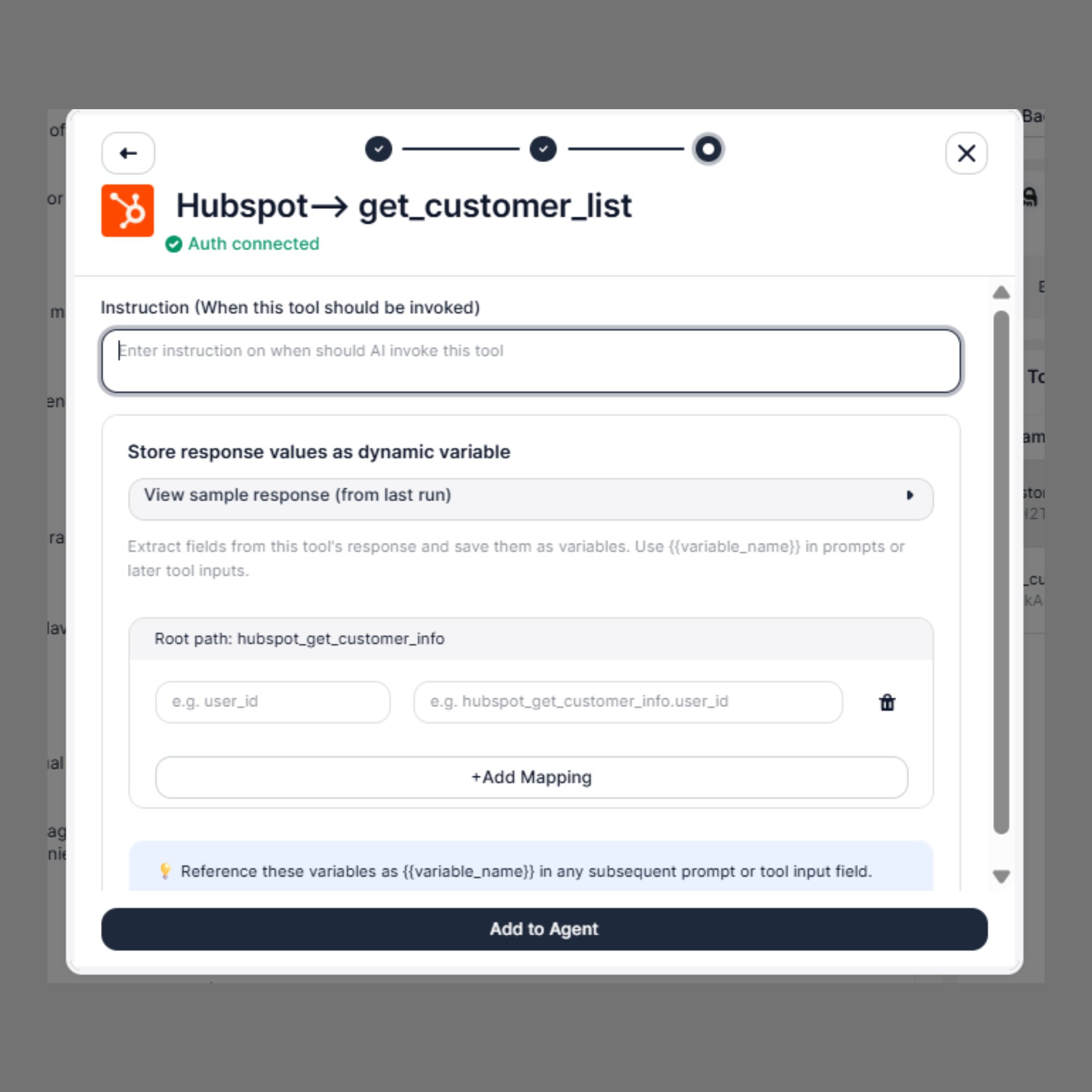
### Step 2: Configure the Instruction
After selecting the tool, the wizard moves to the configuration screen.
#### Instruction *(When this tool should be invoked)*
Write a clear, specific instruction that tells the AI agent when to trigger this API call during the conversation.
```text theme={null}
Invoke this tool after the customer provides their name, to look up their
contact record in HubSpot before proceeding.
```
```text theme={null}
Call get_customer_list when the customer asks about their account status
or when you need to retrieve their contact details.
```
```text theme={null}
Use update_customer_info after the customer confirms a change to their
email address or phone number.
```
The agent uses this instruction alongside the live conversation to decide when to make the API call. A vague instruction causes the tool to fire at the wrong time or not at all.
***
## When to Use
Configure this tool when your agent needs to:
* Look up a customer's record in HubSpot, Salesforce, or your own CRM
* Retrieve a policy status, account balance, or order history in real time
* Update a contact's information based on what the customer says
* Create a support ticket, booking, or record mid-conversation
* Trigger any external API action based on conversation context
***
## Prerequisites
Before adding an integration tool to your agent, your integration must already be connected and authenticated.
> See [How to add an Integration](/documentation/tools/add-a-custom-tool) and [How to Configure Authentication](/documentation/tools/authentication) for setup steps.
Once the integration is connected and shows **Auth connected**, you can add its tools to any agent.
***
## Steps to Add via Agent Builder
Adding an integration tool is a **3-step wizard** inside the Agent Builder.
### Step 1: Select the Tool
1. Open the **Agent Builder**
2. Click **+ Add Tool**
3. Select **Add Integration Tool**
4. Choose your connected integration from the list (e.g., HubSpot)
5. The wizard shows all available tool actions for that integration
Each tool action displays:
* The **action name** (e.g., `get_customer_list`, `update_customer_info`)
* The **HTTP method** badge (e.g., `GET`, `PATCH`, `POST`)
* The **endpoint URL** the action calls
Click the tool action you want to add to the agent. If your integration has multiple tools, you can add them one at a time.
**Example — HubSpot tools:**
| Action | Method | Endpoint |
| ---------------------- | ------- | --------------------------------------------------------------- |
| `get_customer_list` | `GET` | `https://api.hubapi.com/contacts/v1/lists/all/contacts/all` |
| `update_customer_info` | `PATCH` | `https://api.hubapi.com/crm/v3/objects/contacts/{{contact_id}}` |
***
### Step 2: Configure the Instruction
After selecting the tool, the wizard moves to the configuration screen.
#### Instruction *(When this tool should be invoked)*
Write a clear, specific instruction that tells the AI agent when to trigger this API call during the conversation.
```text theme={null}
Invoke this tool after the customer provides their name, to look up their
contact record in HubSpot before proceeding.
```
```text theme={null}
Call get_customer_list when the customer asks about their account status
or when you need to retrieve their contact details.
```
```text theme={null}
Use update_customer_info after the customer confirms a change to their
email address or phone number.
```
The agent uses this instruction alongside the live conversation to decide when to make the API call. A vague instruction causes the tool to fire at the wrong time or not at all.
 ***
### Step 3: Map Response Values as Dynamic Variables
The final step lets you extract values from the API response and save them as `{{variable_name}}` variables for use in subsequent prompts or tool inputs.
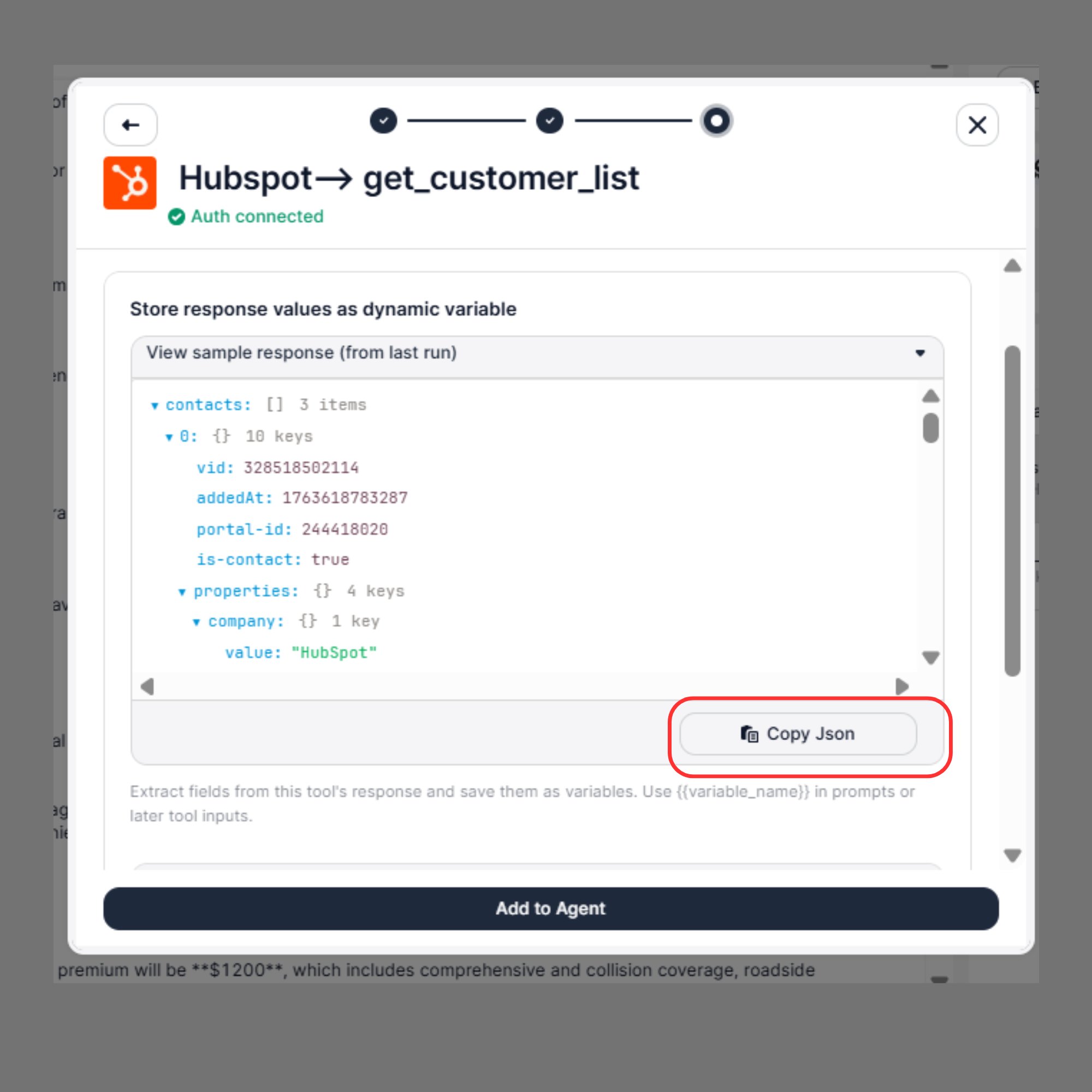
#### View Sample Response
After the tool has been run at least once, click **View sample response (from last run)** to see the actual JSON returned by the API.
**Example — HubSpot `get_customer_list` response:**
```json theme={null}
{
"is-primary": true,
"1": {
"value": "53630cb5-e398-4c5c-978e-97b5c87f688c",
"timestamp": 1764927922684,
"saved-at-timestamp": 1764927922687,
"deleted-changed-timestamp": 0
},
"has-more": false,
"vid-offset": 341631764191
}
```
Use **Copy JSON** to copy the full response structure for reference when setting up your mappings.
***
### Step 3: Map Response Values as Dynamic Variables
The final step lets you extract values from the API response and save them as `{{variable_name}}` variables for use in subsequent prompts or tool inputs.
#### View Sample Response
After the tool has been run at least once, click **View sample response (from last run)** to see the actual JSON returned by the API.
**Example — HubSpot `get_customer_list` response:**
```json theme={null}
{
"is-primary": true,
"1": {
"value": "53630cb5-e398-4c5c-978e-97b5c87f688c",
"timestamp": 1764927922684,
"saved-at-timestamp": 1764927922687,
"deleted-changed-timestamp": 0
},
"has-more": false,
"vid-offset": 341631764191
}
```
Use **Copy JSON** to copy the full response structure for reference when setting up your mappings.
 ***
#### Root Path
The **Root path** defines the base key in the response from which field mappings are extracted. It is auto-populated based on the tool name.
```text theme={null}
Root path: hubspot_get_customer_info
```
This scopes all variable names under a consistent namespace so they don't conflict with variables from other tools.
***
#### Add Mapping
Click **+ Add Mapping** to define which fields from the API response should be saved as variables.
Each mapping row has two parts:
* **Response field path** — the key from the JSON response you want to capture (e.g., `1.value`, `vid-offset`)
* **Variable name** — the `{{variable_name}}` the value will be stored as
**Example mappings for HubSpot response:**
| Response Field | Saved as Variable |
| -------------- | ----------------------- |
| `1.value` | `{{contact_guid}}` |
| `1.timestamp` | `{{contact_timestamp}}` |
| `vid-offset` | `{{vid_offset}}` |
| `has-more` | `{{has_more_contacts}}` |
Once mapped, these variables are immediately available in all subsequent prompts and tool inputs within the same agent:
```text theme={null}
"I found your account, {{customer_name}}. Your contact ID is {{contact_guid}}."
```
```text theme={null}
https://api.hubapi.com/crm/v3/objects/contacts/{{contact_guid}}
```
> Reference these variables as `{{variable_name}}` in any subsequent prompt or tool input field.
***
## Full Example: HubSpot Lookup + Update Flow
**Scenario:** An insurance renewal agent looks up the customer in HubSpot, then updates their renewal status after confirmation.
### Tool 1 — `get_customer_list`
| Field | Value |
| ----------- | ---------------------------------------------------------------------------------------------- |
| Instruction | Look up the customer in HubSpot after they provide their name and confirm their email address. |
| Root path | `hubspot_get_customer_info` |
| Mapping | `1.value` → `{{contact_guid}}` |
### Tool 2 — `update_customer_info`
| Field | Value |
| ----------- | ------------------------------------------------------------------------------------------------- |
| Instruction | Call this tool after the customer confirms they want to renew, to update their record in HubSpot. |
| Endpoint | `https://api.hubapi.com/crm/v3/objects/contacts/{{contact_guid}}` |
| Body | `{ "renewal_status": "confirmed", "renewal_date": "{{renewal_date}}" }` |
The `{{contact_guid}}` extracted from the first tool flows directly into the endpoint URL of the second tool — no manual copying or re-entry needed.
***
## Using Dynamic Variables in Integration Tools
Variables from **Extract Dynamic Variables** or from a previous integration tool's response mapping can be used anywhere in your tool configuration:
**In endpoint URLs:**
```text theme={null}
https://api.hubapi.com/crm/v3/objects/contacts/{{contact_id}}
```
**In request body:**
```json theme={null}
{
"email": "{{customer_email}}",
"policy": "{{policy_number}}",
"status": "{{renewal_status}}"
}
```
**In headers:**
```text theme={null}
Authorization: Bearer {{access_token}}
```
***
## Best Practices
* Write **specific Instructions** for each tool — if two tools have similar descriptions, the agent may call the wrong one
* Always check **Auth connected** is showing before adding a tool to your agent — unauthenticated tools will fail silently
* Use **response mapping** to extract IDs and keys from the first API call, so subsequent calls can reference them without re-asking the customer
* Add mappings only for fields you will actually use — unnecessary variables add noise to the agent context
* Test each tool independently using the **Test** button in the Tool Library before combining them in a live agent flow
* Combine with **Extract Dynamic Variables** to capture customer-provided values before making API calls that need them
***
## Troubleshooting
| Issue | Fix |
| --------------------------------------- | -------------------------------------------------------------------------------- |
| Auth connected not showing | Re-authenticate the integration in the Integrations section |
| API call returning an error | Use the sample response viewer to check the endpoint and payload format |
| Variable not resolving in next tool | Confirm the mapping is saved and the variable name matches exactly |
| Wrong tool being triggered | Rewrite the Instruction to be more specific and distinct from other tools |
| Response fields not appearing in sample | Run the tool at least once via the Test button to populate the last run response |
***
#### Root Path
The **Root path** defines the base key in the response from which field mappings are extracted. It is auto-populated based on the tool name.
```text theme={null}
Root path: hubspot_get_customer_info
```
This scopes all variable names under a consistent namespace so they don't conflict with variables from other tools.
***
#### Add Mapping
Click **+ Add Mapping** to define which fields from the API response should be saved as variables.
Each mapping row has two parts:
* **Response field path** — the key from the JSON response you want to capture (e.g., `1.value`, `vid-offset`)
* **Variable name** — the `{{variable_name}}` the value will be stored as
**Example mappings for HubSpot response:**
| Response Field | Saved as Variable |
| -------------- | ----------------------- |
| `1.value` | `{{contact_guid}}` |
| `1.timestamp` | `{{contact_timestamp}}` |
| `vid-offset` | `{{vid_offset}}` |
| `has-more` | `{{has_more_contacts}}` |
Once mapped, these variables are immediately available in all subsequent prompts and tool inputs within the same agent:
```text theme={null}
"I found your account, {{customer_name}}. Your contact ID is {{contact_guid}}."
```
```text theme={null}
https://api.hubapi.com/crm/v3/objects/contacts/{{contact_guid}}
```
> Reference these variables as `{{variable_name}}` in any subsequent prompt or tool input field.
***
## Full Example: HubSpot Lookup + Update Flow
**Scenario:** An insurance renewal agent looks up the customer in HubSpot, then updates their renewal status after confirmation.
### Tool 1 — `get_customer_list`
| Field | Value |
| ----------- | ---------------------------------------------------------------------------------------------- |
| Instruction | Look up the customer in HubSpot after they provide their name and confirm their email address. |
| Root path | `hubspot_get_customer_info` |
| Mapping | `1.value` → `{{contact_guid}}` |
### Tool 2 — `update_customer_info`
| Field | Value |
| ----------- | ------------------------------------------------------------------------------------------------- |
| Instruction | Call this tool after the customer confirms they want to renew, to update their record in HubSpot. |
| Endpoint | `https://api.hubapi.com/crm/v3/objects/contacts/{{contact_guid}}` |
| Body | `{ "renewal_status": "confirmed", "renewal_date": "{{renewal_date}}" }` |
The `{{contact_guid}}` extracted from the first tool flows directly into the endpoint URL of the second tool — no manual copying or re-entry needed.
***
## Using Dynamic Variables in Integration Tools
Variables from **Extract Dynamic Variables** or from a previous integration tool's response mapping can be used anywhere in your tool configuration:
**In endpoint URLs:**
```text theme={null}
https://api.hubapi.com/crm/v3/objects/contacts/{{contact_id}}
```
**In request body:**
```json theme={null}
{
"email": "{{customer_email}}",
"policy": "{{policy_number}}",
"status": "{{renewal_status}}"
}
```
**In headers:**
```text theme={null}
Authorization: Bearer {{access_token}}
```
***
## Best Practices
* Write **specific Instructions** for each tool — if two tools have similar descriptions, the agent may call the wrong one
* Always check **Auth connected** is showing before adding a tool to your agent — unauthenticated tools will fail silently
* Use **response mapping** to extract IDs and keys from the first API call, so subsequent calls can reference them without re-asking the customer
* Add mappings only for fields you will actually use — unnecessary variables add noise to the agent context
* Test each tool independently using the **Test** button in the Tool Library before combining them in a live agent flow
* Combine with **Extract Dynamic Variables** to capture customer-provided values before making API calls that need them
***
## Troubleshooting
| Issue | Fix |
| --------------------------------------- | -------------------------------------------------------------------------------- |
| Auth connected not showing | Re-authenticate the integration in the Integrations section |
| API call returning an error | Use the sample response viewer to check the endpoint and payload format |
| Variable not resolving in next tool | Confirm the mapping is saved and the variable name matches exactly |
| Wrong tool being triggered | Rewrite the Instruction to be more specific and distinct from other tools |
| Response fields not appearing in sample | Run the tool at least once via the Test button to populate the last run response |